

Choosing how AI is funded
Every Q&A and Chat slide needs an AI model to answer learners. Each workspace reaches that model in one of two ways: with SlideMind Credits, or with your own API keys from an AI provider. This page helps workspace owners choose a mode and explains what changes for authors when the mode changes.
The two modes
Section titled “The two modes”| Mode | Behavior | Use it for |
|---|---|---|
| SlideMind Credits | No API key to provide. Calls run on SlideMind’s managed keys, with a curated model catalogue. Each call debits the credit balance of the workspace owner’s account. | Getting started right away, testing, and teams that prefer one prepaid usage balance. |
| Your own API keys | Slides use the provider keys saved in the workspace: one per provider for the workspace, plus optional course-specific keys. You pay the providers directly. Included from the Pro plan. | Organizations that already have a provider account, or that need a model outside the SlideMind Credits catalogue. |
A workspace uses one mode at a time, and SlideMind never mixes them:
- In SlideMind Credits mode, the workspace’s provider keys are ignored, even if some are saved.
- In Your own API keys mode, no credits are spent. The Billing tab of your account says it plainly: “Credits are spent only by workspaces that run in managed AI mode.”
Capture slides never call the AI, so the mode does not affect them.
The mode of a new workspace
Section titled “The mode of a new workspace”A workspace created from the setup screen starts on SlideMind Credits. The setup screen explains what this means before you create the workspace, and creating it counts as the owner’s consent. Your trial credits then work with no API key, so you can test your first slide in minutes.
On a plan that includes your own API keys, you can switch to them at any time.
Change the mode
Section titled “Change the mode”Only the workspace Owner can change the mode. Editors see the AI & models tab in read-only mode, and Viewers do not have access to Settings.
- Open Settings › AI & models.
- In the AI mode section, select the SlideMind Credits card or the Your own API keys card.
- If you turn on SlideMind Credits for the first time in this workspace, confirm in the consent dialog (see below).
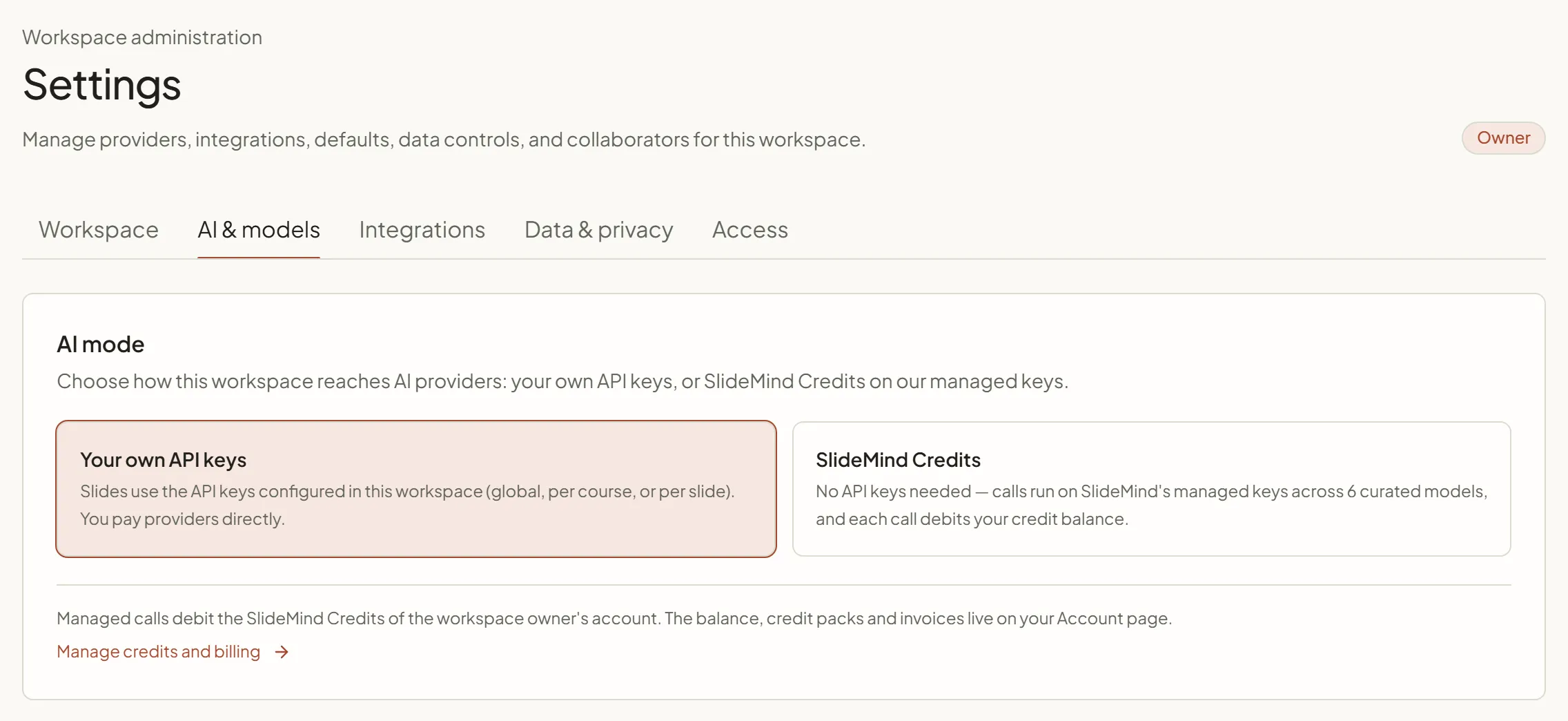
There is no save button: the selected card becomes active at once and stays highlighted, and SlideMind Credits shows an Active badge. The change applies to your published slides without republishing them or reinstalling their integration code.
Under the cards, the owner finds a Manage credits and billing link to Account › Billing, where the credit balance lives.
When your plan doesn’t include your own keys
Section titled “When your plan doesn’t include your own keys”On a plan without your own API keys, the Your own API keys card is disabled. It carries a Pro badge and reads “Use your own provider API keys and pay providers directly. Included from the Pro plan.” The Provider keys section doesn’t appear, and the workspace runs on SlideMind Credits.
A workspace that was running on its own keys before the plan changed shows one of two messages:
| Message | What it means |
|---|---|
| ”Your plan does not include your own API keys, so this workspace runs on SlideMind Credits. Your keys are kept and come back into use on the Pro plan.” | The owner had already turned on SlideMind Credits once in this workspace. Slides keep answering, on credits. |
| ”Your plan does not include your own API keys. Turn on SlideMind Credits so learners can reach the AI again.” | SlideMind Credits were never turned on here. Until the owner selects the SlideMind Credits card and gives consent, learners see that the assistant is temporarily unavailable. |
Consent for SlideMind Credits
Section titled “Consent for SlideMind Credits”When a workspace switches to SlideMind Credits without an earlier consent, a Turn on SlideMind Credits? dialog opens. It explains that, in this mode, conversations and injected memory values go through SlideMind’s provider account instead of your own keys:
- Prompts, learner messages and injected memory values are sent to OpenRouter and its model providers, on SlideMind’s keys.
- SlideMind trains nothing. Calls use only paid provider tiers whose API terms exclude training. Providers may keep exchanges for up to 30 days for safety, under their own terms.
- You remain responsible for informing your learners and collecting their consent in your courses.
Select I consent — enable managed AI to switch, or Cancel to stay on your own keys. The consent is recorded once per workspace: switching back to SlideMind Credits later does not ask again.
For the full picture of what reaches AI providers in each mode, see Data, AI providers and your responsibilities.
What changes in SlideMind Credits mode
Section titled “What changes in SlideMind Credits mode”- Provider keys: The Provider keys section disappears from Settings › AI & models, and every key of the workspace is ignored, including course-specific keys. The keys stay saved: if you switch back, they are used again.
- Models: Slides choose from the SlideMind Credits catalogue. A default model chosen with your own keys is not used: slides that follow the workspace default answer with the catalogue’s default model. Your earlier default stays stored for a return to your own keys.
- Billing: Each call debits the credits of the workspace owner’s account, whoever wrote the slide. See SlideMind Credits.
- Monitoring: Activity labels these calls SlideMind credits and reports consumption in credits.
What changes in API keys mode
Section titled “What changes in API keys mode”- Keys: You need at least one provider key with the Valid status. Without one, Q&A and Chat slides cannot answer learners. The Overview dashboard warns you when no key is saved or when a key failed its last test. See Your own provider keys.
- Models: The model list comes from your provider’s own catalogue.
- Costs: Your provider bills you directly. SlideMind shows estimated costs in USD, based on provider prices. No credits are spent.
- Monitoring: Activity labels these calls Own API key.
Who can see and change the mode
Section titled “Who can see and change the mode”| Role | What they can do |
|---|---|
| Owner | Choose the mode, give consent, manage provider keys and credits. |
| Editor | See the active mode and the workspace defaults, without changing them. Choose the model of the slides they edit. |
| Viewer | No access to Settings. |
Each mode change is recorded as AI mode changed in the Security tab of Activity, which only owners can open.
Next steps
Section titled “Next steps”- SlideMind Credits: buy credits and follow your balance.
- Your own provider keys: add, test and manage provider keys.
- Models and response settings: choose a model and tune its answers.
- Data, AI providers and your responsibilities: what reaches AI providers in each mode.