

Activity types: Q&A, Chat, Capture
Every slide combines an activity, what the learner does, with an interface, where the activity runs in your course. This page helps you choose both, and shows how the choice shapes the slide editor.
The three activities
Section titled “The three activities”| Activity | In the app | What happens | AI and cost | Use it for |
|---|---|---|---|---|
| Q&A | ”One question, one AI answer” | The learner answers one question and gets one AI reply. | One AI reply per answer. | Feedback on an open answer, formative assessment, quiz debrief |
| Chat | ”A short conversation” | The learner and the AI exchange several messages. You set how many. | Each learner message is one paid AI reply. | Tutoring, guided exploration, role-play |
| Capture | Memory capture, “Saves values, no AI” | When the learner reaches the screen, SlideMind saves values from your authoring tool in the learner’s memory. | No AI: no instructions, no model, no cost. | Remembering a job title, a choice or a score for later slides |
Capture saves values only for identified learners, for example learners launched from your LMS. See Saving values and Identifying learners.
The two interfaces
Section titled “The two interfaces”| Interface | Who draws the screen | How it connects | Destinations |
|---|---|---|---|
| Authoring tool interface | You do, with your authoring tool’s own text entry fields, buttons and text boxes. | Integration code (JavaScript) reads the learner’s text from an authoring tool variable and writes the AI reply into another one. | Articulate Storyline, Adobe Captivate, Lectora, dominKnow | ONE, iSpring Suite |
| SlideMind widget | SlideMind does. The widget shows the question, the answer box and the reply, and you style it in the Look step. | You paste a snippet or insert a folder. Nothing to build in your authoring tool. | Articulate Rise 360 (Code block), Articulate Storyline (Web Object), HTML Widget (iframe) |
Storyline works both ways: with JavaScript triggers (authoring tool interface) or as a Web Object (SlideMind widget).
For a Capture slide, the same choice is called Integration method:
- Authoring tool connection: the integration code reads your authoring tool variables. This is the usual setup.
- Embedded capture: a SlideMind widget that saves values sent to it by the page around it. It needs custom code on that page, so it is for web integrators. See HTML widget (iframe).
A Storyline capture always uses JavaScript, so the Web Object is not offered for Capture.
Which one to choose?
Section titled “Which one to choose?”| If you need… | Choose | Why |
|---|---|---|
| A ready-made screen, with nothing to build in your authoring tool | SlideMind widget | The widget shows the question, the answer box and the reply. You pick a layout and colors in Look. |
| Full control of the screen design | Authoring tool interface | You place and style every element with your authoring tool. |
| Values from your course screen in the prompt, such as a quiz score | Authoring tool interface | The integration code sends authoring tool variables with the answer. The SlideMind widget does not send them. |
| A score and a verdict shown to the learner, with no logic to build | SlideMind widget, Q&A | The Score and verdict reply format shows a score and a pass, partial or fail verdict. |
| Each result in its own variable, to drive triggers or branching | Authoring tool interface, or Storyline as a Web Object | With Structured JSON (called Score and verdict for a Q&A in a Web Object), each field lands in a variable of its own. |
| An AI notice before the first answer | SlideMind widget | Only the widget shows the AI notice. See AI notice. |
| To hold the learner until the activity is finished | Either | In Rise 360, turn on “Set completion requirements” in the Code block so a Continue block waits for the activity. A Storyline Web Object writes an Activity finished (true/false) variable, and an authoring tool Chat writes a Conversation ended (true/false) variable. Your triggers can use them. |
| A slide in Rise 360 | SlideMind widget | Rise 360 is a SlideMind widget destination. |
| To save learner values without AI | Capture | No AI call and no cost. |
Results and their formats are covered in Results: plain text or structured.
What the editor shows for each combination
Section titled “What the editor shows for each combination”The slide editor lists the steps that apply to your combination. A step that doesn’t apply to the chosen interface stays in the outline, grayed out with a dash icon, and you can’t open it.
| Activity and interface | Steps |
|---|---|
| Q&A, SlideMind widget | Question → Instructions → Results & memory → Look → AI model → Installation |
| Q&A, authoring tool interface | Question → Instructions → Results & memory → AI model → Installation (Look is grayed out) |
| Chat, SlideMind widget | Instructions → Conversation → Results & memory → Look → AI model → Installation |
| Chat, authoring tool interface | Instructions → Conversation → Results & memory → AI model → Installation (Look is grayed out) |
| Capture | Values to remember → Installation |
Two details:
- In a Chat shown in Rise 360 or in the HTML widget, the AI always answers in plain text, so the Results & memory step only holds the memory settings and is labeled Memory.
- The Opening message of a Chat is part of the Conversation step with the SlideMind widget only.
See The slide editor for what each step does.
Change the activity or interface
Section titled “Change the activity or interface”You choose the activity and the interface when you create the slide, and you can change them later.
- In the slide editor, find the Activity box at the top of the step outline. It shows the activity and a sentence such as “In Storyline, with the SlideMind widget”.
- Select Change. The Activity and destination dialog opens.
- Choose the activity: Q&A, Chat or Memory capture.
- Choose the Interface (Authoring tool or SlideMind widget), then the Destination. For a capture, the first field is Integration method.
- Select Done, then Save slide.
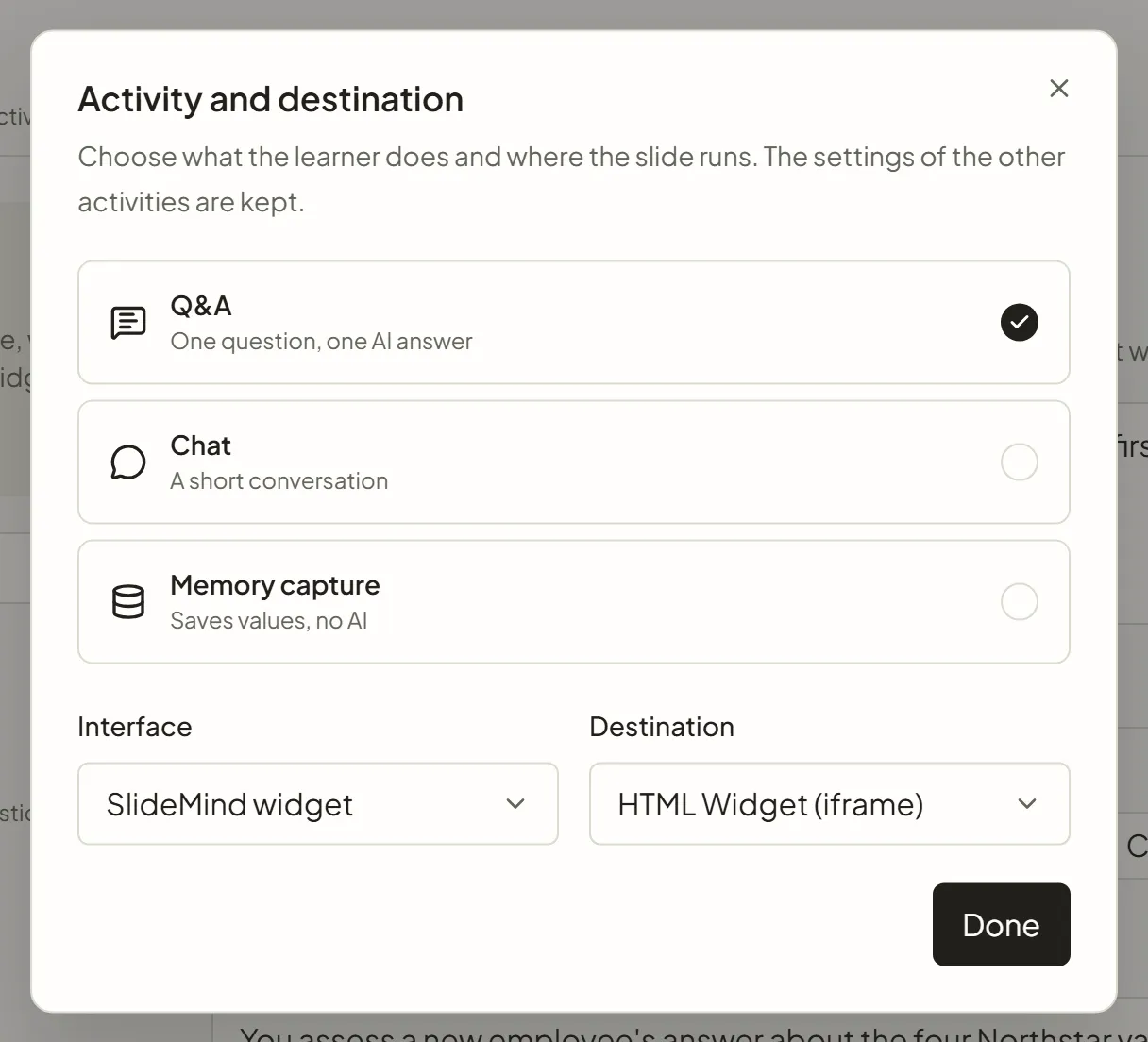
The settings of the other activities are kept. If you switch a Q&A slide to Chat and back, its question and results are still there. The question of a Q&A and the Opening message of a Chat with the SlideMind widget are the same text, so check it in the Question or Conversation step after a switch.
On smaller screens, the Activity box becomes a button in the row of steps, showing the activity and its destination. Select it to open the same dialog.
New slides start with the destination set in Default editor, under Settings › Integrations. Only the workspace Owner can change it.