

Version history
SlideMind keeps the earlier versions of your slides and custom templates. If a change doesn’t work out, you can see what changed, put the previous version back, or download it. This page is for authors and workspace owners.
What is kept
Section titled “What is kept”Each time you save a slide or a custom template, SlideMind keeps the version that your save replaced. An import that replaces a slide or a template does the same.
Changing only the status of a slide or template, or the position of a slide, doesn’t add a version. Built-in templates have no history: they’re read-only. Deleting a slide or a custom template also deletes its history.
Open the history
Section titled “Open the history”- Slide: in the slide editor, open the Actions menu (⋯) at the top of the page, then History.
- Custom template: on the template’s page, click History.
Everyone in the workspace can read the history. Restoring and downloading a version require the Owner or Editor role and, for a template, a plan that includes custom templates.
Read an entry
Section titled “Read an entry”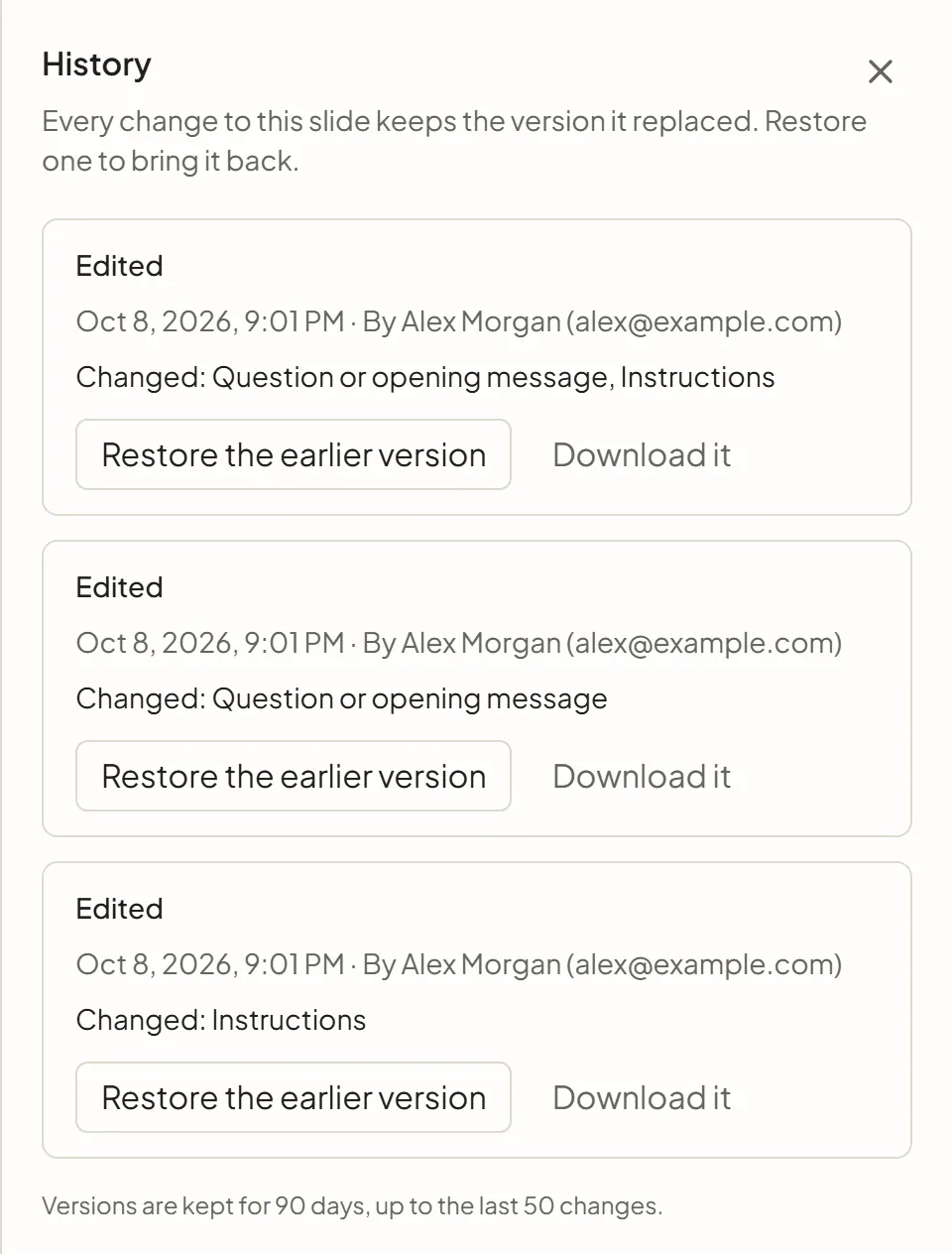
Each entry describes one change, newest first:
-
Why it was kept:
Reason Meaning Edited Someone saved a change in the slide editor or on the template page. Replaced by an import An import replaced the content with Replace its content. Earlier version restored Someone restored an earlier version. -
When and who: the date and time, and the member who made the change.
-
What changed: a line such as “Changed: Instructions, AI model”. The areas match the steps of the slide editor: Title, Question or opening message, Instructions, Response example, Activity type, Conversation, Results, Memory, Variables, Course and module context, Look, AI notice, AI model, Installation, Details and Other settings.
The version you restore or download is the one from immediately before that change.
Restore an earlier version
Section titled “Restore an earlier version”- Save or discard your current edits. With unsaved changes, the panel shows “Save your changes before restoring an earlier version.” and restoring is turned off.
- On the entry, click Restore the earlier version.
- Read the confirmation and click Restore the earlier version again.
What restoring does:
- The slide goes back to how it was immediately before the change you picked.
- Its status and position stay as they are. A template keeps its status.
- The integration code already installed in your course keeps working. On a published slide, the next AI calls use the restored version.
- The current version stays in the history, with the reason Earlier version restored, so you can undo the restore.
- The restore is recorded in Activity.
Download a version
Section titled “Download a version”Download it saves that version as a SlideMind export file. Use it to keep a copy, or to bring the version back later:
- For a slide, import the file from Content › Slides › Import / export › Import slide(s). SlideMind recognizes the slide it came from, wherever it sits and whatever its current title, and offers Replace its content.
- For a template, import it from Content › Templates › Import.
See Import and export.
How long versions are kept
Section titled “How long versions are kept”The bottom of the History panel tells you how long versions are kept and how many recent changes are kept per slide or template. Older versions are removed automatically, and the removal is recorded in Activity as “Old versions removed”.