

Learner data
Learner data shows the values that learner memory stores for each identified learner. Workspace owners use it to inspect, correct, export or delete those values, for example to answer a learner’s privacy request. This page is for workspace owners; Editors can see the list of learners.
Open it from the sidebar: Memory › Learner data.
Who can do what
Section titled “Who can do what”| Task | Owner | Editor | Viewer |
|---|---|---|---|
| See the list of learners and search it | Yes | Yes | No |
| Open a learner’s values | Yes | No | No |
| Edit or delete a value | Yes | No | No |
| Export CSV | Yes | No | No |
| Purge learner | Yes | No | No |
An Editor sees the list, but its rows do not open, and the line “Only workspace owners can open a learner’s stored values.” Viewers do not have access to this page.
In a read-only workspace, after the owner’s account returned to Discovery, the owner can still export, delete values and purge learners. See Back on Discovery: read-only above the limits.
The learner list
Section titled “The learner list”The list shows one row per learner with stored values, the most recent activity first:
| Column | What it shows |
|---|---|
| Learner identifier | The identifier received from the LMS or the sm_user parameter. |
| Stored scopes | How many values the learner has at each scope that holds some, for example “Global 2 · Slide 1”. |
| Values | The total number of stored values. |
| Last activity | The date and time of the most recent change to the learner’s values. |
When the list has more than one page, Previous and Next buttons appear below it.
The list stays empty until a value is saved for an identified learner. Learners using share links, Review 360 or authoring-tool previews are never identified, so they never appear here. See Identifying learners.
Find a learner
Section titled “Find a learner”- In the search field at the top of the page, paste the learner’s complete identifier, for example
learner@example.comor a complete LMS identifier. - Click Search.
“Encrypted learner data only supports exact search.” A partial identifier returns No exact match. Click Clear, next to Search, to return to the full list.
Open a learner’s values
Section titled “Open a learner’s values”As the workspace owner, click anywhere on the learner’s row. The Learner memory panel opens, with the learner’s identifier under its title. The copy button next to the identifier copies it.
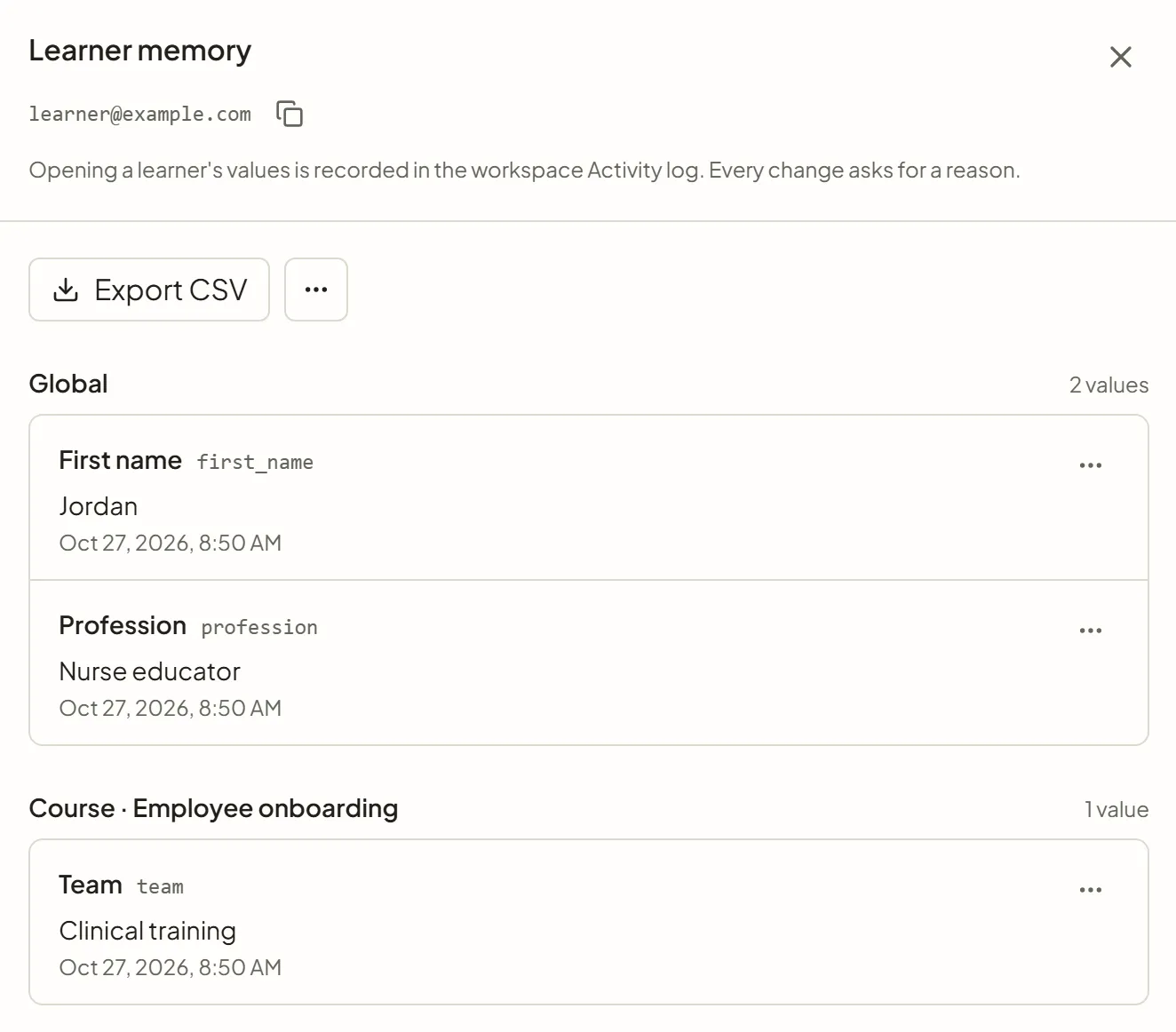
“Opening a learner’s values is recorded in the workspace Activity log. Every change asks for a reason.”
At the top of the panel, Export CSV and a ⋯ menu hold the actions on the whole learner. Below them, values are grouped by where they are stored: Global, or the scope and name of the course, module or slide, with the number of values in each group. Each value shows its key, its content and the date of its last update. Long values, such as kept conversations, show only their length until you click Show.
Give a reason for each change
Section titled “Give a reason for each change”Editing a value, deleting a value and purging a learner each ask for a reason. Two fields appear above the buttons of the dialog:
- Reason for this change: choose The learner asked for it, The stored value is wrong, Test or demo data or Other.
- Note: optional, and required with Other.
The confirm button stays inactive until you choose a reason. The reason and the note are “Recorded in the Activity log, even after the learner is purged. Do not write personal information here.”
Correct a value
Section titled “Correct a value”- Open the ⋯ menu of the value and choose Edit value.
- In Edit stored value, replace the text. A value can hold up to 10,000 characters.
- Under Reason for this change, choose a reason, and add a Note if needed.
- Click Save. The button stays inactive until you change the text and choose a reason.
Delete a value
Section titled “Delete a value”- Open the ⋯ menu of the value and choose Delete value.
- In Delete this stored value?, choose a reason under Reason for this change.
- Click Delete value.
The value is removed for this learner and this scope only.
Export a learner’s values
Section titled “Export a learner’s values”Click Export CSV. Your browser downloads a CSV file with one row per value and these columns: scope, scope_id, scope_name, variable, value, updated_at.
The file contains the learner’s values in clear text. Store it and send it securely.
Purge a learner
Section titled “Purge a learner”- Open the ⋯ menu next to Export CSV and choose Purge learner.
- In Purge all memory for this learner?, choose a reason under Reason for this change.
- Click Purge learner.
If the learner keeps using your courses afterwards, slides save new values for them as usual.
The learner’s changes
Section titled “The learner’s changes”Below the values, the Changes section lists the changes made to this learner’s values: Value edited, Value deleted or All values purged. Each row shows the variable and where it is stored, the reason (with the note in quotes), the date and who made the change. Changes made before reasons were required show “No reason recorded”. With no change yet, the section reads “No change recorded for this learner.”
Every action is recorded
Section titled “Every action is recorded”Owners can review these events in Activity, on the Security tab:
| Event | When |
|---|---|
| Learner values opened | An owner opened a learner’s values. |
| Learner values exported | An owner downloaded the CSV export. |
| Learner value edited | An owner changed a value. |
| Learner value deleted | An owner deleted one value. |
| Learner memory purged | An owner purged a learner. |
Under each edit, deletion or purge, a line shows the variable, the scope (or the number of values purged) and the reason. See Activity and analytics.
Answer a learner’s request
Section titled “Answer a learner’s request”Learners may ask to see, correct or delete the data held about them. For learner memory, use this page:
| Request | What to do |
|---|---|
| Access | Find the learner, open their values and click Export CSV. Send the file securely. |
| Correction | Open the learner’s values and edit the wrong value, with the reason The learner asked for it. |
| Deletion | Choose Purge learner in the ⋯ menu next to Export CSV, or delete individual values, with the reason The learner asked for it. |
Learner data covers learner memory only. It does not reach the data held by your LMS, files you exported earlier, or what AI providers may retain under their own terms. See Data, AI providers and your responsibilities.
Next steps
Section titled “Next steps”- Data, AI providers and your responsibilities: what you must tell learners and what SlideMind keeps.
- Memory Hub: see which keys are stored in the workspace.
- Saving values: control what slides save in the first place.