

Tour of the portal
This page shows how the SlideMind portal is laid out and where each feature lives. Read it once after your first sign-in, or come back when you look for a screen.
The layout
Section titled “The layout”On a computer, the portal has three parts:
- The sidebar, on the left: the workspace switcher, the navigation, then Documentation, Help and Settings.
- The top bar: your role and the workspace URL on the left, the theme button and the account menu on the right.
- The main area, where each screen opens.
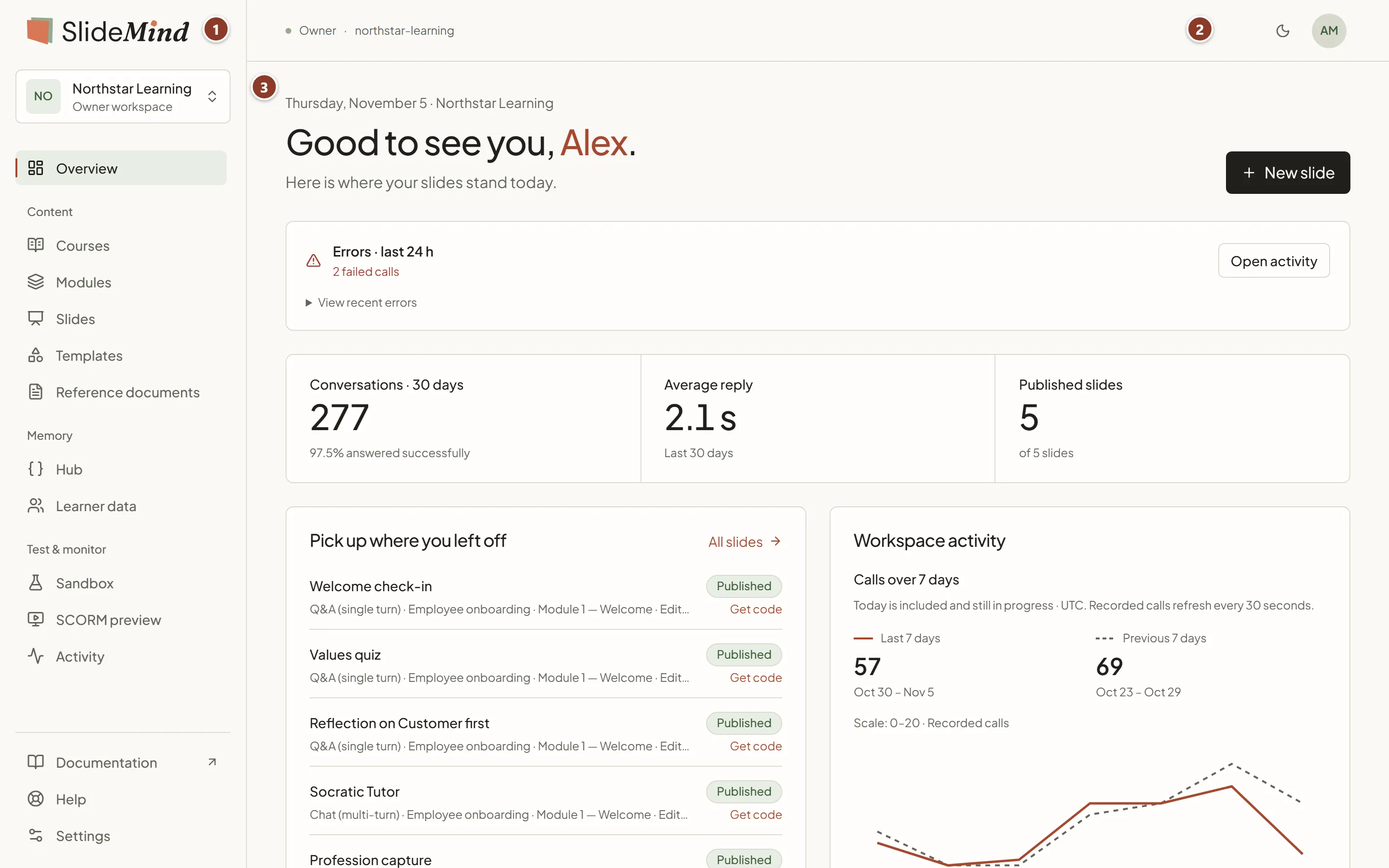
On a tablet or a phone, the sidebar is hidden. Select the menu button at the top left to open it as a panel. The top bar then shows the workspace name, the theme button and the account menu, plus a workspace switcher if you belong to several workspaces.
Each page address includes your workspace URL, for example my.slidemind.app/workspace/northstar-learning/slides. You can bookmark a page or send its link to another member of the workspace.
The workspace switcher
Section titled “The workspace switcher”The top of the sidebar shows the active workspace and your role in it, for example Owner workspace.
Select it to open Switch workspace, even if you belong to only one workspace. The list shows each workspace with your role, and a check mark next to the active one. These badges can appear:
- Suspended: the workspace is not available and can’t be opened.
- Pending deletion: the workspace is scheduled for deletion. Opening it shows when it will be deleted; only its owner can restore it.
- Editable or Read-only: the owner’s account has returned to Discovery, and only what its limits allow stays editable. See Back on Discovery: read-only above the limits.
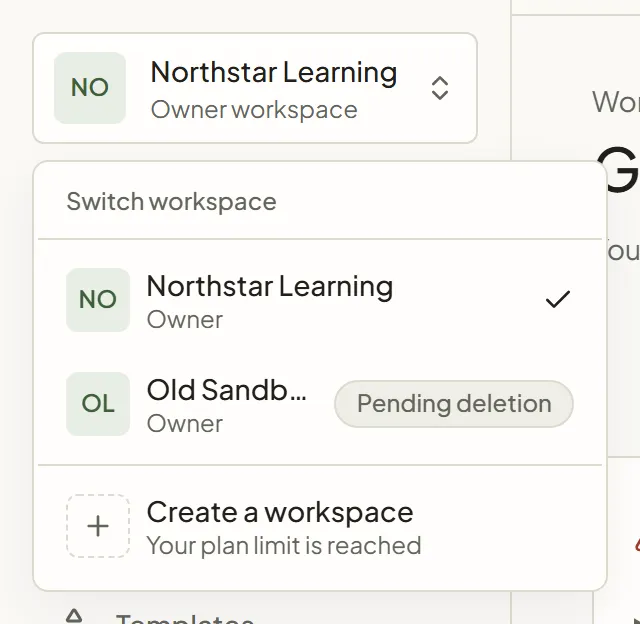
The menu ends with Create a workspace, to create another workspace of your own.
See Several workspaces and Delete or restore a workspace.
The navigation
Section titled “The navigation”The navigation starts with Overview, followed by three groups. On a computer, hover over an item to see what it is for, with an example.
| Item | What you find there | Learn more |
|---|---|---|
| Overview | Your SlideMind Credits and key figures, the points that need your attention, your getting-started checklist, your recent slides and activity. | Overview dashboard |
| Content › Courses | Courses, which organize modules, slides, objectives and shared context. | Courses and modules |
| Content › Modules | Groups of related slides that share a subject and supporting context. | Courses and modules |
| Content › Slides | Every AI slide of the workspace, with its model, calls and status. Each row’s ⋯ menu copies its integration code. | Create a slide |
| Content › Reference documents | Documents whose text the AI reads in the courses, modules and slides you link them to. | Reference documents |
| Content › Templates | Reusable starting points for instructions, behavior and returned variables. | Templates |
| Memory › Hub | The Memory Hub: the learner facts your slides can capture and reuse in later prompts. | Memory Hub |
| Memory › Learner data | The values actually stored for each identified learner. | Learner data |
| Test & monitor › Sandbox | A slide draft you build and try from A to Z, never saved: start from a blank slide or a copy of a saved one. | Sandbox |
| Test & monitor › SCORM preview | Launch your exported SCORM or xAPI package as a test learner, without an LMS. | SCORM preview |
| Test & monitor › Activity | Usage, conversations, errors and model activity across the workspace. | Activity and analytics |
At the bottom of the sidebar:
- Documentation opens this documentation site in a new tab.
- Help opens the Contact support form. See Contact support.
- Settings opens the workspace settings, described below.
Settings
Section titled “Settings”Settings gathers what applies to the whole workspace, in five tabs:
| Tab | What it holds | Learn more |
|---|---|---|
| Workspace | The workspace name, and the deletion of the workspace. | Workspace settings |
| AI & models | The AI mode (SlideMind Credits or your own API keys), the Provider keys when the workspace uses your own API keys, and the defaults for new slides. | Choosing how AI is funded |
| Integrations | Allowed origins (in Embedding), the defaults of the HTML widget, and testing and server access. | Allowed websites |
| Data & privacy | Log and memory retention, and the workspace export and import. | Workspace settings |
| Access | Members and invitations. | Members and roles |
Owners can change these settings. Editors can read them, and viewers don’t have access to them. See Members and roles.
The account menu
Section titled “The account menu”Select your initials at the right of the top bar to open the account menu. It starts with your name and e-mail address, then shows:
- Current plan: the plan of the active workspace, for example Discovery. Some features and quantities depend on the plan. See Plans. To subscribe or change plan, go to Account › Billing: see Plan and subscription.
- SlideMind Credits, if you own the workspace: your credit balance. Select it to open Account › Billing. See SlideMind Credits.
- Workspace settings opens Settings on its Workspace tab.
- Account profile opens your account page, with the tabs Profile, Security, Sessions, Billing, Data export and Danger zone. These settings follow you across every workspace. See Profile and e-mail, Password, two-factor and sessions, Plan and subscription and SlideMind Credits.
- Language switches the portal between English and Français at once, and saves your choice on your account. See Profile and e-mail.
- Sign out signs you out of the portal.
Light and dark theme
Section titled “Light and dark theme”The button in the top bar switches between the light and dark themes. Its label reads Switch to dark theme or Switch to light theme. The portal opens in the light theme and doesn’t follow your system setting. Your choice is remembered in this browser.
Behaviors you’ll meet everywhere
Section titled “Behaviors you’ll meet everywhere”- Breadcrumbs: course, module and template pages, and the slide editor, show a breadcrumb trail above the title. Select a level to go back to it.
- Save buttons: Save slide, Save course, Save module, Save template and the save buttons of the settings stay inactive until you change something.
- Unsaved changes: if you leave the slide editor or a settings section with unsaved changes, SlideMind asks Leave with unsaved changes? Select Cancel to keep editing, or discard your changes and leave.
- Unverified e-mail address: a banner reads Your e-mail address is not verified. until you open the verification link. Select Send a new link to get another one.
- What your role allows: owners, editors and viewers see different buttons. For example, viewers can read slides but can’t create or test them. See Members and roles.