

Write the AI instructions
The instructions tell the AI who it is, what to look for in the learner’s answer, and how to reply. This page covers the question of a Q&A slide, the instructions, the example answer and Generate with AI, with writing tips that apply to every Q&A and Chat slide.
What the AI receives
Section titled “What the AI receives”Each time a learner sends a message, SlideMind builds the prompt from:
- your Instructions for the AI, with each variable replaced by its value: course and module context, learner memory, or values sent by your course screen;
- your Example answer, if the slide has one;
- for a Q&A slide, the question shown to the learner;
- the rules SlideMind adds itself: the format of structured results, the closing instruction on the last turn of a Chat, and the plain-text rule when it is on.
The learner’s message comes next, after the earlier messages for a Chat. Learners never see the instructions or the example.
The question of a Q&A slide
Section titled “The question of a Q&A slide”A Q&A slide starts with the Question step, “What does the learner see?”.
- With the SlideMind widget: the question is shown in the widget, above the answer box. The AI receives it with each answer.
- With the authoring tool interface: your authoring tool shows the question on its own screen. Type the same question here, word for word: SlideMind sends it to the AI with each answer.
The question is optional, but the AI judges answers better when it knows the question. You don’t need to repeat it in the instructions.
Variables work in the question too: type @ or click a chip. Click a variable’s pill to set the text shown under If empty, show. For example, {{memory.first_name|dear learner}} shows “dear learner” when the learner’s first name is missing or empty. See Variables in prompts.
The opening message of a Chat
Section titled “The opening message of a Chat”With the SlideMind widget, a Chat slide has an Opening message in its Conversation step. It is the first message learners see: use it to welcome them, set the scene or give the first instruction. It is part of the conversation the AI reads, but it doesn’t call the AI by itself. See Conversations (Chat).
Instructions for the AI
Section titled “Instructions for the AI”In the Instructions step, “How should the AI respond?” for a Q&A slide or “What should the AI do?” for a Chat, write the AI’s role and rules in Instructions for the AI. For a Q&A slide, also say how the AI judges the answer.
Good instructions cover five parts:
| Part | What to write | Example |
|---|---|---|
| Role | Who the AI is | You are a supportive safety coach. |
| Task | What the AI assesses or does | Assess the learner’s answer to the question on screen. |
| Criteria | What a good answer contains | A complete answer names the risk and the first action to take. |
| Format | Length and structure of the reply | Reply in three to five sentences. |
| Limits | What the AI must not do | Never give the full model answer. |
Put together, with course variables and fallbacks:
You are a supportive safety coach for {{course_theme|this course}}.Assess the learner's answer to the question shown on screen.
A complete answer:- names the main risk;- gives the first action to take and explains why.
Course objectives: {{course_objectives|not specified}}
Start with what the answer gets right. Then name at most two missingpoints. Reply in three to five sentences, in a warm and direct tone.Never give the full model answer.
Insert variables
Section titled “Insert variables”Type @ in the instructions to search the available variables, or select a variable in the Insert row under the field. Its chips are grouped by source: Course and module context (only the fields that have a value), Learner memory and, with the authoring tool interface, Slide variables. If you write a course or module variable with a dot, such as {{course.theme}}, a warning under the field says it never resolves and gives the correct name, {{course_theme}}. See Variables in prompts.
With the authoring tool interface, a Values from button named after your tool, such as Values from Storyline, is where you list the extra values your screen sends with the answer, like a quiz score. The SlideMind widget does not send such values. See Variables in prompts.
Course context and overrides
Section titled “Course context and overrides”When the slide is attached to a course or a module, the Instructions step shows a Course context button. It opens Course and module context, which lists each inherited field with its variable and its current value.
- Select Course context.
- Turn on Override for the field to replace. Its value becomes editable, for this slide only.
- To give the slide a value for a field that is empty on the course or module, select it after “Not set on the parent — override for this slide:”.
- Close the panel and select Save slide.
The AI only receives a context field where the instructions contain its variable. See Courses and modules.
Reference documents
Section titled “Reference documents”Reference documents don’t need a variable: the AI reads them with each answer of the slides they are linked to. A line under Instructions for the AI says what this slide reads, for example “Reads 2 reference documents (6 pages) in full with each answer”, or “No reference documents.”.
Select Manage (or Add one) on that line to open Course and module context. Its Reference documents section lists the documents from the course, from the module and from this slide only. From there you can add or link a document to this slide, or turn off Use in this slide so that this slide reads no document. See Reference documents.
Your instructions can still tell the AI how to use them, for example “Base your feedback on the onboarding policy, and quote the section you rely on.”
Example answer
Section titled “Example answer”Select Example answer under the instructions to write a model reply. The instructions say what to do; the example shows it. The AI imitates its format, tone and length more reliably than a description of them.
Good thinking! Your answer shows you understood the main risk.
Two points would make it stronger: name the person who must beinformed first, and say when the incident report is due.
Keep going: you are close to a complete answer.
Best practices
Section titled “Best practices”Select Best practices under the field to see the app’s checklist.
| Do | Avoid |
|---|---|
| Write one complete answer, exactly as you’d like the AI to reply to a learner. | Instructions such as “You must…” or “Answer in…”: they belong in the instructions. |
| Reproduce the exact format you expect: paragraphs, bullet points, headings. | Repeating the instructions: the example complements them. |
| Show the tone you want through the example itself. | Very long examples, beyond about 300 words: the AI imitates them less reliably. |
| Match the length you expect, from a short confirmation to a detailed explanation. | Real learner data: keep the example generic. |
| Several formats in one example: one clear format per slide. |
When plain-text responses are on (see Writing tips), write the example in plain text too.
Course and module examples
Section titled “Course and module examples”Courses and modules have their own Response example field. When the slide’s course or module has one, a line under the slide’s Example answer tells you which example the editor considers: “This slide defines its own example — parents are ignored.”, “Currently inheriting the module example.” or “Currently inheriting the course example.”
To reuse a parent’s example on a slide, type its variable in the slide’s Example answer, alone or with text around it:
{{module_response_example}}for the module’s example;{{course_response_example}}for the course’s example.
Generate with AI
Section titled “Generate with AI”Generate with AI drafts the instructions for you from your teaching intent. You can then edit them like any other text.
- In the Instructions step, select Generate with AI. The Generate a learning prompt dialog opens.
- Fill in the fields below.
- Select Generate. The draft appears under Generated prompt, where you can edit it.
- Select Apply prompt. The draft replaces everything in Instructions for the AI.
- Read the result, test it in Try it, then select Save slide.
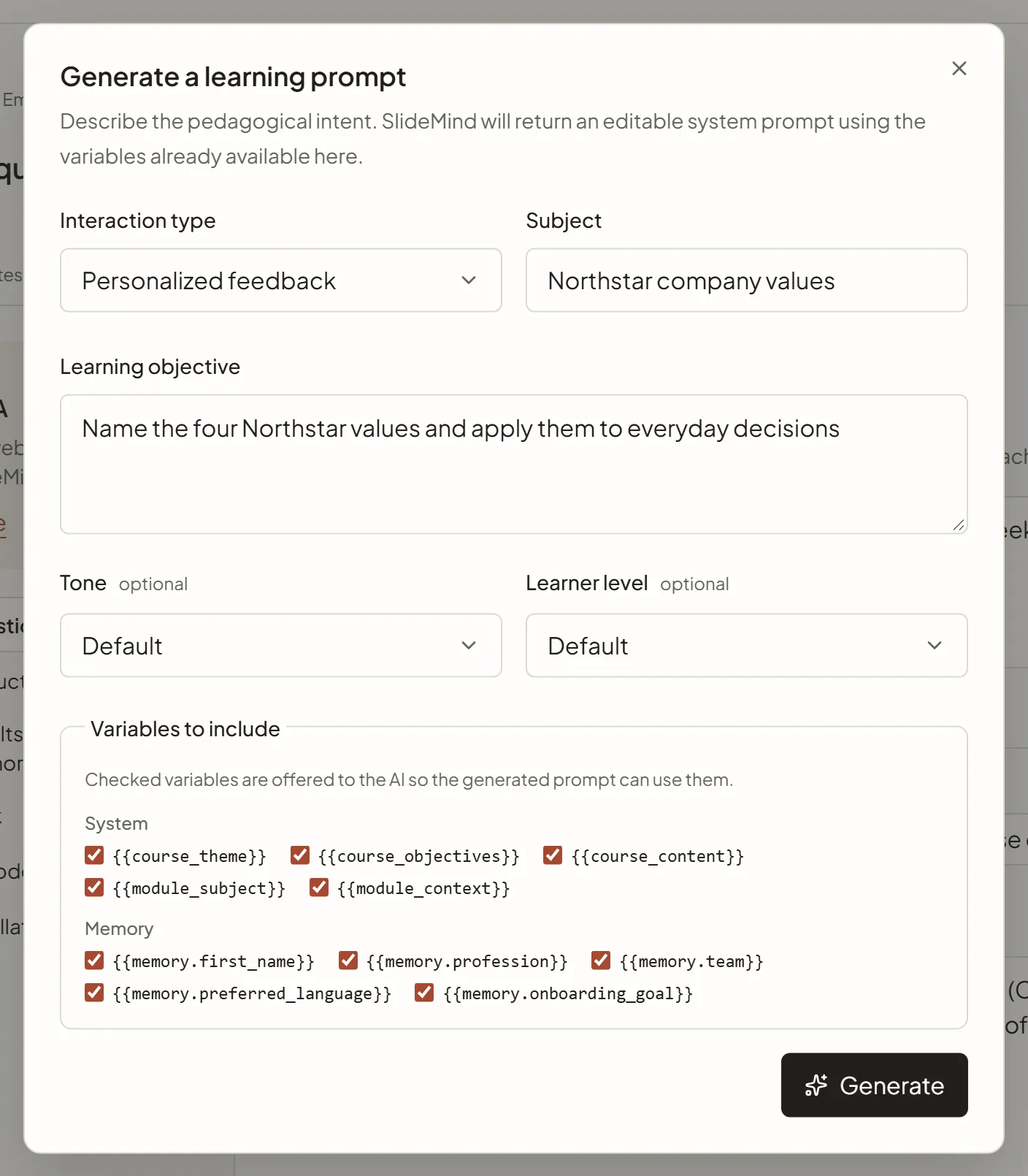
| Field | What it does | Example |
|---|---|---|
| Interaction type | The kind of activity, among seven: Socratic tutoring, Interactive quiz, Personalized feedback, Role-play / Simulation, Case study, Reformulation / Explanation, Formative assessment. | Personalized feedback |
| Subject | Required. The topic of the slide. | Leadership styles in remote teams |
| Learning objective | Required. What the learner should be able to do. | Identify the 4 styles and their application contexts |
| Tone | Optional: Default, Benevolent, Professional, Warm, Stimulating or Playful. | Warm |
| Learner level | Optional: Default, Beginner, Intermediate, Advanced or Expert. | Beginner |
| Variables to include | The variables the draft may use, grouped as System (the course and module context fields that have a value), Memory and, with the authoring tool interface, Dynamic (slide variables). Memory variables start unchecked. | {{course_objectives}} |
Each generation is a real AI call, paid through your workspace’s AI connection: SlideMind Credits or your own provider key. Only Owners and Editors see the button.
Writing tips
Section titled “Writing tips”- Write in your learners’ language. The AI answers in the language of your instructions. The widget’s Learner language is a separate setting: it only translates the buttons, labels and messages of the widget. See Appearance and language.
- Be short and explicit. Give clear criteria and the length you expect. A long list of vague wishes gives vague replies.
- Keep one goal per slide. If you need two different tasks, create two slides.
- Don’t collect personal data you don’t need. Don’t ask learners for personal details, and keep real learner data out of your instructions and examples. See Data, AI providers and your responsibilities.
- Think plain text. Plain-text AI responses under Settings › AI & models removes Markdown (headings, bold, lists, links, code) from replies before they reach your authoring tool variables and the SlideMind widget. It is on by default, with one switch for Q&A (Strip Markdown in Q&A mode) and one for Chat (Strip Markdown in Chat mode). Keep it on when your authoring tool shows text as is, and ask for short paragraphs rather than lists or tables.
- Let SlideMind handle structured results. When a slide returns named fields, SlideMind adds the format instructions for you. Describe the fields in the Results & memory step, not in the instructions. See Results: plain text or structured.
- Test several answers. In Try it, send a good answer, a partial one and an off-topic one, and adjust the instructions until each reply suits you. See Try it.
Internal notes
Section titled “Internal notes”Select Internal notes under the instructions to leave notes for your team, such as why a criterion was chosen or who validated the slide. They are never sent to the AI or shown to learners. Courses and modules have their own Internal notes field.