

AI notice
The AI notice is a short message that tells learners a slide sends their messages to an AI provider. It covers the SlideMind widget until the learner acknowledges it. This page explains when the notice appears, how to set it up, and what it does not do.
When the notice appears
Section titled “When the notice appears”- Where. In the SlideMind widget only, for Q&A and Chat slides. Capture slides never show it, because they make no AI call. Slides that use the Authoring tool interface never show it either: SlideMind has no screen of its own there.
- When. As soon as the widget opens, before the learner can type. The notice covers the widget with your message, an optional link to your privacy policy, and a button.
- How often. Once the learner selects the button, the widget remembers it for that slide until the end of the browser session (in the same browser tab). The notice can appear again in a new tab, after the browser is closed, or if the learner’s browser blocks site storage.
The notice is off for a new slide unless the slide comes from a template that has it turned on.
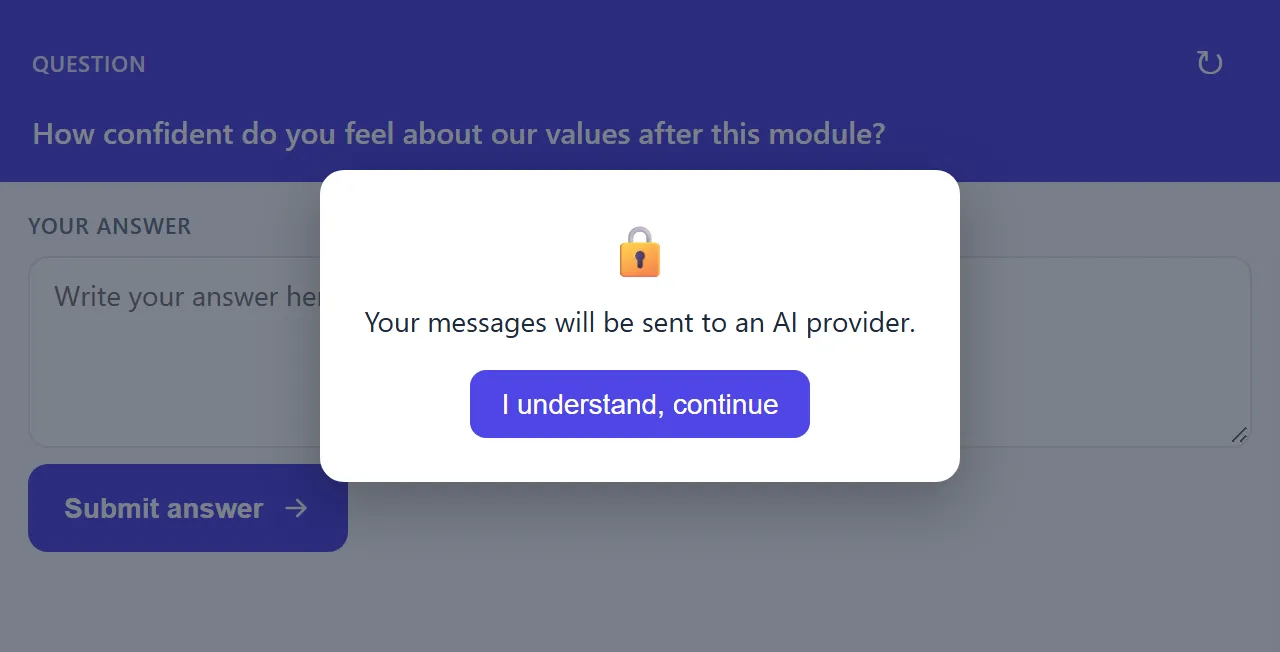
Turn on the notice
Section titled “Turn on the notice”- Open the slide and go to the Look step.
- Turn on AI notice. The status reads Shown before the first answer.
- To change the texts, select More styling: labels, verdict colours, score display (Q&A slide) or More styling: labels (Chat slide). In the Widget styling panel, the fields appear under the Show AI notice switch.
- Fill in the fields you need (see below), then save the slide.
You can also turn the notice on from the Show AI notice switch in the Widget styling panel: “Ask learners to acknowledge that this interaction sends content to an AI provider.”
Fields
Section titled “Fields”| Field | What it does | Example |
|---|---|---|
| AI notice message | The text of the notice. | This activity sends your answers to an AI provider to generate feedback. |
| Privacy policy URL | The page the link opens, in a new tab. It must start with https://; otherwise the slide editor shows “Use an HTTPS URL for the privacy policy.” Without a URL, the notice has no link. | https://www.example.com/privacy |
| Privacy link label | The text of the link. | Read our privacy policy |
| Continue button label | The text of the button that closes the notice. | I understand |
If you leave a field empty, the widget shows its default text in the widget’s Learner language:
| Field | English default | French default |
|---|---|---|
| Message | Your messages will be sent to an AI provider. | Vos messages seront transmis à un fournisseur d’IA. |
| Link label | Privacy policy | Politique de confidentialité |
| Button label | I understand, continue | J’ai compris, continuer |
Preview the notice
Section titled “Preview the notice”In the Try it panel of a Q&A slide, select Preview AI notice to show the notice over the widget preview. The button appears once the notice is turned on. In the preview, the acceptance is never remembered, so you can show the notice as often as you need.
Reuse the notice
Section titled “Reuse the notice”A custom template stores the AI notice settings. Slides created from that template start with the same notice. See Templates.
With the Authoring tool interface, inform learners on your own screens, for example with a text next to the answer box.