

Sandbox
The Sandbox is a prompt lab. Start from a blank slide or a copy of a saved slide, set its activity, question, instructions, course and module context, results and model, then try it and read the exact prompt the AI received. Nothing you do there is saved: the slide itself never changes. This page is for authors who want to debug instructions and variables, or experiment without touching a slide.
Open the Sandbox
Section titled “Open the Sandbox”- In the sidebar, under Test & monitor, select Sandbox. It opens on a blank slide.
- From the Slides list, select the flask icon of a slide (“Test slide name in the sandbox”). The Sandbox opens with a copy of that slide.
- From the Overview dashboard, select the Sandbox link.
Running a test requires the Owner or Editor role.
Sandbox or Try it?
Section titled “Sandbox or Try it?”| Tool | What it tests | Use it for |
|---|---|---|
| Try it (in the slide editor) | The unsaved draft of a slide, with the result your learners or your authoring tool will get. | Checking a slide while you write it, before you save it. |
| Sandbox | A slide draft built from scratch or copied from a saved slide, never saved, with the prompt sent to the AI in detail. | Trying an idea without creating a slide, testing another course context, inspecting the final prompt, checking variables and fallbacks. |
The Sandbox uses the slide editor’s own steps and its Try it panel, so what you learn there applies to both. See The slide editor and Try it.
Build and try a slide
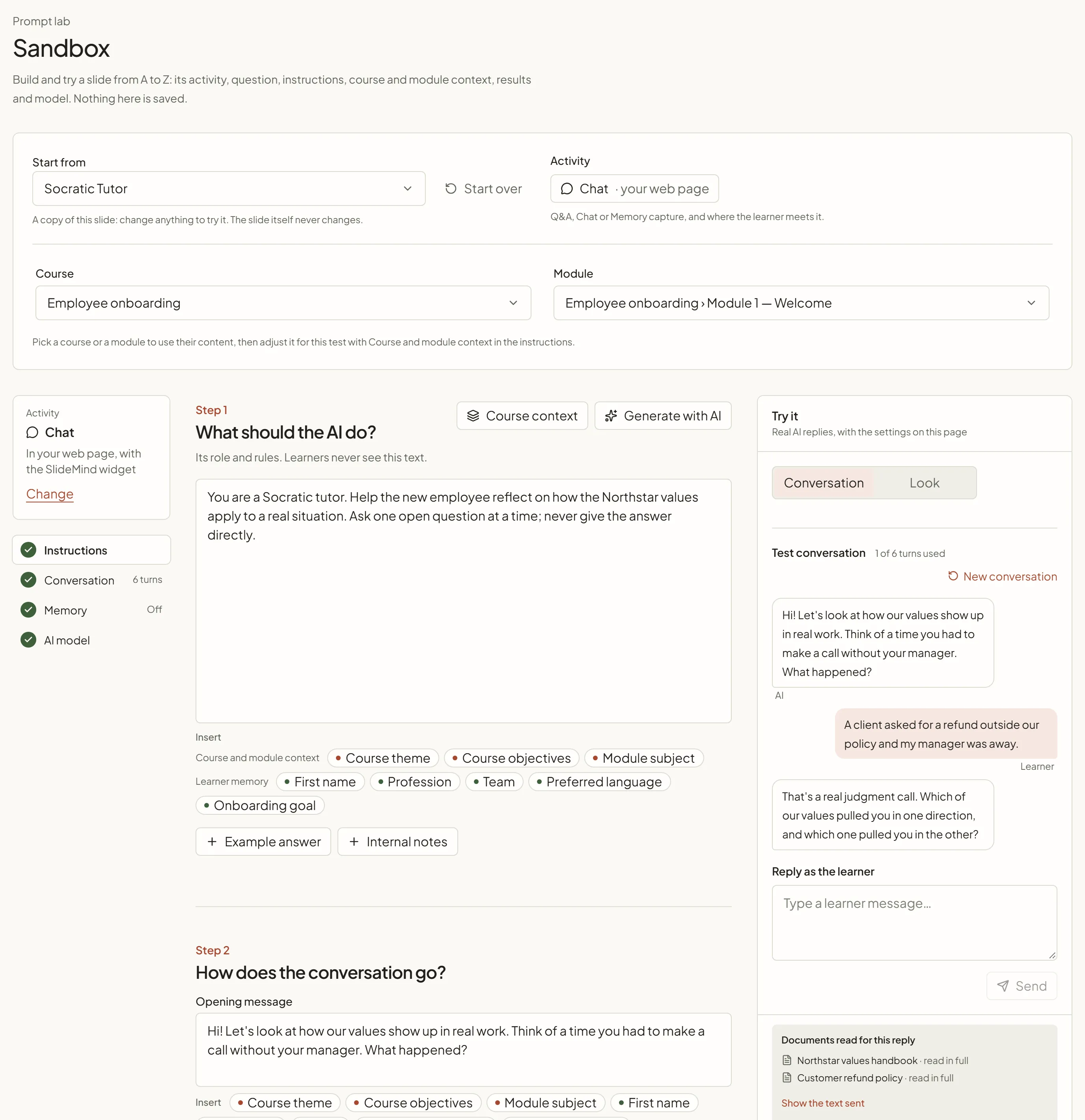
Section titled “Build and try a slide”- Under Start from, choose Blank slide or a saved slide.
- Under Activity, select the button that shows the current activity and destination, such as “Q&A · Storyline”. The Activity and destination dialog opens: choose the activity (Q&A, Chat or Memory capture) and where the learner meets it.
- Choose a Course and a Module to use their content in the test, or keep None (independent).
- Fill in the steps below, as in the slide editor: What does the learner see? (the Question shown to the learner of a Q&A), the instructions, the conversation of a Chat, What comes back? and Which AI answers?.
- In Try it, answer as a learner and select Send to get a real AI reply.
- Open Prompt sent to the AI to read what the AI received, or select Preview the prompt only to see it without calling the AI.
The Look and Installation steps are left out: the Sandbox tests what the AI receives and returns, not the widget’s look or the code for your course.
Start from a blank slide or a saved slide
Section titled “Start from a blank slide or a saved slide”- Blank slide: “An empty slide: write its question, instructions and context, then try it.” It starts with the defaults of a new slide and the workspace’s default model.
- A saved slide: “A copy of this slide: change anything to try it. The slide itself never changes.” The copy keeps every setting of the slide, including its model, Max tokens, Temperature and Reasoning effort.
Select Start over to drop your changes and go back to the blank slide or to the saved slide as it is.
To keep an improvement, make the same change in the slide editor and save the slide there. The Sandbox does not keep your drafts or your tests: choosing another starting point, selecting Start over or reloading the page clears them.
Course and module context
Section titled “Course and module context”The Course and Module you choose at the top feed the test: their Theme, Objectives, Content, Subject and Context fill the course and module variables of the instructions, as they would for a slide attached to them. Choosing a module also brings its course.
In the instructions step, select Course context to open Course and module context. Turn on Override for a field to change its value for this test only. The five fields are always offered in the Sandbox, even on a blank slide with no course: a field that is empty on the course or module reads “Not set on the parent — override for this slide:”.
The insert chips and the @ menu of Instructions for the AI offer only the course and module fields that have a value. See Variables in prompts.
The reference documents linked to the course, the module or the copied slide are read in the test too. After a test, Documents read for this reply lists them, with Show the text sent for the exact text. See Try it.
Try it in the Sandbox
Section titled “Try it in the Sandbox”The Try it panel works as in the slide editor: on a wide screen it sits on the right of the steps; on a smaller screen, under them. What it shows depends on the activity and the interface:
- a Q&A slide shows what your authoring tool receives, or the SlideMind widget with the real reply;
- a Chat slide keeps a Test conversation, shown as chat bubbles: the learner’s messages on the right, the AI’s replies on the left;
- a Memory capture slide shows a simulation of the learner memory, with no AI call.
With the authoring tool interface, enter sample values for your slide variables under Values sent with the answer. Memory placeholders get no value, because no learner is identified: they show their fallback text or disappear.
With the authoring tool interface and return variables, select Show the structured result after a test to see each field, its type and its value, with Valid or Assessment unavailable. A field that the AI did not return correctly is marked fell back to default: the integration code never passes such a value to your course. See Results: plain text or structured.
See Try it for each kind of slide.
Test a Chat slide
Section titled “Test a Chat slide”Each message you send adds the learner message and the AI reply to the Test conversation, and the next one sends the whole conversation, as the widget and the integration code do. The counter shows the turns used against the slide’s turn limit. When the limit is reached, the Sandbox says “The slide’s turn limit is reached. Start a new conversation to test again.” Select New conversation to start over.
Prompt sent to the AI
Section titled “Prompt sent to the AI”Under Try it, the Prompt sent to the AI section shows what the AI received. It stays folded after a test: select its title to open it. Preview the prompt only (“nothing is sent to the AI”) builds the prompt of the current draft without calling the AI and opens the section.
The section is not shown for a Memory capture slide, which makes no AI call.
| Item | What it shows |
|---|---|
| The prompt | The final prompt, with every variable replaced and the slide’s context added. |
| Show the prompt as written | After a test, the prompt with its {{placeholders}}, when it differs from the final prompt. |
| Variables used, Variables missing, Fallbacks used | On one line: the variables that received a value, the variables that had none, and the placeholders that showed their fallback text because no value arrived. |
| Naming warnings | Placeholders that can never resolve. For example, {{course.theme}} never resolves: inherited variables use underscores, such as {{course_theme}}. |
| Inherited context | The course and module of the test (or Not attached), then one row per course and module variable with its value and source: from course, from module, set for this test (a value you changed with Override) or empty. |
SlideMind builds this prompt the same way as for a learner. See Variables in prompts.
Generate the instructions with AI
Section titled “Generate the instructions with AI”Generate with AI is in the instructions step, as in the slide editor. It drafts the instructions from your teaching intent, and Apply prompt replaces the instructions of the Sandbox draft. See Generate with AI.
Cost and statistics
Section titled “Cost and statistics”- Tests in Try it and Generate with AI are real AI calls. They are billed like learner replies: deducted from your SlideMind Credits, or charged by your provider when you use your own API keys.
- Preview the prompt only makes no AI call and costs nothing. Neither do the free previews of Try it, such as Sample states.
- Sandbox tests and prompt generation are excluded from Activity statistics, so they do not distort your learner data, and they don’t count toward the workspace’s fair-use limit. See Activity and analytics.
If the workspace has no AI connected, Try it shows No AI is connected to this workspace yet. See Choosing how AI is funded.