

SCORM preview
The SCORM preview runs the package your authoring tool published as if an LMS launched it, with a test learner you choose. Use it to check that your SlideMind slides answer in the published course and that learner memory carries over from one launch to the next, without uploading the course to an LMS or to SCORM Cloud. This page is for course authors.
Open it from the sidebar: Test & monitor › SCORM preview.
What you can test
Section titled “What you can test”| Package | Versions | The log shows |
|---|---|---|
| SCORM | SCORM 1.2 and SCORM 2004 | Runtime calls: each call of the course to the runtime (initialize, get and set a value, commit, terminate), with the element, the value and any error code. |
| xAPI | xAPI (Tin Can) | xAPI statements: each statement the course sends, with its verb, score and success, and each state write. |
The slides in the package recognize the test learner as they would an LMS learner. Values your slides save go to learner memory under the learner ID, so you can check them in Learner data.
Who can do what
Section titled “Who can do what”| Task | Owner | Editor | Viewer |
|---|---|---|---|
| Upload a package | Yes | Yes | No |
| Launch a package | Yes | Yes | Yes |
| Delete a package | Yes | Yes | No |
Viewers read “Only owners and editors can upload or delete packages. You can launch the ones below.”
Prepare the package
Section titled “Prepare the package”- Publish the course from your authoring tool as SCORM 1.2, SCORM 2004 or xAPI (Tin Can), as a
.zipfile. - Keep the
.zipas it is: don’t unzip it and zip it again.
A package can weigh up to 50 MB. To test a larger course, publish only the part you want to test, or publish it again without its videos:
- Storyline: publish one scene or one slide.
- Rise 360: publish a copy of the course that keeps only the lessons to test.
- Other authoring tools: publish a copy that holds only the screens with SlideMind slides.
Upload a package
Section titled “Upload a package”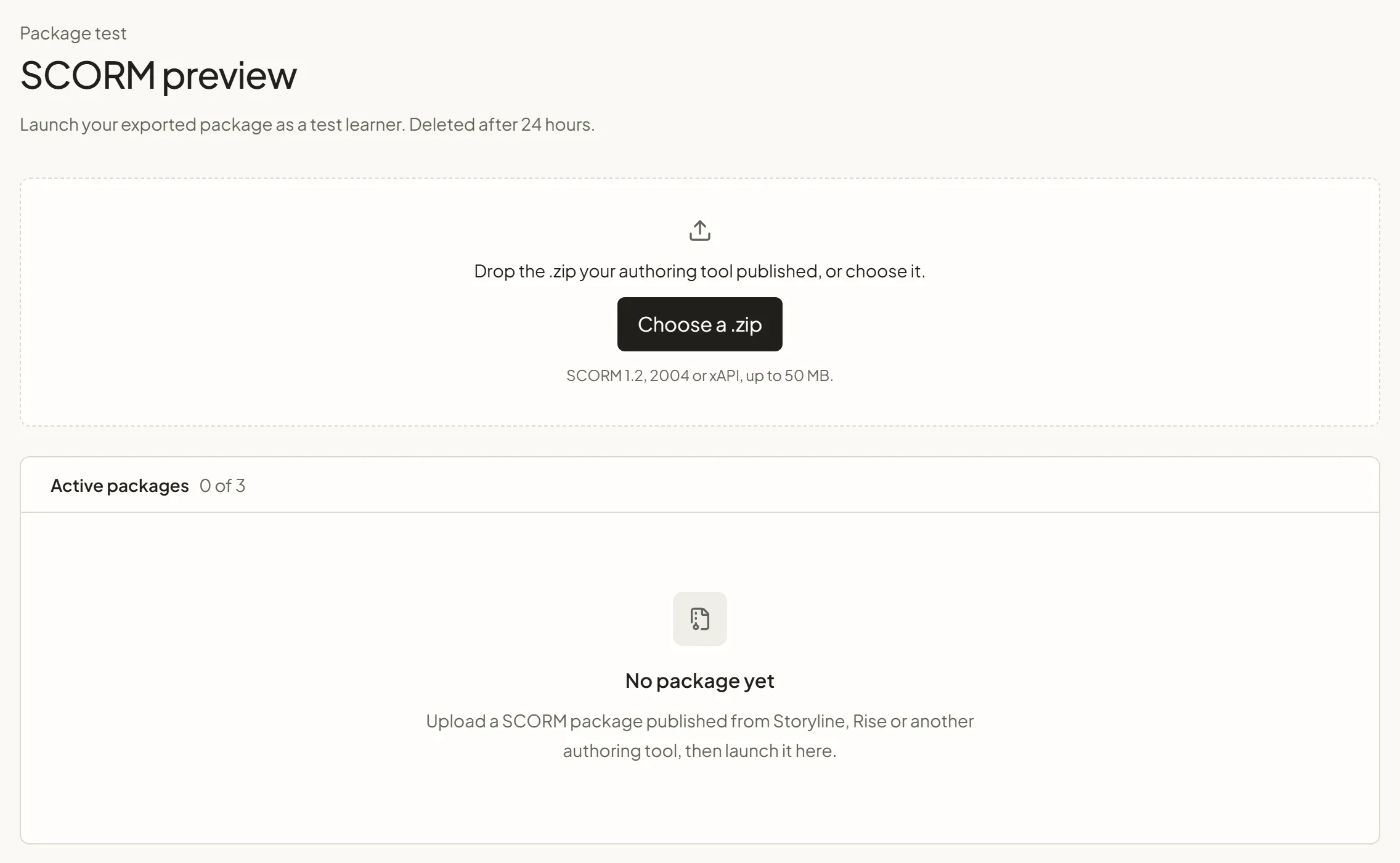
- Drop the
.zipon the upload area, or click Choose a .zip. - Wait for “Title is ready to launch.” The package appears under Active packages, with its version, its size and the time left before it expires.
If SlideMind refuses the file, a sentence says why, for example “This .zip is not a SCORM or xAPI package. Upload the .zip your authoring tool published, without unzipping and zipping it again.” Publish the course again as the sentence suggests.
Launch as a test learner
Section titled “Launch as a test learner”- Click Launch on the package.
- Check the Learner ID. It starts at
test-learner-1. “SlideMind keeps memory per learner ID. Launch again with the same ID to read back what was saved, or with another ID to start as a new learner.” - Optionally, type a Learner name: the course reads it as the LMS learner name.
- Click Start to play the course in the page, or Open in a window to play it in its own window, as SCORM Cloud does.
The page shows “Running as learner ID”. With Open in a window, the log stays in the page, full width, and Show the window brings the course to the front. If your browser blocks the window, allow pop-ups for SlideMind, then click Try again. Closing the window ends the launch.
To start over as a new learner, click Relaunch as another learner: the next learner ID is proposed, such as test-learner-2.
Read the log
Section titled “Read the log”Next to the course, Runtime calls (SCORM) or xAPI statements (xAPI) fill in as the course runs. Errors show their code, for example a value the course reads before it was set. Clear empties the log.
“The runtime data and this log live only in this page: they are lost when you leave it or relaunch.” A SCORM course therefore starts from the beginning at each launch. “An xAPI course also resumes where this learner left off.”
Test learner memory
Section titled “Test learner memory”- Launch the package as
test-learner-1and go through the slides that save values. - Click Relaunch as another learner, then set the Learner ID back to
test-learner-1and launch again. - Check that the slides that read memory use the values saved during the first launch.
To start as a learner with no memory, launch with a new learner ID.
Limits
Section titled “Limits”- A package can weigh up to 50 MB.
- A workspace holds three active packages at a time, on every plan. When all three are taken, delete one, or wait for one to expire.
- A package is deleted 24 hours after its upload. To delete it sooner, click its delete button, then Delete package.
What the SCORM preview doesn’t test
Section titled “What the SCORM preview doesn’t test”- Your LMS. Each LMS has its own launch, tracking and reporting. Test the course in your LMS before going live.
- Your allowed websites. The preview runs on SlideMind’s own address, so your Allowed origins list doesn’t apply there. A slide that works here can still be blocked on your LMS’s address. See Allowed websites.
- cmi5. Packages published for cmi5 are not supported.