

Variables in prompts
Variables let one slide adapt to its course, to each learner and to what happens on screen. You write a placeholder such as {{course_theme}} in the instructions, and SlideMind replaces it with the real value at every AI call. This page is for authors who write instructions in the slide editor.
Where values come from
Section titled “Where values come from”The slide editor offers three sources of variables. The Insert row under the instructions groups the chips by source, each with a dot of its own color.
| Source | Placeholder | Where the value comes from | Works with |
|---|---|---|---|
| Course and module context | {{course_theme}}, {{module_subject}}… | The course and module the slide belongs to, or an override on the slide | Every destination |
| Learner memory | {{memory.first_name}} | A value saved earlier for the same learner | Every destination, for identified learners |
| Slide variables | {{learner_role}} | A variable of your authoring tool, read by the integration code at each call | The authoring tool interface only |
SlideMind resolves every placeholder on its servers, right before the AI call. A slide variable can’t replace a course or module context value of the same name, and the integration code can’t send learner memory values.
Insert a variable
Section titled “Insert a variable”Variables work in Instructions for the AI, the Response example, the Question of a Q&A slide and the Opening message of a Chat slide. In any of these fields:
- Type
@where the value should go, then type part of its name. The search ignores accents. - Pick the variable in the Available variables list. You can also click a chip in the Insert row under the field: it’s inserted at the cursor.
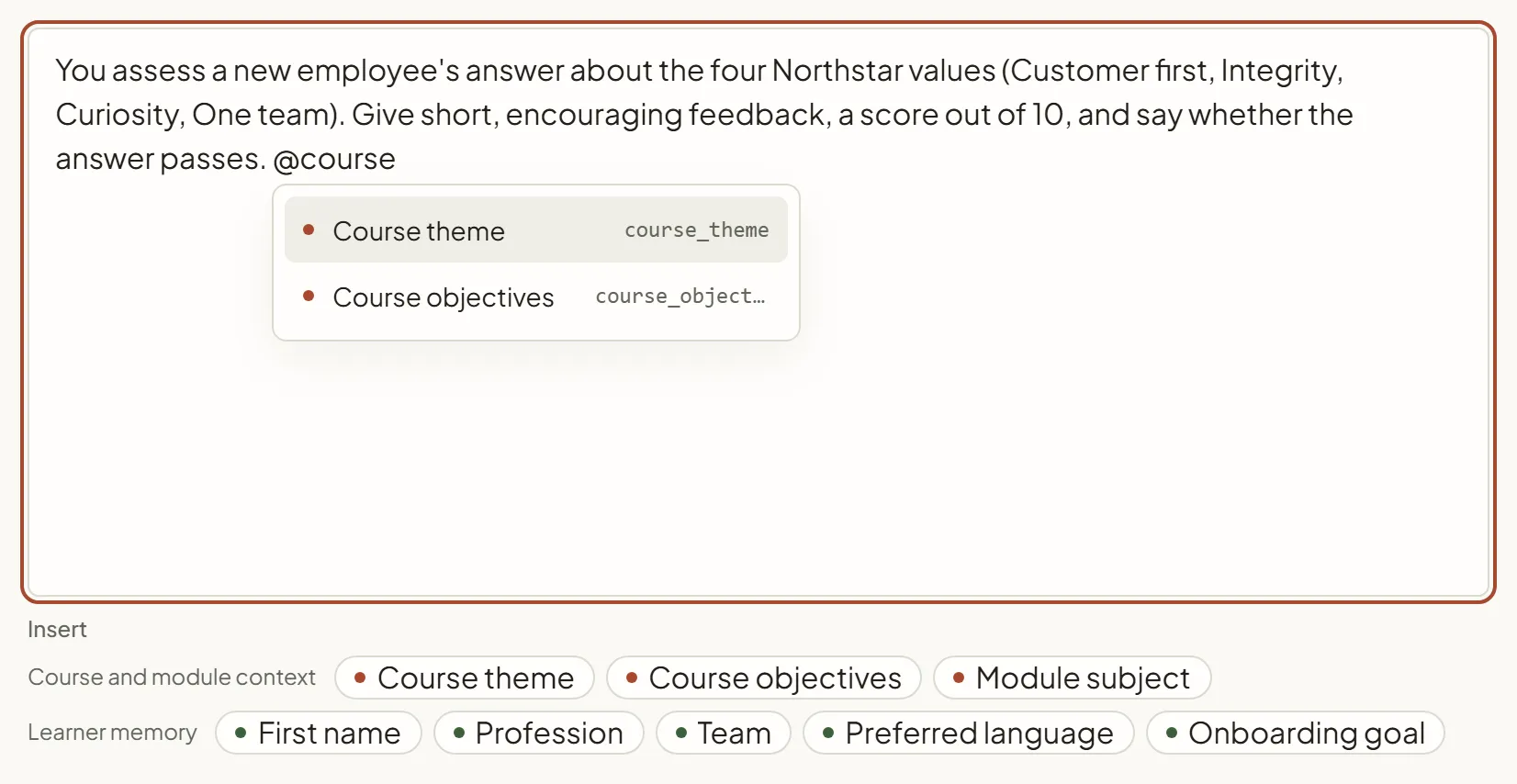
Each placeholder shows as a pill that reads its readable name, such as “Course objectives” or the Name of a Memory Hub variable. Behind the pill, the field holds the full placeholder with an empty fallback, for example {{course_objectives|}}, and copying text copies these placeholders. Hover a chip to see where its value comes from. The chips under Course and module context list only the fields that have a value, on the course, the module or the slide itself; the @ list does the same. The chips under Learner memory list the variables defined in the Memory Hub.
You can also type a full placeholder by hand, such as {{course_theme}}: it turns into a pill. A placeholder typed without | shows a warning on its pill: “Without a fallback, this placeholder may reach the AI as written.” Click the pill, then Apply, to fix it.
Where placeholders work
Section titled “Where placeholders work”| Field | Placeholders replaced |
|---|---|
| Instructions for the AI | Yes |
| Response example | Yes |
| Question of a Q&A slide, Opening message of a Chat slide | Yes. In the SlideMind widget, learners read the result. |
| Closing message, last-turn instruction of a Chat | No: the text is used as written |
Course and module context
Section titled “Course and module context”These five variables come from the Inherited context section of the course and module pages.
| Placeholder | Filled from |
|---|---|
{{course_theme}} | The course Theme |
{{course_objectives}} | The course Objectives |
{{course_content}} | The course Content |
{{module_subject}} | The module Subject |
{{module_context}} | The module Context |
A slide attached directly to a course gets empty module values. An independent slide gets empty values for all five. An empty value is replaced by nothing, so set a fallback text when the sentence needs a word there. The editor doesn’t offer an empty field as a chip or in the @ list; you can still type its placeholder by hand.
To use a different value on one slide, click Course context in the Instructions step and turn on Override for that field. The button appears when the slide belongs to a course or a module. See Courses and modules for the fields themselves.
Learner memory
Section titled “Learner memory”{{memory.first_name}} inserts the value saved under the key first_name for the learner who is answering. When the same key exists at several scopes, the most specific one wins: slide, then module, course and global. To read one scope only, name it: {{memory.global.first_name}}.
A memory value exists only for an identified learner, and only after a slide has saved it. Without a value, the placeholder disappears, unless you set a text for it (see Fallback values). Using values in prompts covers scopes and examples.
Slide variables
Section titled “Slide variables”A slide variable carries a value from the learner’s screen into the prompt: a choice, a score, a role. It works with the authoring tool interface (Storyline with JavaScript, Captivate, Lectora, dominKnow | ONE, iSpring Suite).
- In your authoring tool, create the variable, for example a text variable named
learner_role. - In the slide editor, open Values from Storyline under the instructions. The label names your authoring tool.
- Add
learner_roleto the list. - Insert
{{learner_role}}in the instructions, with@or its chip. - Copy the integration code again from the Installation step and replace it in your course. The list of variables is written into the code.
During the exchange, the placeholder becomes the real value, for example “claims adjuster”, and the AI adapts its reply to this learner.
- Names. Each name must match your authoring tool variable exactly: same spelling, no spaces. Use letters, digits and underscores, and start with a letter or an underscore.
- Types. Numbers arrive as digits. A true/false variable arrives as the text
trueorfalse.
Widget destinations don’t send slide variables
Section titled “Widget destinations don’t send slide variables”On a widget destination, the slide editor doesn’t offer slide variables: no chip in the Insert row, no entry in the @ list, no Values from button, no Values sent with the answer field in Try it, and no Dynamic group in Generate with AI. Try it sends no slide values, so it answers like your published course. The hint of each memory chip also reminds you that memory stays empty while the learner is unknown: the placeholder then disappears, unless its pill sets a text under If empty, show.
A slide can still hold slide-variable placeholders, for example when you move it from the authoring tool interface to the SlideMind widget. When the instructions, the response example or the question of a Q&A slide contain one without a fallback, a warning under Instructions for the AI names it, for example “These placeholders stay empty: {{score}}.”, and suggests removing it or adding a fallback after a vertical bar. The slide keeps its list of slide variables: switch back to the authoring tool interface and they’re offered again.
On a widget destination, replace slide variables with values SlideMind can resolve:
- Fixed information (a scenario, a role to play): write it in the instructions, or in the course and module context.
- Something the learner gave earlier: save it to learner memory on an earlier screen, then insert its memory variable.
- The question of a Q&A slide: the text of the Question step already reaches the AI with each answer. Remove
{{question}}from the instructions, or give it a fallback. - Anything left: give it a fallback, or delete it.
Fallback values
Section titled “Fallback values”A placeholder without a value disappears: the AI, or the learner, reads the sentence without it. In text that learners read (the question, the opening message), the spaces and punctuation around it are tidied up. To show a text instead, set a fallback:
- Click the pill, or press Alt+Enter right after it.
- Under If empty, show, type the text. Leave the field empty to remove the placeholder when there is no value.
- Click Apply.
The fallback is used when the value is missing or empty. In the field, it’s written after a vertical bar:
| Placeholder | With a value | Without a value |
|---|---|---|
{{memory.first_name|dear learner}} | Alex | dear learner |
{{course_theme|the topic of this course}} | Workplace safety | the topic of this course |
{{learner_role|}} | claims adjuster | (nothing: the placeholder disappears) |
The fallback is plain text. A placeholder inside a fallback isn’t resolved.
Write fallbacks in the language of your instructions. The AI replies in the language of the instructions, and learners read fallbacks in questions and opening messages as written. The widget’s Learner language setting only changes buttons and labels.
Naming mistakes
Section titled “Naming mistakes”Inherited variables use underscores. A dotted form such as {{course.theme}} never resolves. The editor flags it under the field: “{{course.theme}} never resolves — use {{course_theme}} instead.” The Sandbox shows the same message under Naming warnings.
Check how placeholders resolve
Section titled “Check how placeholders resolve”- Try it, in the slide editor: with the authoring tool interface, fill in Values sent with the answer to test slide variables. With a widget destination, Try it sends none, like the published course. See Try it.
- Sandbox: under Start from, pick the slide to test a copy of it, then select Preview the prompt only to see the Prompt sent to the AI without calling the AI. It lists Variables used, Variables missing, Fallbacks used, Naming warnings and the Inherited context with its source. See Sandbox.