

Overview dashboard
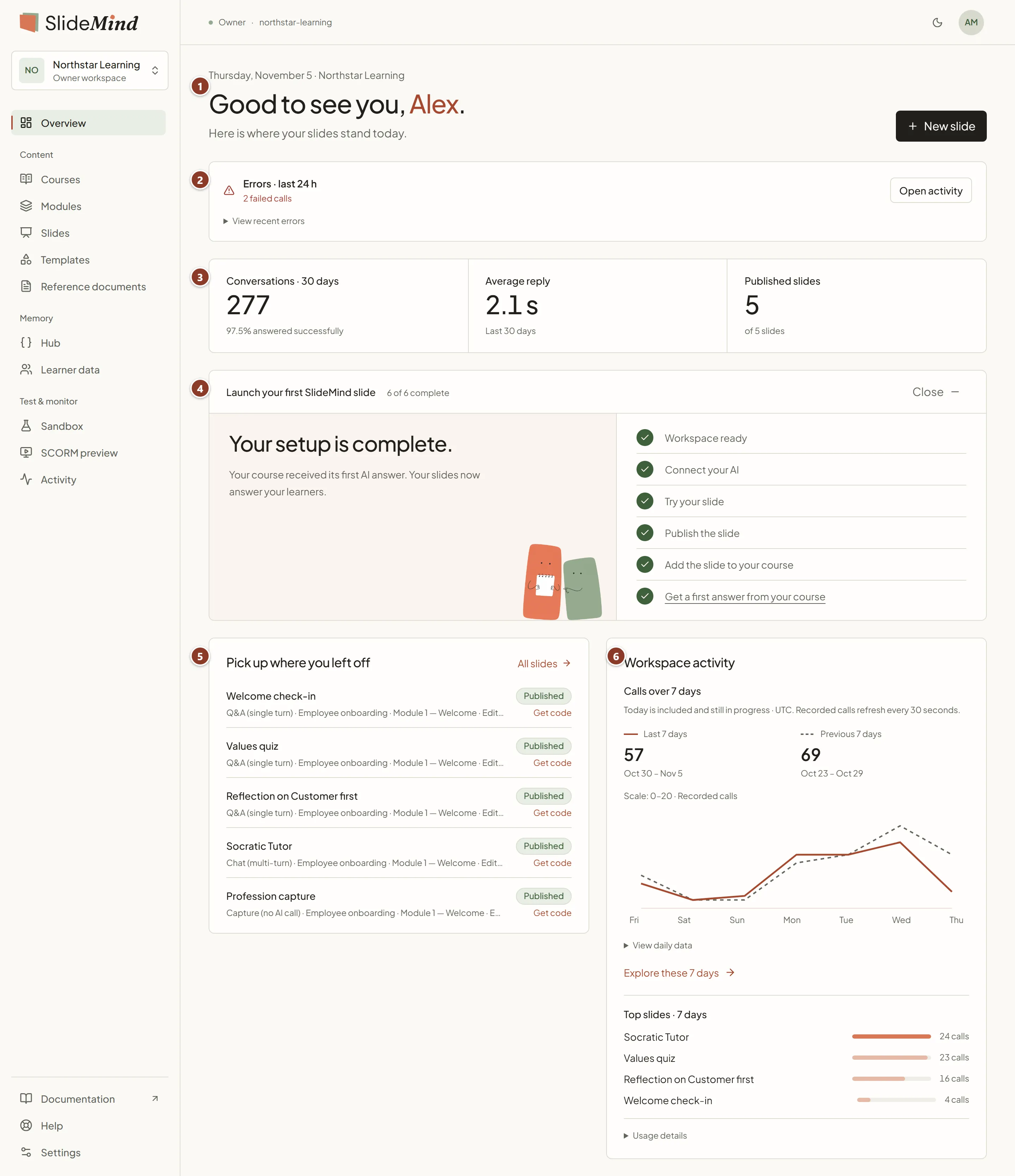
The Overview page is the first screen of a workspace. It shows your credit balance and key figures, anything that needs attention, your next setup step, the slides you worked on last and recent AI activity. This page explains each part of the dashboard and who sees it.
To open it, select Overview in the sidebar. The dashboard refreshes on its own every 30 seconds while it is open.
At a glance
Section titled “At a glance”From top to bottom, the dashboard shows:
- the header: today’s date and the workspace name, a greeting, and either the number of setup steps left (“N steps left before your course answers its first learner.”) or “Here is where your slides stand today.” Once the workspace has slides, New slide sits on the right;
- alerts: the fair-use notice, Needs your attention and Errors · last 24 h, only when there is something to report;
- Workspace at a glance, a band with the SlideMind Credits balance and the workspace figures;
- Before you go live, when it applies, then the setup checklist, Launch your first SlideMind slide, until your setup is complete;
- side by side, Pick up where you left off (your recent slides) and Workspace activity;
- a footer line with your plan, your role and the number of courses and slides, followed by shortcuts.
Workspace at a glance
Section titled “Workspace at a glance”The band under the header gathers the figures you check most often.
- SlideMind Credits: when the workspace runs on SlideMind Credits, Owners and Editors see the balance first. See SlideMind Credits below.
- Conversations · 30 days: the recorded calls from your slides over the last 30 days, with the share that succeeded, for example “98% answered successfully”. Each request a learner sends counts once, whether it succeeds or fails, so a Chat conversation of several turns counts several times. Success means the provider returned a response, not that the learner succeeded. Before any activity, it reads “Counted once a course is live”.
- Average reply: the average response time over the last 30 days. It appears once the workspace has activity.
- Published slides: the number of published slides, out of all the slides of the workspace, for example “of 12 slides”.
Calls from Try it and the Sandbox are not counted. AI summaries made by exchange memory add tokens and cost, but they are not counted as calls.
Setup checklist
Section titled “Setup checklist”The Launch your first SlideMind slide checklist guides a new workspace to its first real answer. It shows “N of M complete”. On the left, the current step (“Step N of M”) explains what to do, with a button that takes you there. On the right, the list of steps marks each one Completed, or Now for the current step.
| Step | Done when |
|---|---|
| Workspace ready | Always done: your workspace exists. |
| Connect your AI | A provider key is saved in the workspace. This step appears only when the workspace uses your own provider keys: on SlideMind Credits there is nothing to connect, and the credits card warns you when the balance runs low. |
| Try your slide | A test message to a saved slide got an answer, in Try it or in the Sandbox with that slide selected. |
| Publish the slide | A slide is published. |
| Add the slide to your course | You downloaded a published slide as a ready-made Storyline slide (.story), or copied its integration code. Its button, Get your slide, opens the slide’s Installation step. |
| Get a first answer from your course | A learner, or you, got a first answer from the slide installed in a course. This step completes on its own. |
Progress is saved on the server, so it is the same on every browser. Select Minimize to fold the checklist into one line, or Expand to open it again. When every step is done, the checklist disappears and a Getting started link joins the footer shortcuts; select it to review the completed steps under “Your setup is complete.”
The checklist is shown to Owners and Editors. For the full walkthrough, see Quickstart: your first AI slide.
The getting-started video
Section titled “The getting-started video”Until the workspace has published its first slide, Owners and Editors are offered a short video, Build your first Storyline slide, that goes from a new slide to a first answer in a course.
- On your first visit to the Overview, it opens in a Welcome to SlideMind dialog. Select Got it to close it: it opens by itself only once.
- Afterwards, New to SlideMind? Watch the walkthrough at the foot of the checklist opens it again. Select Hide to remove this line.
- Getting started guide opens the written guide on the SlideMind website, in a new tab.
The video plays from YouTube, which receives nothing until you press play. Once a slide is published, the video is no longer offered. Viewers never see it.
Alerts
Section titled “Alerts”Fair-use limit
Section titled “Fair-use limit”Each workspace has a monthly fair-use limit of learner messages, set by the plan. It protects against abuse, and normal use stays well below it. It is never billed. Owners and Editors see a notice when learners get close to it:
| Notice | When | What happens |
|---|---|---|
| Fair-use limit almost reached | Learners have sent 80% of the messages the workspace allows this month. | Everything keeps working. The notice gives the count and the date when the count starts again. |
| Learner chats are paused | The workspace reached its limit. | Q&A and Chat slides stop answering learners until the count starts again on the 1st of the month (UTC), or sooner if support raises the limit. Learners see that the assistant is temporarily unavailable. |
Select View usage to open Activity, where the current count is shown with Contact support: SlideMind support raises the limit on request. Viewers don’t see the notice.
Needs your attention
Section titled “Needs your attention”This card appears only when something can stop your slides from answering or put your workspace at risk:
| Message | What to do |
|---|---|
| ”No AI provider key yet — Q&A and Chat slides cannot answer learners.” | Add and test a key, or switch to SlideMind Credits. |
| ”The [provider] key failed its last test.” | Check the key at your provider, save it again and test it. |
| ”Your default provider has no API key in this workspace.” | Test the default provider’s key, or choose another default. |
| ”Your published slides answer requests from any website…” | List your LMS and course websites in Settings › Integrations, under Allowed origins. |
The key messages appear only when the workspace runs on your own API keys. Owners and Editors get a link under each message: Review AI settings or Review allowed websites.
Before you go live
Section titled “Before you go live”When the 24-hour CORS test mode is on, a Before you go live reminder under Workspace at a glance shows when it ends, with a Review allowed websites link. See Allowed websites.
Errors · last 24 h
Section titled “Errors · last 24 h”This card appears when AI calls failed in the last 24 hours. It shows the number of failed calls and an Open activity button. Open View recent errors to see the three most recent errors, with the slide, the error message and the time.
Pick up where you left off
Section titled “Pick up where you left off”This list shows the slides edited most recently. Each row gives the slide title, its status, its activity type, its course and module (or Independent slide) and its edit date. Select a title to open the slide in the slide editor. On a published slide, Get code opens its Installation step, where you copy its integration code. All slides opens the full list.
In a new workspace, the list says “No slides yet — your first one is minutes away.” with two tiles: Blank slide and Browse templates.
Workspace activity
Section titled “Workspace activity”Next to your recent slides, this section shows the activity of the last 7 days.
- Calls over 7 days compares the daily calls of the last 7 days (solid line) with the 7 days before (dashed line), with the total of each period. Today is included and still in progress; days follow UTC. Open View daily data for the exact numbers, or select Explore these 7 days to open the same period in Activity. If your log retention is shorter than these 14 days, a note warns that counts may be incomplete.
- Top slides · 7 days: when at least two slides received calls in the last 7 days, this list ranks up to five of the busiest ones by number of calls.
- Usage details: Estimated AI cost (with your own API keys, in USD) or Estimated credit usage (with SlideMind Credits, in credits), for Owners and Editors, and Tokens · 30 days.
When the plan doesn’t include the chart, View activity opens Activity instead.
Until a published slide answers someone in your course, the section says so and offers Open the Sandbox to test your slides. The chart appears with the first activity.
SlideMind Credits
Section titled “SlideMind Credits”When the workspace runs in SlideMind Credits mode, Owners and Editors see the credit balance of the workspace owner’s account first in Workspace at a glance. The balance is shared across every workspace on this billing account.
- ≈ N messages remaining estimates how many more learner replies the balance covers. Open How this estimate works for its basis: the replies of the workspace’s published AI slides over 30 days, the average tokens per reply, current model prices and the service fee. New slides are not included yet, and conversations or usage in your other workspaces can change the estimate.
- Message estimate unavailable means the workspace does not yet have enough successful replies from published AI slides, or model pricing is missing.
- When the owner’s plan includes monthly credits, a bar splits the balance in two: ”… from your plan, used first, until …” and ”… purchased”. See Credits included with your plan.
- “Balance is running low.” or “Credits are exhausted — learners are blocked.” warns you before and when learners lose access.
- Owners get Manage credits, which opens Account › Billing, where they buy credits. Editors see “Ask the workspace owner to review the balance.” when the balance needs attention.
Owners also see their balance in the account menu, under Current plan, from every page. See SlideMind Credits.
Footer and shortcuts
Section titled “Footer and shortcuts”The footer line sums up the workspace: your plan, your role, and the number of courses and slides out of what your plan allows.
Its shortcuts are Getting started once the setup checklist is complete (Owners and Editors), Invite member (Owners) and Sandbox (Owners and Editors).
What each role sees
Section titled “What each role sees”| Part | Owner | Editor | Viewer |
|---|---|---|---|
| New slide, setup checklist | Yes | Yes | No |
| Fair-use notice | Yes | Yes | No |
| Other alerts, recent slides, workspace figures, activity | Yes | Yes | Yes |
| Costs and credit usage | Yes | Yes | No |
| SlideMind Credits balance | Yes, with the billing link | Yes | No |
| Invite member shortcut | Yes | No | No |
| Sandbox shortcut | Yes | Yes | No |
Viewers see the alerts without the links to the settings.
Next steps
Section titled “Next steps”- Activity and analytics: investigate calls, errors and consumption in detail.
- SlideMind Credits: buy credits and follow your balance.
- Allowed websites: restrict where your slides can answer.
- Tour of the portal: find your way around the rest of SlideMind.