

Results: plain text or structured
A slide can return the AI’s reply as free text, or as named fields that your course uses like any other variable: a score, a pass/fail verdict, a feedback message. This page explains how to define those fields, where they arrive for each destination, and what happens when the AI doesn’t return them correctly.
Choose the reply format
Section titled “Choose the reply format”In the Results & memory step (“What comes back?”), choose a reply format.
| Format | What the AI returns | Use it for |
|---|---|---|
| Plain text | One free-text reply. With the authoring tool interface, it lands in the AI answer variable. In the widget, the learner reads it as it is. | Feedback, explanations, conversations |
| Structured JSON | Named fields, for example { "score": 8, "feedback": "…" } | Scoring, branching, sending a score to your LMS |
On a Q&A slide with the SlideMind widget, the same two choices read Feedback only and Score and verdict.
A Chat shown in Rise 360 or in the HTML widget has no format choice: it always replies in plain text, and the step becomes “What should SlideMind keep?” (listed as Memory in the outline). Fields you defined earlier stay stored on the slide, in case you move it back to an authoring tool.
Define the return variables
Section titled “Define the return variables”With Structured JSON, list the fields the AI must fill. When you switch to Structured JSON with no field yet, SlideMind adds a Text field named feedback, described as “Feedback addressed to the learner about their answer”. Add return variable adds a field, up to 20. Under the list, Add an example: offers the examples not in the list yet: score (Number), feedback (Text) and passed (Boolean). When the list is empty, the same examples appear under Start from an example:. Each field is a card headed “Field 1”, “Field 2”…, with its delete button.
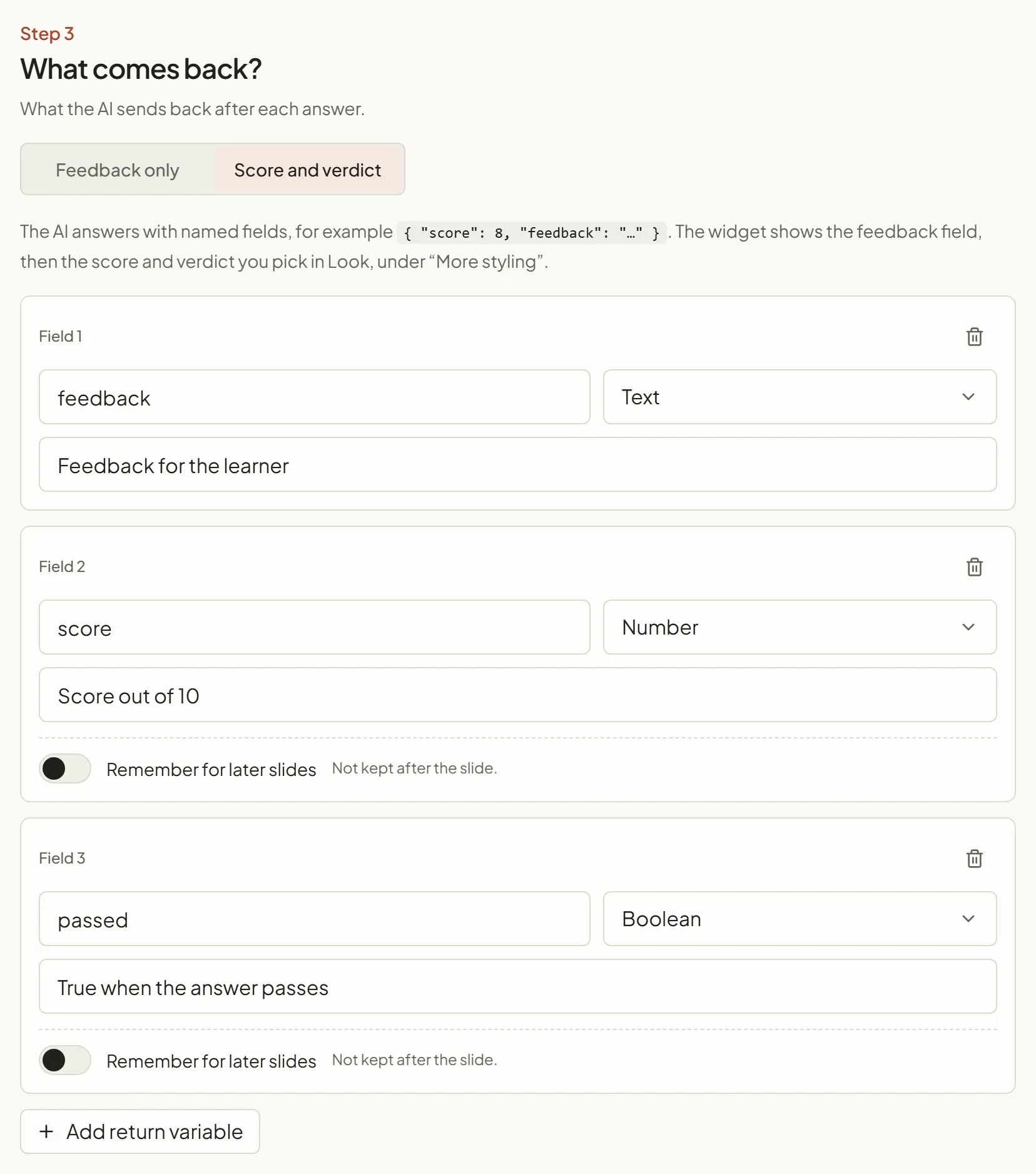
| Field | What it does | Example |
|---|---|---|
| Variable name | The key in the reply. With an authoring tool or the Storyline Web Object, the variable that receives it is named after the AI answer variable (see Where the values go) | score |
| Variable type | Text, Number, Boolean or Enum | Number |
| Variable description | An instruction to the AI for this field | ”Score from 0 to 100 based on the quality of the answer” |
| Enum values (Enum only) | The allowed values, separated by commas | pass, fail, retry |
Under the list, open See the exact format to preview the structure with sample values: “The AI will reply in this exact format:”. The template editor shows the same cards and preview.
- Keep one Text field, such as
feedback, for the message learners read. - Put the criteria in the descriptions: what earns a high score, when
passedis true. - Keep the list short. Every field is one more thing the AI must get right.
Keep a field in learner memory
Section titled “Keep a field in learner memory”Each field card, except the field whose text the learner reads, ends with a Remember for later slides switch (“Not kept after the slide.” while it’s off). Turn it on to save the value the AI gives that field to the learner’s memory, so a later slide can use it: for example the learner’s job, taken from the conversation.
- Memory key: SlideMind proposes the field name followed by the slide title, such as
job_introChat. Type another key, or pick a key of the Memory Hub in the suggestions. - Scope: where the value can be reused, as for exchange memory.
See Saving values.
Where the values go
Section titled “Where the values go”| Destination | Where each field arrives |
|---|---|
| Authoring tool interface: Storyline (JavaScript), Captivate, Lectora, dominKnow | ONE, iSpring Suite | The authoring tool variable <answer>_<field>, for example aiResp_s2_quiz_score, after each reply (Q&A and Chat). The AI answer variable receives the text of one Text field. The whole result also goes to <answer>_json. |
| Storyline Web Object | The Storyline variable <answer>_<field>. A Q&A slide also writes <answer>_verdict (pass, partial or fail). A Chat writes the fields after every reply. |
| Rise 360 and HTML widget, Q&A | The widget displays the feedback, the score and the verdict, as mapped in Look. See Q&A layouts. |
| Rise 360 and HTML widget, Chat | No fields: plain text only. |
<answer> stands for the name of the AI answer variable shown in the Installation step, and <field> for the name of the field. The Installation step lists the full names, for example aiResp_s2_quiz_score. Naming the variables after the answer variable keeps two slides of one course from writing to the same variable.
Field names
Section titled “Field names”With an authoring tool or the Storyline Web Object, the slide editor won’t save the slide until each field name can become a variable name. It says why under the field:
- Use letters without accents, digits and underscores, starting with a letter or an underscore.
- Don’t use a name the slide’s own variables already use:
err,json,history,done,busy,question,verdict,turnsormax_turns. - Once added to the answer variable name, the full name must stay within 64 characters. Shorten the field or the answer variable.
With the authoring tool interface
Section titled “With the authoring tool interface”Create one variable per field in your authoring tool, with the names the Installation step lists as Return field. It also lists Structured JSON (<answer>_json) and the Error variable (<answer>_err).
The AI answer variable receives the text of one Text field, ready to show to learners, never the raw JSON. It stays empty when that text is missing from the reply.
- On Storyline destinations, the What comes back? step names that field. With several Text fields, choose it in Field sent to the reply variable (Shown to the learner for a Chat). With exactly one, the step says “The reply variable … receives …”.
- With the other authoring tools, it is the first Text field.
- Without any Text field, the AI answer variable stays empty and only the field variables are filled. On Storyline destinations, the step warns you; it doesn’t block the save.
With the Storyline Web Object
Section titled “With the Storyline Web Object”The Web Object writes each field to its Storyline variable, <answer>_<field>. Every variable is optional: create only the ones your course uses.
In a Chat, the learner reads one Text field as the AI’s message. Add at least one Text field: the slide editor won’t save the slide without one. With several, pick the one in Shown to the learner.
When the result is unavailable
Section titled “When the result is unavailable”SlideMind checks every structured reply. A result is valid only when every field is present with the right type. When it isn’t, SlideMind never invents a value: a learner never gets a made-up score.
| Destination | What happens |
|---|---|
| Authoring tool interface | No return variable is written, so scores and branches keep their previous values. <answer>_err receives assessment unavailable: followed by the missing fields. The AI answer variable stays empty if the Text field it receives is missing. |
| Storyline Web Object | Same as above. In a Q&A, <answer>_verdict is emptied when the score or pass/fail field it comes from can’t be trusted. In a Chat, if the field the learner reads is missing, the widget shows “The response is unavailable. Please try again.”, the turn doesn’t count and the message goes back to the message box. |
| Q&A widget | Each field is checked on its own: a valid feedback still shows. If none of the score and pass/fail fields mapped in Look can be trusted, the widget shows Assessment unavailable in place of the verdict. The activity still counts as finished. |
Design your triggers for this case:
- Before you use a score or a verdict, check that the error variable is empty.
- The Storyline integration code empties the error variable each time it sends a message, and the Storyline Web Object after each complete result. The code of the other authoring tools doesn’t: if a trigger reacts to it, empty it in the same trigger before the code runs.
- Don’t score from
<answer>_jsonwhen the error variable is set: missing fields hold a default value (0, false, the first enum value or empty text). - With the authoring tool interface, the error variable also receives
SlideMind error (…)with a code when the call itself fails. See Troubleshooting.
If results are often unavailable, simplify the fields and their descriptions, raise Max tokens, or try another model from the catalogue. See Models and response settings.
Use the results
Section titled “Use the results”The app sums it up in four steps: define the results you need, the AI fills that structure, the integration code writes each value, and your triggers use them.
- Display: show the AI answer variable, which holds the feedback text, in a text box.
- Branch: go to another screen when the
_passedvariable is true, or show a layer when the_scorevariable is above a threshold. - Report: send the score to your LMS with your authoring tool’s own results features.
Test the results
Section titled “Test the results”- Try it shows what your course would receive: “Storyline variables after the reply” (the label names your tool), and Show the structured result for the raw fields. See Try it.
- Show the structured result lists each field under Structured result, marked Valid or Assessment unavailable. Fields that fell back to their default are marked “fell back to default”. The Sandbox uses the same Try it panel.