

Import and export
SlideMind exports your content to a JSON file that you can keep as a backup, copy to another workspace (for another client, for example) or share. Every import starts with a review: nothing is written until you confirm. This page is for Owners and Editors; the whole-workspace export and import in Settings is for the Owner. To hand a workspace over to another account with its learner memory, members and embed codes, see Transfer ownership of a workspace instead.
What you can export
Section titled “What you can export”| What | Where | The file contains |
|---|---|---|
| One slide | Content › Slides, Export in the row’s ⋯ menu | The slide and its reference documents |
| One module | Content › Modules, Export module in the row’s ⋯ menu; or Export module on the module page | The module and its slides, with their reference documents |
| One course | Content › Courses, Export course in the row’s ⋯ menu; or Export course on the course page | The course, its modules and their slides, with their reference documents |
| A selection | Content › Courses or Content › Slides: select rows, then Import / export › Export N selected | The selected courses with their modules and slides, or the selected slides, with their reference documents |
| All content | Content › Courses or Content › Slides, Import / export › Export all (with no row selected) | Every course, module and slide, with their reference documents |
| A custom template | Content › Templates, Export JSON in the card menu | The template |
| The workspace | Settings › Data & privacy, Workspace export and import (Owner only) | The sections you pick: Content (with the whole reference document library), Custom templates, Safe settings |
Safe settings are workspace settings that are safe to copy: allowed websites, defaults for new slides (model, response settings, default destination), favorite templates, plain-text options, retention periods, the variables defined in the Memory Hub and the widget appearance.
Reference documents in a file
Section titled “Reference documents in a file”An export carries the text of the reference documents linked to the exported items, and where each one is read. A workspace export carries the whole library, including the documents linked nowhere. The original files are never part of an export: SlideMind only keeps their text.
On import, the documents come with the items they are linked to, and are linked to the items the import creates or replaces. A document whose text is already in the library is reused: it takes no extra page. A replaced item keeps the documents it already reads and gains those of the file. Imported documents show the Imported type in the library.
What is never exported
Section titled “What is never exported”API keys, provider credentials, learner values, logs, audit records, billing, credits, members, invitations, sessions and authentication data are never exported. To export a learner’s values, use Learner data; to export every learner of a workspace at once, use Account › Data export (see Export your data).
Exports are recorded in Activity (“Content exported”, “Workspace exported”).
The file format
Section titled “The file format”- All exports produce the same kind of JSON file. You can import any of them from any import button; each button only takes the items that fit there.
- Files from an earlier SlideMind export format are refused with “This file uses a retired export format. Export the items again to get a current file.” Export the items again from the workspace they came from.
- Import files are limited to 25 MB. For a larger workspace, export smaller selections.
Import items
Section titled “Import items”Where to import
Section titled “Where to import”| Button | Where | What it imports |
|---|---|---|
| Import course(s) | Content › Courses, in the Import / export menu | Everything in the file: courses with their modules and slides, other modules and slides, templates. The Owner can also apply the workspace settings from the file. |
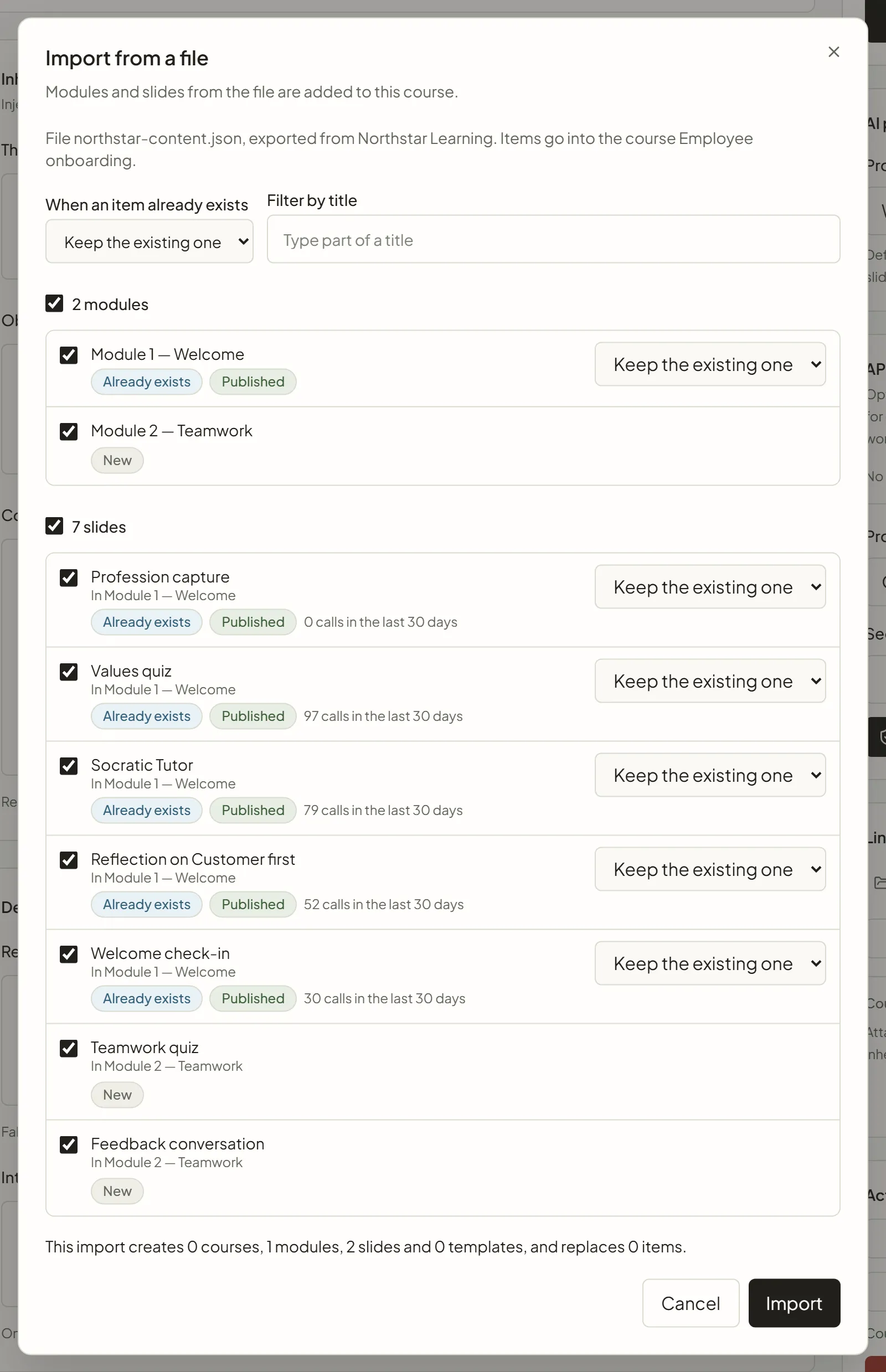
| Import into this course | A course page | Modules and slides, added to this course |
| Import into this module | A module page | Slides, added to this module |
| Import slide(s) | Content › Slides, in the Import / export menu | Slides, added to your slide library |
| Import | Content › Templates | Templates |
Review and import
Section titled “Review and import”- Click the import button, then Choose a file. SlideMind reads the file without writing anything.
- Check the summary: “File …, exported from …”. Each item is marked New or Already exists. An existing item also shows its status and, for a slide, its calls in the last 30 days and “Its own provider key is kept” when it has one.
- Uncheck the items you don’t want. Unchecking a course or module also unchecks its content. With many items, use Filter by title.
- For each existing item, choose what to do (see the next table). To set the same choice for all of them, use When an item already exists. The default is Keep the existing one.
- Read the warnings and the impact line, such as “This import creates 0 courses, 2 modules, 6 slides and 0 templates, and replaces 3 items.”
- Click Import.
The report lists each item as Created, Replaced or Kept, with a link to it. When you replaced items, Download the replaced versions saves them as they were before the import: import that file to put them back. The import is recorded in Activity (“Content imported”).
When an item already exists
Section titled “When an item already exists”An item already exists when the workspace has an item of the same kind with the same title in the same place: the same course or module, or the workspace for a course. A template matches by its slug, then by its title. A slide imported from Import slide(s), or from Import course(s) when the file holds it outside any course or module, is matched to the slide it was exported from in this workspace, wherever it sits and whatever its title. That lets you put back a version downloaded from Version history. If several items share a title, the review says “Several items share this title; the first one is used”. When you import a course or module as a copy, everything inside it is created as new items too.
| Choice | What happens |
|---|---|
| Keep the existing one | Nothing changes. The item from the file isn’t imported. |
| Import as a copy | A new item is created next to the existing one. |
| Replace its content | The existing item takes the content from the file. It keeps its place, its status, its own provider key and, for a slide, its integration code. For a slide or a template, the replaced version goes to its Version history as Replaced by an import. |
Slides created by an import (new items and copies) keep the status they have in the file, and each gets its own integration code. To use one in a course, copy its code from the slide’s Installation step.
Warnings
Section titled “Warnings”| Message | What it means |
|---|---|
| ”Memory keys not defined in this workspace: … They still work as ad hoc keys.” | The slide saves learner memory under keys that aren’t defined in this workspace’s Memory Hub. |
| ”Model … is not offered in managed mode; the workspace default model will be used.” | The workspace runs on SlideMind Credits, and that model isn’t in the catalogue. |
| ”This workspace has no … key yet.” | The workspace uses its own provider keys and has none for that provider. See Your own provider keys. |
| ”This import creates more items than your plan allows. Uncheck some items, or replace existing ones instead of copying them.” | The import is blocked until it fits your plan. |
| ”Custom templates are not included in your plan. Uncheck the templates to continue.” | The import is blocked until you uncheck the templates. |
| ”The import would exceed the plan’s pages of reference documents.” | The documents of the file need more pages than your plan has left. Remove documents you no longer use, or import fewer items. |
Reference document "…": The document has no readable text | A document of the file holds no text. The import is refused. Remove the document’s link in the source workspace, or give it some text, then export again. |
Reference document "…": A document holds at most 1500000 characters | A document of the file is too long. The import is refused. Split the document in the source workspace, then export again. |
Apply the workspace settings
Section titled “Apply the workspace settings”When you import a file that contains Safe settings from Import course(s), the review offers Also apply the workspace settings from the file, followed by the list of settings. Only the workspace Owner can check it; other members see “Only the workspace owner can apply settings.”
Import a whole workspace
Section titled “Import a whole workspace”The Owner can also import a workspace file from Settings › Data & privacy, under Import workspace.
- Click Choose JSON file. SlideMind reviews the file without writing anything.
- In Import review, check the source, the Sections to import, the plan impact for each type of item, the Warnings and any Blocking errors. The review says Ready to import or Import blocked.
- Click Confirm import…, then Import workspace.
The review also counts the reference documents of the file and their pages. If they need more pages than your plan has left, the import is blocked. If some documents are linked to items that are not in the file, a warning says they are imported without those links.
This import always adds content: it never replaces existing items. To replace items, use the import buttons of the content pages. The import is recorded in Activity (“Workspace imported”).
Advanced: preserve public config UIDs keeps the identifiers that the integration code installed in your courses uses, so that code points to the restored slides. Use it only to restore a backup you trust. If one of those identifiers is already in use, the import is blocked and the review lists it under Conflicting config UIDs.
Common uses
Section titled “Common uses”- Back up a course before a big change: Export course, then keep the file.
- Copy content to another workspace, such as another client’s: export it, switch workspace, then import it. Copied slides get their own integration code.
- Share templates between workspaces: Export JSON, then Import on the other workspace’s Templates page.
- Undo an import: import the file saved with Download the replaced versions, and choose Replace its content for the items to put back. Import course(s) recognizes replaced courses, slides and templates; for a replaced module that sits in a course, use Import into this course on that course’s page.