

Templates
A template is a reusable starting point for a slide: its instructions, activity type, response settings and variables. Use the built-in templates to get going fast, and custom templates to reuse your own structure across many slides. You find them all in Content › Templates.
Built-in and custom templates
Section titled “Built-in and custom templates”The Templates page has two sections:
- Your templates: the custom templates of your workspace. Owners and Editors create, edit and delete them. The section appears once the workspace has at least one.
- Built-in: the templates maintained by SlideMind. They’re read-only: you can create slides from them, or duplicate them to make an editable copy.
Favorites come first in each section. Each card shows the activity’s icon, the title, the description and a line such as “Chat (multi-turn) · Built-in”. Select a card to open the template.
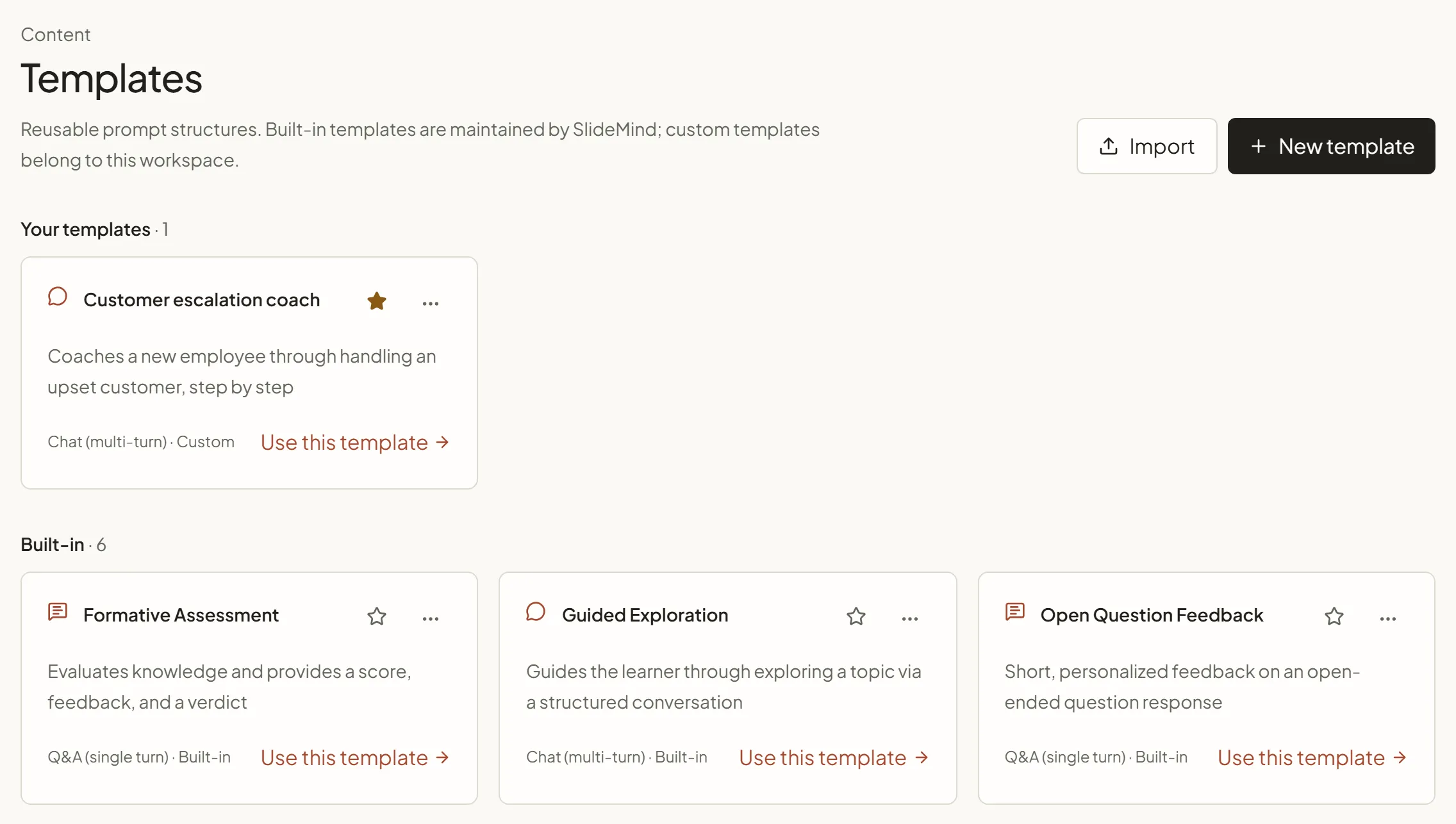
SlideMind provides six built-in templates. They’re also the examples offered under Start from an example when you create a slide.
| Template | Activity | Use it for |
|---|---|---|
| Quiz Feedback | Q&A | Personalized and constructive feedback on quiz answers |
| Formative Assessment | Q&A | Evaluates knowledge and returns a score, feedback and a verdict |
| Open Question Feedback | Q&A | Short, personalized feedback on an answer to an open question |
| Socratic Tutor | Chat | Guides the learner with open-ended questions rather than direct answers |
| Guided Exploration | Chat | Guides the learner through a topic in a structured conversation |
| Role-Play | Chat | Interactive scenarios and role-playing practice |
When your Interface language is Français, the built-in templates appear in French: their names, descriptions, instructions and the descriptions of their return variables. Variable names stay the same in both languages, so a slide created from a French template works the same way in your course.
Create a slide from a template
Section titled “Create a slide from a template”- In Content › Templates, click Use this template on the card. The link appears on published templates.
- The Create a slide screen opens with the examples shown and the template selected. A custom template appears under Your template.
- Check where the slide runs (interface and destination). You can also fill in Slide title; otherwise the slide takes the template’s title.
- Click Create and try it. The slide editor opens, with Try it ready for a first test.
You can also start from a built-in template in Content › Slides › New slide: under Start from, open Start from an example. See Create a slide.
The new slide is a draft. It receives a copy of the template’s settings:
- the activity type and the instructions;
- the question or opening message, the turn limit and the closing settings;
- temperature, reasoning effort and max tokens;
- the AI notice settings;
- the suggested slide variables and the return variables.
The slide and the template are independent from then on. Editing the template later doesn’t change slides created from it, and deleting it doesn’t affect them.
Card actions
Section titled “Card actions”Each card has a Use this template link, a star and an actions menu (⋯). You only see the actions your role allows.
| Action | What it does | Available for |
|---|---|---|
| Use this template | Opens Create a slide with this template | Published templates; Owners and Editors |
| Star (Add to favorites) | Lists the template first on the Templates page. Click again to Remove from favorites. | The workspace Owner |
| Duplicate as custom | Creates an editable draft copy named ”… (copy)” and opens it | Built-in and custom templates; Owners and Editors, on a plan with custom templates |
| Export JSON | Downloads the template as an export file | Custom templates; Owners and Editors |
| Delete template | Removes the template permanently. Slides created from it keep their configuration. | Custom templates; Owners and Editors |
Create or edit a custom template
Section titled “Create or edit a custom template”Click New template, or open a custom template from its card. Duplicating a built-in template is the quickest way to start from a tested structure: open it and select Duplicate to edit, or use Duplicate as custom in its card menu.
| Field | What it does | Example |
|---|---|---|
| Title | The name shown on the card | Customer call debrief |
| Slug | A lowercase identifier, generated from the title if you leave it empty. It’s fixed after creation, because favorites reference it. | customer-call-debrief |
| Description | A short summary shown on the card (optional) | Feedback after a practice call |
| Interaction type | A free label copied to slides (optional) | feedback |
| Status | Draft, Published or Archived. Only published templates offer Use this template. | Published |
| System prompt | The instructions for the AI. Type @ or click a chip to insert a variable, as in the slide editor. | — |
| Reasoning effort, Temperature, Max tokens | The response settings copied to new slides | — |
| Mode (under Widget behavior) | Q&A, Chat or Capture | Chat (multi-turn) |
| Opening message, Max turns, Closing message, Graceful close | Chat only. Max turns at 0 means unlimited. Graceful close keeps the message box visible but disabled after the last turn. | Max turns: 6 |
| Slide variables (under Variables) | Suggested variables the e-learning module should send | learner_role |
| Return variables | The structured fields the AI returns | score, feedback |
Q&A and Chat templates also carry the AI notice settings. See AI notice.
For a new template, Create template becomes available once you type a title. On an existing template, Save template stays inactive until you change something; a bar with “Unsaved changes” and Save template then stays at the bottom of the screen until you save.
A built-in template opens read-only, with “Built-in template: read-only.” and a Duplicate to edit button. Duplicate to edit creates an editable draft copy and opens it; it needs a plan with custom templates. Viewers see every template read-only.
For how variables and return variables work, see Variables in prompts and Results: plain text or structured.
History, export and import
Section titled “History, export and import”- History: on a custom template’s page, History lists earlier versions and lets you restore one. See Version history.
- Export: Export JSON on a custom template card. Built-in templates aren’t exported: every workspace already has them.
- Import: Import at the top of the Templates page adds templates from an export file. If a template with the same slug or title already exists, you choose to keep it, import a copy or replace its content. See Import and export.