

Test before going live
A slide can answer well in SlideMind and still fail in your course, for example because the course runs on a site you have not allowed or the learner is not identified. This page describes the three levels of testing, how to set up allowed websites while you test, and a checklist to run before learners arrive.
Three levels of testing
Section titled “Three levels of testing”| Level | Where | What it tests | What it does not test |
|---|---|---|---|
| 1. Try it | The panel beside the slide editor | Your instructions and settings, including unsaved changes, with real AI replies | Your course, learner identification and learner memory |
| 2. Sandbox | Test & monitor › Sandbox | A slide draft built from scratch or from a copy of a saved slide, with any course and module context, and the exact prompt sent to the AI | Your course, learner identification and learner memory |
| 3. The published course | Test & monitor › SCORM preview, your LMS, or SCORM Cloud | Everything: the integration code, allowed websites, learner identification and learner memory | — |
1. Try it
Section titled “1. Try it”Try it tests the unsaved draft of the slide. Nothing is saved.
- Each test is a real AI call, billed like a learner’s. For a Q&A in the widget, switch from Test with AI to Sample states to see the widget’s states for free, without calling the AI.
- With the authoring tool interface, Try it shows what your authoring tool variables would receive after the reply.
- For a Capture slide, Try it only simulates what would be saved.
- What would be kept shows what the slide would keep in the learner’s memory. Try it never saves anything.
If you see “Too many tests in a row. Wait a minute, then try again.”, wait a minute before the next test. Viewers can read a slide but not test it. See Try it.
2. Sandbox
Section titled “2. Sandbox”In Test & monitor › Sandbox, you build a slide draft with the slide editor’s own steps and try it. Nothing in the Sandbox is saved.
- Under Start from, choose Blank slide or a saved slide. A saved slide is loaded as a copy: you can change anything, and the slide itself never changes. Start over brings back the starting point.
- Choose the Activity, and a Course and Module whose content feeds the test.
- The Try it panel runs real AI calls, billed like a learner’s.
- Prompt sent to the AI shows the final prompt and which variables were used or missing. Preview the prompt only shows it without calling the AI.
See Sandbox.
3. The published course
Section titled “3. The published course”Only the published course runs the integration code the way learners will, from the address where your course is hosted. It is also the only place where the learner is identified, so it is where you test learner memory.
- Publish the slide in SlideMind first.
- Authoring tool previews do not always run JavaScript. Storyline Preview never runs Execute JavaScript triggers.
- Previews, Review 360 and share links never identify the learner: the AI answers, but learner memory stays off.
- Upload the published package to Test & monitor › SCORM preview and launch it as a test learner, without an LMS. Launch it again with the same learner ID to check learner memory. See SCORM preview.
- Then launch the course from your LMS, or upload it to SCORM Cloud, with a test learner account.
- If the slide saves values in learner memory, check in Memory › Learner data that your test learner appears after the test. See Learner data.
Allowed websites
Section titled “Allowed websites”Your workspace’s allowed websites decide which sites can use your slides. Set them in Settings › Integrations › Allowed origins. Only the workspace Owner can change them.
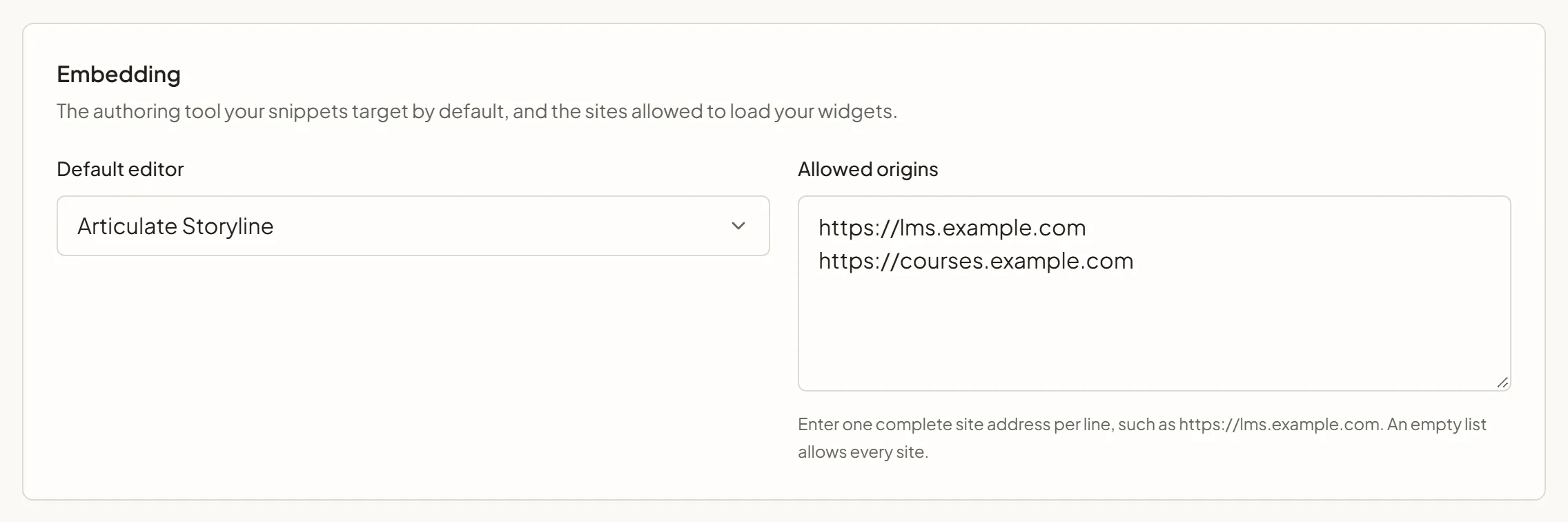
- Enter one complete site address per line, such as
https://lms.example.com. - Each address must match exactly:
https://lms.example.comdoes not coverhttps://courses.example.com. - Add the address of your LMS and, if it is different, the address that serves your course files.
- While you test, add the address of SCORM Cloud or of any review platform where you share the course. You can find an address in your browser’s address bar when the course is open.
- An empty list allows every site. As long as it is empty and a slide is published, the Overview page warns you under Needs your attention: any website that copies your integration code can use your workspace’s AI and credits.
When a site is not allowed, the browser blocks SlideMind’s answer, so authoring tool code gets the error SlideMind error (0), and the browser does not display the widget. See Allowed websites.
The 24-hour test mode
Section titled “The 24-hour test mode”When you do not know every address yet, for example for a preview or a review platform, use the test mode:
- Go to Settings › Integrations.
- In the Testing and server access section, next to 24-hour CORS test mode, select Enable for 24 hours. The mode “temporarily lets any website call chat or capture endpoints and embed the widget.” It starts at once, without Save settings.
- Test your course. The section shows “Active until” and the end date, and the Overview page reminds you under Before you go live.
- Once you know the addresses, add them to Allowed origins and select End test mode. Otherwise the mode ends by itself after 24 hours.
Read the errors
Section titled “Read the errors”In authoring tool code
Section titled “In authoring tool code”The integration code writes errors into the …_err variable of the answer. Create it in your authoring tool while you test, and show it in a text box.
| Value of the error variable | Usual causes |
|---|---|
SlideMind error (0) | The browser blocked the answer: the site is not in Allowed origins, or the network connection failed. With the Storyline code, also a request that got no answer within the time limit. |
SlideMind error (403) | The slide is a draft or archived, the workspace is not active, or the slide’s model is not available on your plan. |
SlideMind error (404) | The slide was deleted, or the code does not match any slide. |
SlideMind error (402) | The workspace has no SlideMind Credits left. |
SlideMind error (429) | The service stayed busy after the quiet retries, or the workspace reached its monthly number of AI replies. |
SlideMind error (500) | Usually, no AI is connected to the workspace yet. |
SlideMind error (502) | The AI provider did not answer or took too long. |
assessment unavailable: followed by field names | The AI did not return every structured field. The return variables keep their previous values. |
In the SlideMind widget
Section titled “In the SlideMind widget”| What you see | Usual causes |
|---|---|
| ”Configuration not found.” | The slide is a draft, archived or deleted. |
| ”This widget is not available.” | The workspace is not active. |
| ”The AI assistant is temporarily unavailable. Please try again later or contact your course provider.” | No SlideMind Credits left, the monthly number of AI replies reached, or no AI connected. |
| A blank frame, or a browser message instead of the widget | The site is not in Allowed origins. |
| ”Assessment unavailable” in a Q&A | The AI did not return every structured field. |
For more symptoms and solutions, see Troubleshooting.
Go-live checklist
Section titled “Go-live checklist”Run this list for each course before learners arrive:
- Every slide the course uses is Published.
- AI is connected: SlideMind Credits are available, or a provider key works. The Overview page shows no warning about provider keys or SlideMind Credits. See Choosing how AI is funded.
- Allowed origins lists your LMS and course addresses, and the 24-hour test mode is off.
- Learners are informed that the activity uses AI: the AI notice is set in Look for widget slides, and your own screen says so for authoring tool slides. See AI notice.
- Each Chat has a sensible turn limit. Each message is one paid AI reply.
- The memory settings are right: what each slide keeps under Remember for later slides, and which values Capture slides save. See How learner memory works.
- Plain-text AI responses in Settings › AI & models is still on (the default) unless your screen can display Markdown formatting such as headings, bold text or lists.
- The installed code is current: you copied it again after any change listed in Changing a slide after installation.
- You tested the published course with a test learner, in the SCORM preview, your LMS or SCORM Cloud, including memory across slides.
- Your privacy information covers the AI provider and learner memory. See Data, AI providers and your responsibilities.