

Conversations (Chat)
A Chat slide holds a short conversation between the learner and the AI: tutoring, guided exploration or role-play. This page explains turns, how a conversation ends, and how it behaves in the SlideMind widget and with the authoring tool interface. To choose between Q&A, Chat and Capture, see Activity types.
A turn is one learner message plus one AI reply. Each turn is a paid AI call. Each call also sends the whole conversation so far, so the AI remembers earlier turns and later turns cost more than early ones.
The AI replies in the language of your instructions. The widget’s Learner language only sets the language of buttons, labels and the end card.
Set up the conversation
Section titled “Set up the conversation”The Conversation step (“How does the conversation go?”) holds the turn limit and the ending.
- Opening message: the first message learners read. It doesn’t call the AI, but SlideMind sends it to the AI at the head of the conversation, so the AI knows what the learner read before answering. In the SlideMind widget, it’s the first AI bubble. With the authoring tool interface, show the same text on your screen: a ready-made Storyline slide opens on it. It accepts variables: type
@or click a chip, for example to greet the learner by first name. See Variables in prompts. - Complete the sentence The learner can send … messages. After the last one, …: enter the number of turns, from 0 to 100.
0means no limit. - In the same sentence, choose what happens after the last message (see the next section).
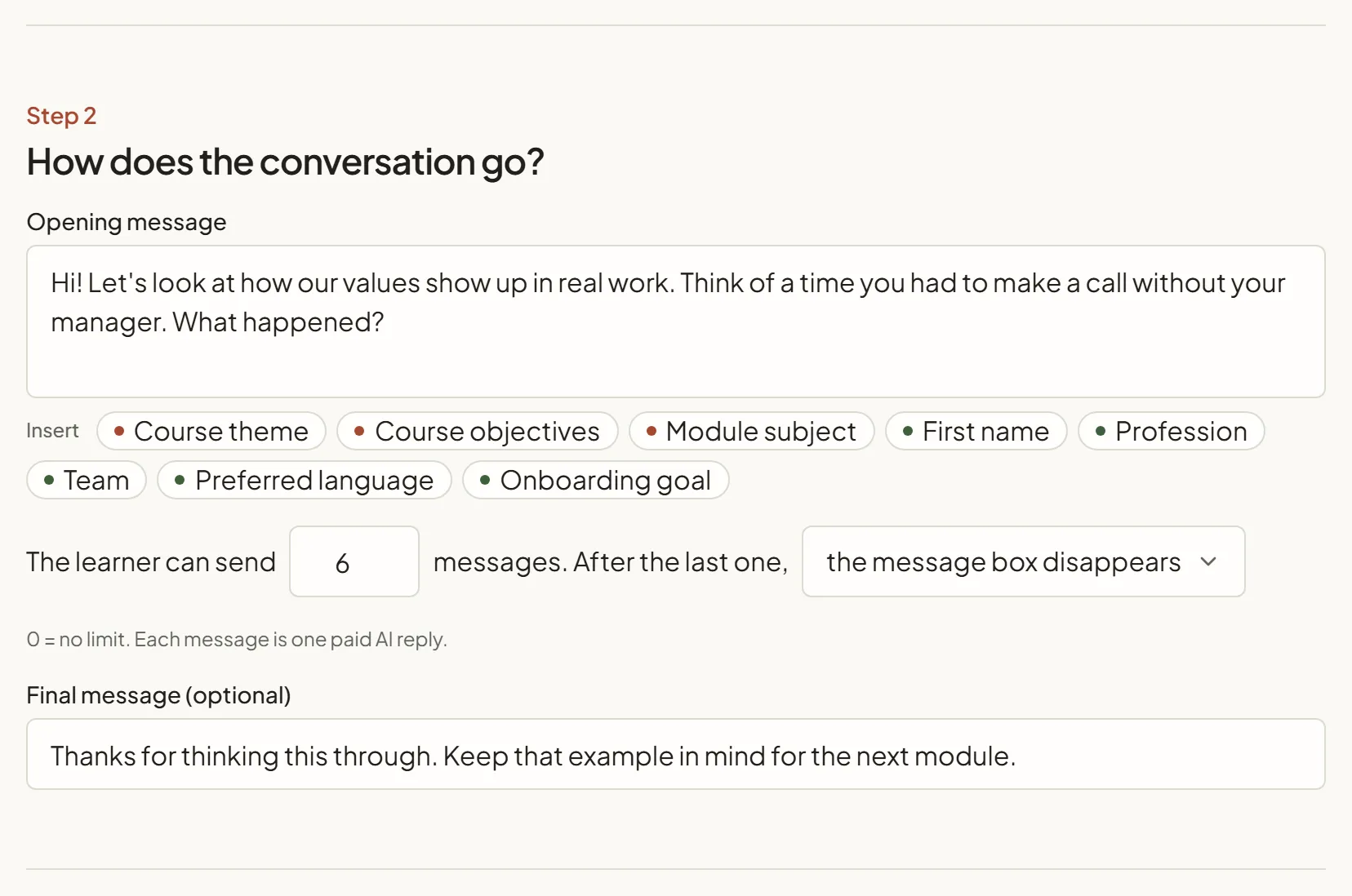
A blank Chat slide starts with no limit, and with the AI wraps up as the ending: What the AI does on the last turn is already filled with a default closing instruction, which applies as soon as you set a limit. The built-in Chat examples (Socratic Tutor, Guided Exploration, Role-Play) come with one.
The AI model step shows an estimate such as “Up to ~… per conversation”. It’s based on the length of your instructions and response example, Max tokens and the turn limit. Without a limit, it shows the cost of one exchange instead.
How the conversation ends
Section titled “How the conversation ends”The choices depend on the interface of the slide.
| Choice | Interface | What happens after the last message | Extra field |
|---|---|---|---|
| the AI wraps up | Both | On the last turn, the AI also receives your closing instruction and concludes the conversation itself. In the widget, the message box then stays visible but disabled. | What the AI does on the last turn. With the widget, also If the AI can’t reply, show this instead. |
| a fixed message appears | SlideMind widget | Your message ends the conversation. The message box stays visible but disabled. | Message shown after the last reply |
| the message box disappears | SlideMind widget | The message box is hidden. | Final message (optional) |
| nothing more happens | Authoring tool interface | The integration code stops sending messages and sets the ended variable to true. | — |
With the AI wraps up, the closing instruction only applies to the last turn. Write it like an instruction, for example: “Wrap up warmly: summarize what was covered and invite the learner to continue to the next screen. Stay in character.” If that last call fails, the widget shows your fallback message instead and the conversation still ends.
Placeholders aren’t replaced in the closing instruction or the closing messages: write them as plain text.
In the SlideMind widget
Section titled “In the SlideMind widget”This applies to Rise 360, the Storyline Web Object and the HTML widget.
- Opening. The opening message appears as the first AI bubble. If it uses learner memory, the widget shows the personalized version once it identifies the learner.
- End card. When the turn limit is reached, the widget adds an Activity complete card. Its text is your closing message, or “You can continue.” when there is none. With the AI wraps up, the AI’s last reply already concludes, so the card shows the default text.
- Restart. The Restart conversation button (in the header, or next to the message box when the header is hidden) clears the conversation and the turn count. Learners can use it at any time, even after the end card, and every new reply is a new AI call. If the header is hidden and the ending hides the message box, the button is hidden with it.
- Completion. The activity counts as finished when the conversation reaches its turn limit, or after the first reply when there’s no limit. Rise 360 can use this for a Continue block, and the Storyline Web Object sets its Activity finished (true/false) variable.
You can rename the end card, the restart button and the other widget texts in the Look step, under More styling: labels. See Appearance and language.
With the authoring tool interface
Section titled “With the authoring tool interface”There’s no widget: your authoring tool shows the conversation. Show the opening message on your screen, as the first text the learner reads: SlideMind sends it to the AI personalized like in the widget, but doesn’t display it. The ready-made Storyline slide opens on it.
The Installation step lists the variables to create, under Storyline variables for Storyline and Integration variables for the other authoring tools.
| Variable | What it holds |
|---|---|
| Learner question | The learner’s message. Put the text in it before the code runs. |
| AI answer | The latest AI reply. Show it in a text box. |
Conversation history (text), <answer>_history | The whole conversation, in a technical format. The code sends it with every message. Don’t display it. |
Conversation ended (true/false), <answer>_done | true after the last turn allowed by the slide. |
<answer> stands for the name of the AI answer variable shown in the Installation step.
Each time your trigger runs the code, it sends the learner’s message with the history, writes the reply, then adds both to the history. An empty message isn’t sent. Once the limit is reached, the code sends nothing more and keeps <answer>_done at true: use it to unlock the next screen.
To start the conversation over, set the history variable to an empty text. If your triggers react to <answer>_done, set it back to false at the same time.
Structured fields in a conversation
Section titled “Structured fields in a conversation”A Chat can also return named fields, such as a score, with the authoring tool interface and with the Storyline Web Object. In Rise 360 and the HTML widget, a Chat always replies in plain text. See Results: plain text or structured.
To keep the conversation, or an AI summary of it, for later slides, use the memory settings of the Results & memory step (listed as Memory for a Chat in Rise 360 or the HTML widget). See Saving values.
Test a conversation
Section titled “Test a conversation”Try it in the slide editor and the Sandbox both keep a Test conversation, shown as chat bubbles: the learner’s messages on the right, the AI’s replies on the left. Each message you send adds a learner turn and a real AI reply, and the next one sends the whole conversation, like the published course.
- The opening message appears as the AI’s first bubble before your first message, as the AI receives it.
- The counter shows how many turns you used, for example “3 of 8 turns used”.
- New conversation starts over.
- When the limit is reached, Try it shows “The conversation has ended.” With the authoring tool interface, it also shows
<answer>_done = true.
Each test is a real AI call, billed like a learner’s. See Try it.