

Contact support
The SlideMind team answers questions and investigates problems by e-mail. This page explains how to send a request from the portal, what to include so the team can help you quickly, and how to reach support when you can’t sign in.
Before you write, the Troubleshooting page and the FAQ cover the most common problems.
Send a request from the portal
Section titled “Send a request from the portal”- In the sidebar, select Help (above Settings). On a small screen, open the menu first.
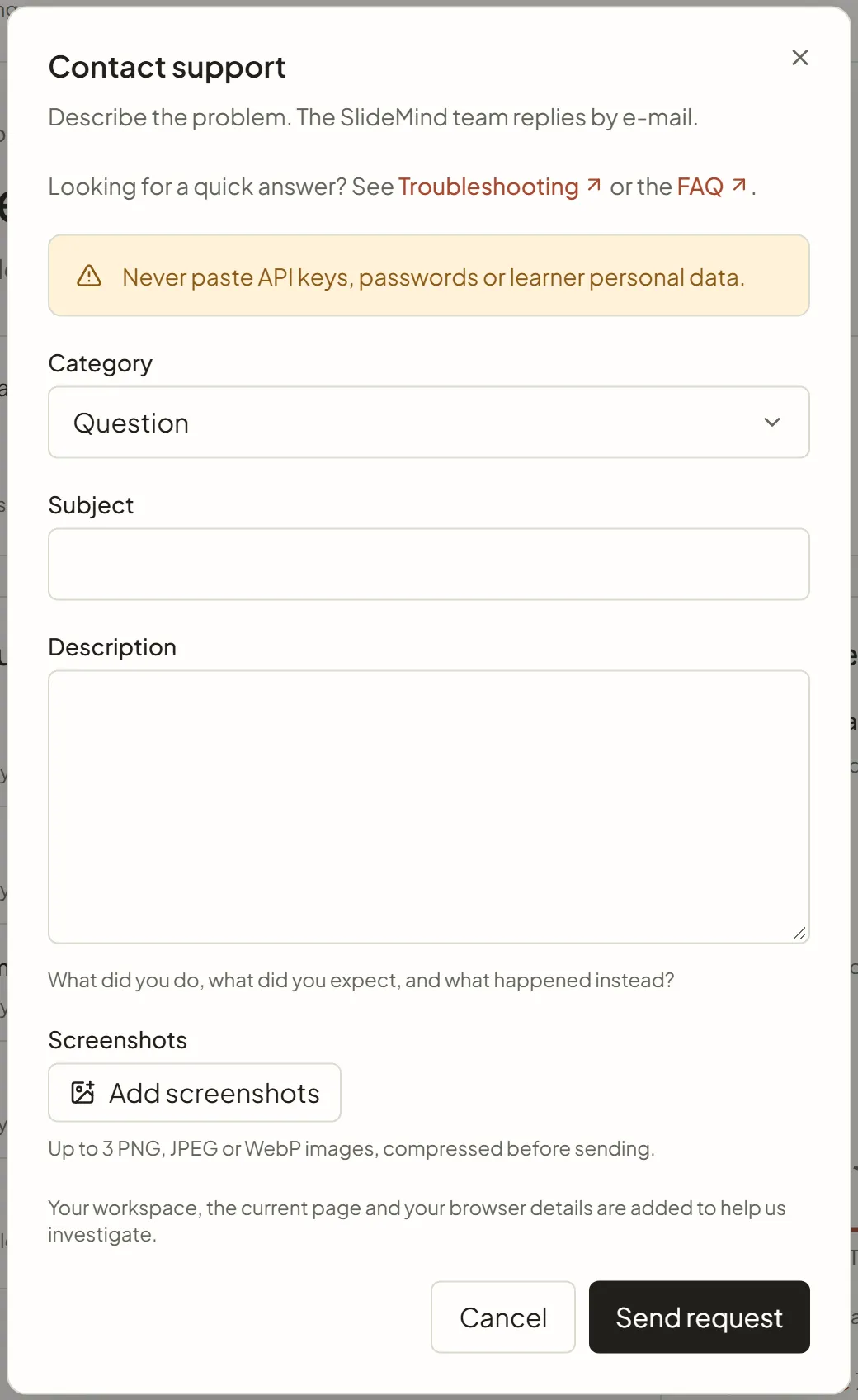
- In Contact support, choose a Category. The form starts with links to Troubleshooting and the FAQ, in case they already answer your question.
- Write a short Subject.
- In Description, answer three questions: what did you do, what did you expect, and what happened instead?
- Optionally, select Add screenshots and choose up to three images.
- Select Send request.
The dialog shows Request sent with a reference such as SM-261008-ABCD. You also receive an e-mail, “We received your request”, with the same reference. The team replies to your account’s e-mail address.
Categories
Section titled “Categories”| Category | Use it for |
|---|---|
| Something is broken | An error, a slide that stops answering, a page that doesn’t load |
| Integration (Storyline, SCORM, LMS) | Integration code, authoring tools, published courses, learner identification |
| Billing and credits | SlideMind Credits, purchases, invoices, plans |
| Account and access | Sign-in, two-factor authentication, members and invitations |
| Question | Anything else |
Write a useful description
Section titled “Write a useful description”The more precise the request, the faster the answer. Include what applies:
- the title of the slide, course or module, and the activity type (Q&A, Chat or Capture);
- the authoring tool or page where the slide runs, and the LMS if there is one;
- the exact message you or the learner saw, copied as text;
- when it happened, and whether it happens every time;
- what you already tried, for example in Try it or the Sandbox.
Screenshots
Section titled “Screenshots”You can attach up to three PNG, JPEG or WebP images. SlideMind resizes and compresses them in your browser before sending. Crop each screenshot to the part that matters, and hide any personal data before you attach it.
| Message | What to do |
|---|---|
| ”Only PNG, JPEG and WebP images can be attached.” | Save the screenshot in one of these formats. |
| ”This screenshot is still too large after compression. Crop it and try again.” | Crop the image to the relevant area. |
| ”The screenshots are too large together. Remove one and try again.” | Attach fewer images. |
| ”You can attach up to 3 screenshots.” | Remove a screenshot before adding another one. |
| ”This image could not be read. Try another file.” | Take the screenshot again, or export it in another format. |
Information added automatically
Section titled “Information added automatically”To help the team investigate, SlideMind adds context to your request: your name and e-mail address, the active workspace with your role and its plan, the page you were on, the version of the app, your browser and operating system, and your time zone. You don’t need to type any of this.
Follow up on a request
Section titled “Follow up on a request”- Keep the
SM-…reference. Mention it if you write again about the same problem. - To add details or screenshots, reply to the “We received your request” e-mail.
When you can’t sign in
Section titled “When you can’t sign in”Write to support@slidemind.app from your usual mailbox. The Contact support link under Can’t sign in? on the sign-in page opens a message to that address. Give the e-mail address of your account and describe what happens.
Before you write, check these cases:
- Forgotten password: use Forgot password? on the sign-in page. See Password, two-factor and sessions.
- Lost authenticator app: sign in with one of your backup codes (Use a backup code instead). If you have none left, write to support.
- E-mail address not verified: the sign-in page offers to send a new verification link. See Create your account and workspace.
- The sign-in page says “This account has been suspended. Contact support@slidemind.app.”: write to support.
- The page Workspace unavailable says that none of your workspaces are currently active: ask a workspace Owner, or write to support.
If the form doesn’t send
Section titled “If the form doesn’t send”If sending fails, the dialog shows an error with “You can also write to support@slidemind.app”. Write to that address and include your subject and description. Screenshots can be attached to the e-mail.