

Reference documents
Reference documents let the AI answer from your own material: a policy, a procedure, a product sheet, a slide deck. You add a document to the workspace library once, then link it to the courses, modules or slides that need it. This page is for course authors who want the AI to rely on a document rather than on what it already knows.
How the AI uses a document
Section titled “How the AI uses a document”When a learner sends a message to a slide that reads documents, SlideMind adds their text to what the AI receives:
- when the slide reads up to about 8 pages in all, the AI reads everything with each answer;
- above that, it reads the passages that match the learner’s question.
Documents are read only where they are linked. A document in the library that is linked nowhere is read by no slide.
The library
Section titled “The library”Go to Content › Reference documents. The page shows:
- the page meter, for example “12 of 50 pages used”, with your plan and the number of pages left;
- the list All documents, with a search field. Each document shows its type (PDF, Word, PowerPoint, Text, Markdown, or Imported when it came with an import), its number of pages, the date it was added, and where it is read, for example “Course · Employee onboarding”, or Not linked yet.
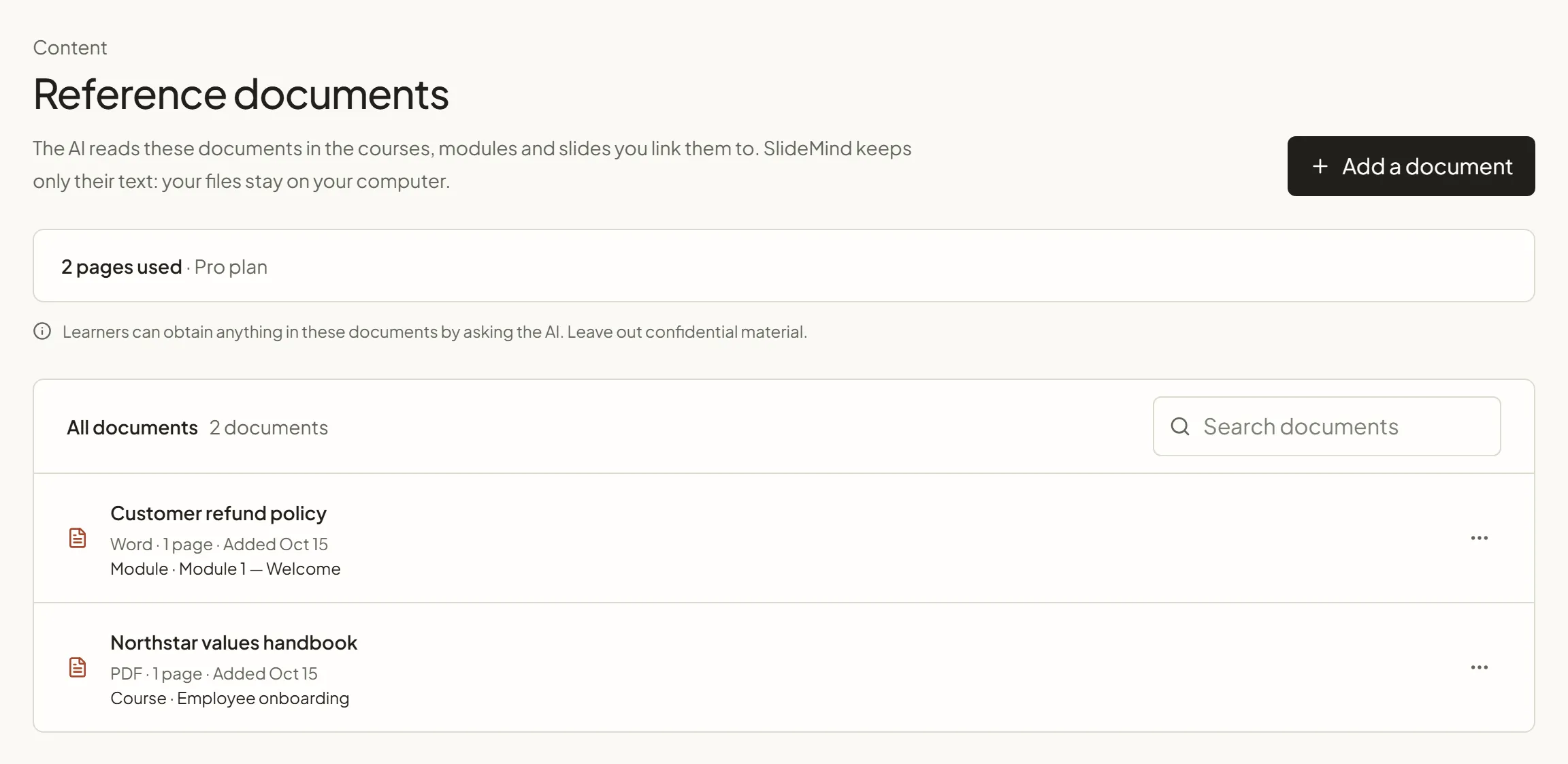
Select a document to open What the AI reads. Its ⋯ menu offers:
- See what the AI reads;
- Link to a course, module or slide…;
- Replace with a newer version…;
- Rename;
- Delete.
Add a document
Section titled “Add a document”- In Content › Reference documents, select Add a document. You can also add one from a course or module page (see Link documents to courses, modules and slides).
- Select Choose a file. SlideMind reads PDF, Word (.docx), PowerPoint (.pptx), text and Markdown files, up to 100 MB.
- Wait while your browser reads the file. “Read in your browser. Nothing is sent until you confirm.”
- Check what the dialog shows:
- the Title, taken from the file name, which you can change;
- the page cost, for example “Uses 4 pages of the 38 left on your Starter plan”;
- the pages that have no readable text, if any: “These pages have no readable text (images or scans): … The AI will not see them.”;
- What the AI will read: the beginning of the text, part by part.
- Select Add document.
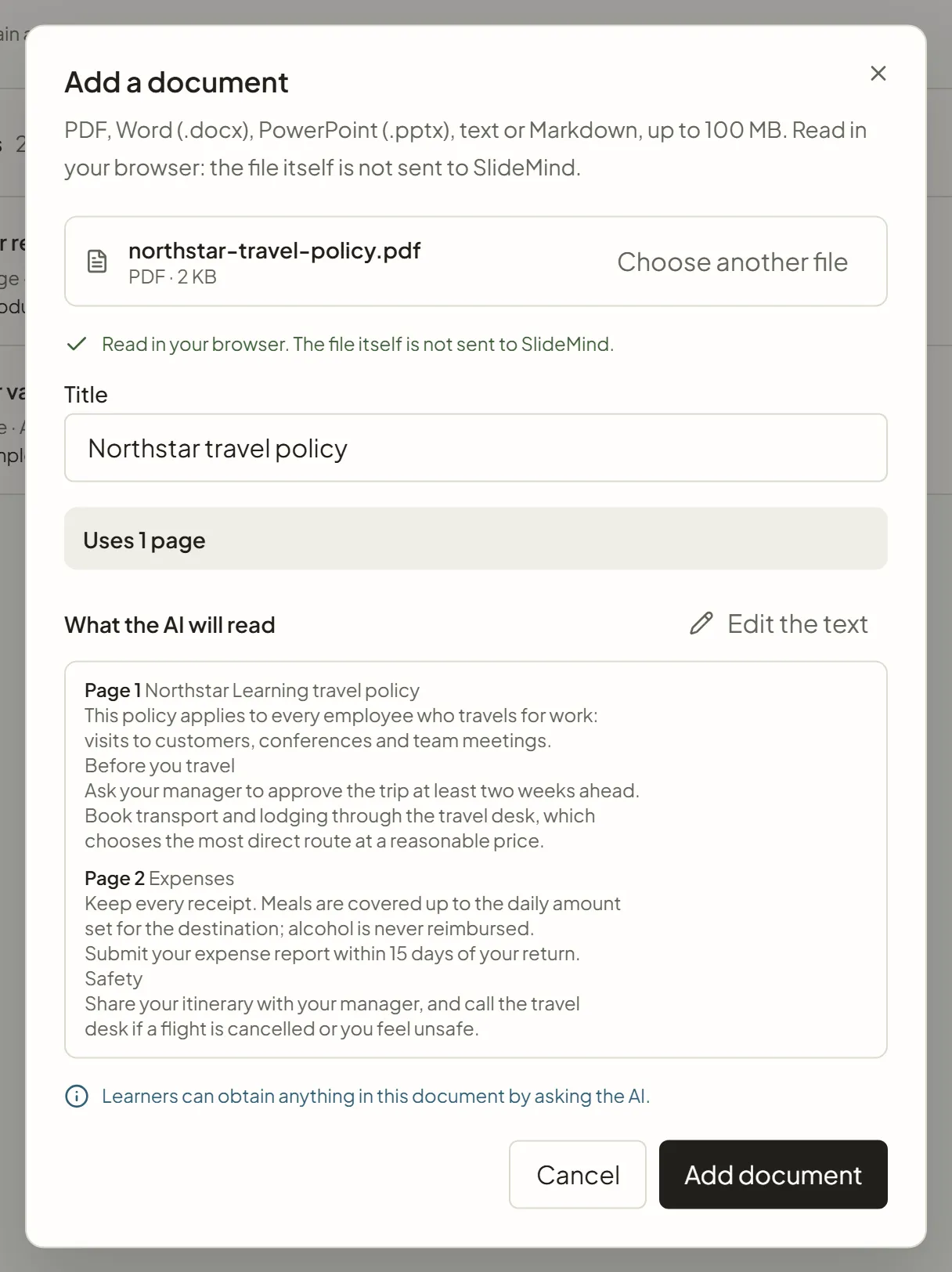
The file itself never leaves your computer: your browser extracts the text, and SlideMind keeps only that text. Images, charts and the layout are not kept. For a PowerPoint file, the text of each slide and its speaker notes are read.
A page is about 500 words of text; images are not counted. A short document with many images can use one page, and a dense text file several. The number of pages counts toward your plan’s page allowance, shown by the page meter.
If you add a document whose text is already in the library, the dialog says You already added this document and offers to reuse it: Link the existing one (when you add it from a course or module page) or Add a separate copy, which uses pages again.
Files SlideMind refuses
Section titled “Files SlideMind refuses”| Message | Why | What to do |
|---|---|---|
| ”SlideMind reads PDF, Word (.docx), PowerPoint (.pptx), text and Markdown files.” | Another file type, such as an Excel sheet or an image. | Save the content in one of these formats. |
| ”This file is larger than 100 MB.” | The file is too large. | Split it, or remove its images. |
| ”This file is protected by a password or saved in an old format (.doc, .ppt). …” | SlideMind can’t open protected files or the old Office formats. | Save it as a recent .docx or .pptx, or as a PDF without a password, then add it again. |
| ”This PDF looks like scanned images. …” | A scanned PDF holds pictures of text, which SlideMind can’t read. | Export it again as a text PDF, or add the file it came from. |
| ”No readable text was found in this file.” | The file holds no text. | Check the file. |
| ”This file could not be read. …” | The file is damaged. | Open it in its application, save it again, then retry. |
| ”This document is too long to add in one go (about 500 pages at most). …” | The text is too long for one document. | Split it, then add each part. |
| ”The file reader could not load, often because SlideMind was just updated. …” | The page is out of date. | Reload the page, then add the file again. |
Edit the text the AI reads
Section titled “Edit the text the AI reads”You can change the text before or after adding a document, for example to remove a confidential passage or fix a badly read table.
- Before adding it: in the dialog, select Edit the text under What the AI will read. Each page or section gets its own field. The page cost follows your edits, and the dialog says “Edited: the AI will read your version of the text.” Select Done, then Add document.
- After adding it: open the document in the library (See what the AI reads). What the AI reads shows the text SlideMind keeps, word for word, part by part, with Previous and Next. Select Edit the text, make your changes, then Save the text. Links are kept, and the AI reads the new text from the next answer.
The document needs some text: to remove all of it, delete the document instead.
Replace a document with a newer version
Section titled “Replace a document with a newer version”When the source file changes, select Replace with a newer version… in the document’s ⋯ menu and choose the new file. The dialog shows the page count now and after the replacement. Select Replace the text. The document keeps its links, and its title unless you change it: every course, module and slide that reads it uses the new text from the next answer.
Link documents to courses, modules and slides
Section titled “Link documents to courses, modules and slides”Where you link a document decides which slides read it:
| Linked to | Read by |
|---|---|
| A course | Every slide of the course, in its modules or at course level. |
| A module | The slides of the module. They also read the documents of its course. |
| A slide | That slide only. |
From the library
Section titled “From the library”- In the document’s ⋯ menu, select Link to a course, module or slide….
- Under Course, module or slide, choose where the AI should read it. The list is grouped into Courses, Modules and Slides, with a search field.
- Select Link document.
When published slides would read the document, SlideMind asks first, for example “3 published slides will read it from their next answer.” Select Link document again to confirm, or Back.
The same dialog lists, under Read in, where the document is already read. Select the button next to one of them to stop reading it there.
From a course or module page
Section titled “From a course or module page”Course and module pages have a Reference documents card. It lists the documents read there: for a module, the course’s documents under From the course and its own under This module. The card offers:
- Add a document, which opens the add dialog and links the new document to this course or module;
- Link one from the library, to choose a document already in the library;
- Unlink, next to each document of this course or module.
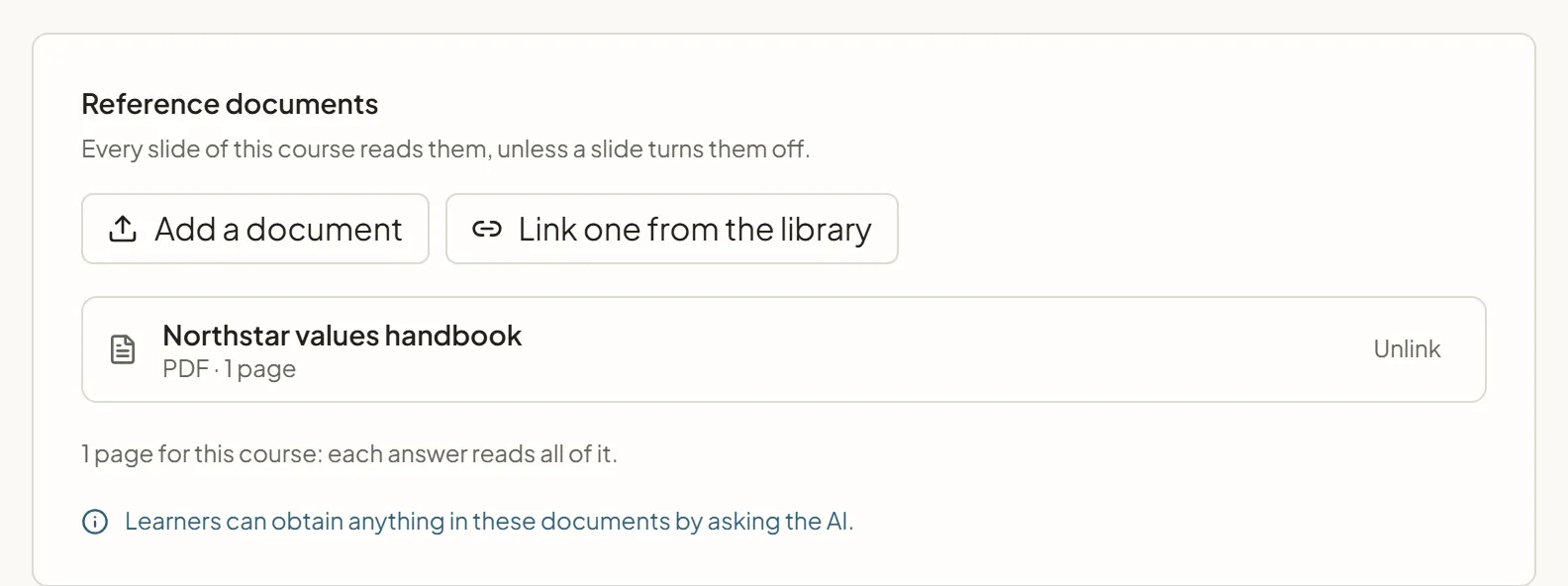
Under the list, a line tells you how much each answer reads, for example “12 pages for this course: each answer reads the passages that match the learner’s question”. When a course or module reads more than about 300 pages, a tip says the passages found get less precise: link only what the course or module needs.
See Courses and modules.
On one slide
Section titled “On one slide”In the slide editor, a line under Instructions for the AI says what the slide reads, for example “Reads 2 reference documents (6 pages) in full with each answer”. Select Manage (or Add one when the slide reads none) to open Course and module context. Its Reference documents section lists the documents From the course, From the module and This slide only, with buttons to add or link a document to this slide.
To stop one slide from reading documents, turn off Use in this slide, then save the slide. “Off: this slide reads no document, whatever its course and module hold.” The links stay in place for the other slides.
Memory capture slides make no AI call and never read documents.
Check what the AI read
Section titled “Check what the AI read”After a test in Try it or the Sandbox, Documents read for this reply lists each document the AI received, with read in full or the parts it read, such as “Page 4, Page 5”. Select Show the text sent to see the exact text. When no passage matched the message, the panel says so.
Answers that use documents send more text to the AI, so each message costs a little more. The cost shown after a test then ends with “documents included”.
Delete or rename a document
Section titled “Delete or rename a document”- Rename changes the title shown in the library and in the slide editor.
- Delete removes the document’s text from SlideMind and every link to it. ”… will no longer be read by any slide.” Your file is untouched.
Adding, replacing, deleting, linking and unlinking documents are recorded in the Security tab of Activity, which Owners see.
Who can manage documents
Section titled “Who can manage documents”Owners and Editors add, edit, link and delete documents. Viewers see the library and can open What the AI reads. While a subscription is paused, the workspace is read-only: “This workspace is read-only while the subscription is paused.” See Members and roles.
When the owner’s account has returned to Discovery, documents beyond its limits show a Read-only badge: they can be exported or deleted, but not changed. Thirty days later, editable slides stop using them. See Back on Discovery: read-only above the limits.