

Allowed websites
The allowed websites list tells SlideMind which sites may use your published slides. This page is for workspace owners preparing a course for learners, and for authors who need to understand why a slide answers in one place and not another.
You manage the list in Settings › Integrations › Allowed origins. Only the owner can change it. Editors can read it.
Why it matters
Section titled “Why it matters”When the list is empty, your published slides answer requests from any website. Anyone who copies your integration code into their own page can use your workspace’s AI, and your SlideMind Credits when the workspace uses them.
Fill in the list before you go live. Once a slide is published and the list is still empty, the Overview shows a warning under Needs your attention, with a Review allowed websites link. The warning disappears as soon as you add one address.
What the list controls
Section titled “What the list controls”When the list contains at least one address, only those sites can:
- get answers from your Q&A and Chat slides,
- save values to learner memory from a course,
- display the SlideMind widget in their pages,
- load learner memory into an authoring tool (see Learner memory needs a list).
Testing inside SlideMind (Try it and the Sandbox) doesn’t depend on this list.
Add your websites
Section titled “Add your websites”- Go to Settings › Integrations.
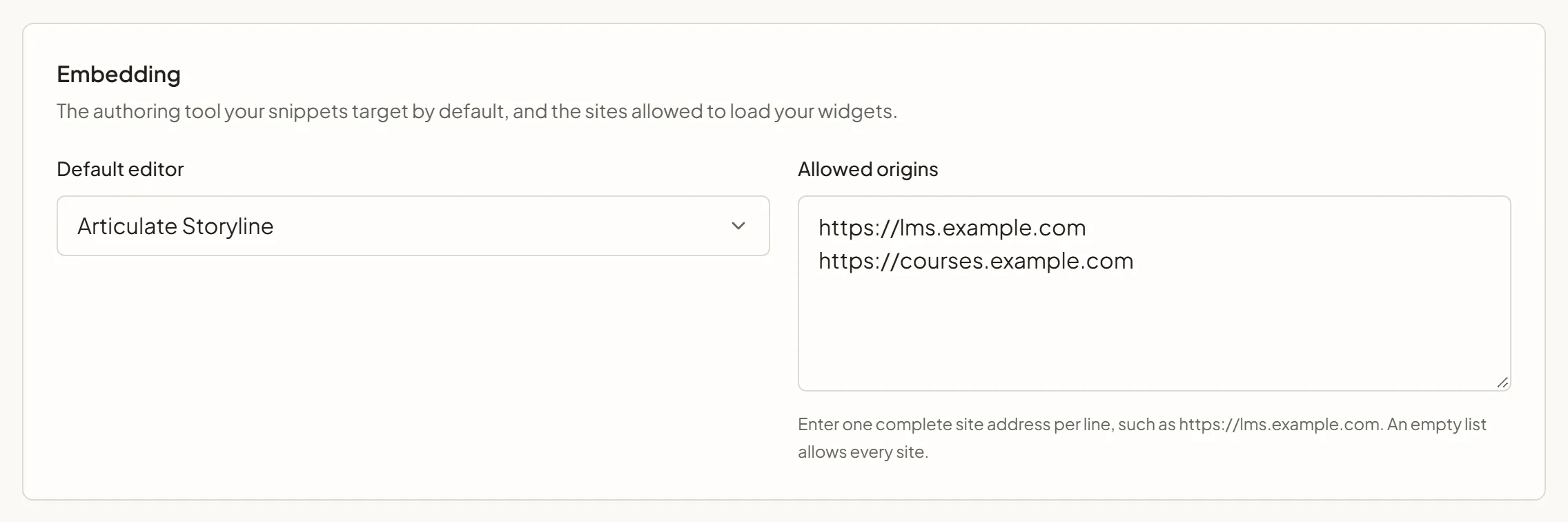
- In the Embedding section, under Allowed origins, enter one site address per line, for example
https://lms.example.com. - Click Save settings. Once you change the list, the button sits in a bar at the bottom of the screen, next to “Unsaved changes”.
The change applies to slides already installed in your courses. You don’t need to copy the integration code again.
Address format
Section titled “Address format”Enter the address the way the browser shows it, but stop after the domain name (and the port, if there is one).
| Entry | Accepted? | Why |
|---|---|---|
https://lms.example.com | Yes | Protocol and domain name. |
https://lms.example.com:8443 | Yes | A port is allowed when the site uses one. |
https://lms.example.com/courses/safety/index.html | No | Remove everything after the domain name. Saving fails with “Invalid request body”. |
lms.example.com | No | Add https:// (or http://). |
https://*.example.com | Never matches | Wildcards aren’t supported. List each address. |
Each address must match exactly:
https://example.comdoesn’t coverhttps://www.example.comorhttps://lms.example.com.https://lms.example.comdoesn’t coverhttp://lms.example.comor another port.
Which sites to list
Section titled “Which sites to list”List every place where learners or reviewers open your course:
- the LMS where learners take the course,
- your test LMS, such as SCORM Cloud, if you check courses there before launch,
- the website that hosts the course or the page that contains the SlideMind widget,
- any review platform where stakeholders look at the course,
- your staging site, if you have one.
Test from any site for 24 hours
Section titled “Test from any site for 24 hours”The 24-hour CORS test mode lets any website use your slides for 24 hours. Use it to try a course from a site you don’t want to list permanently, for example a local preview or a one-off review link.
- Go to Settings › Integrations.
- In the Testing and server access section, next to 24-hour CORS test mode, click Enable for 24 hours. The test mode starts at once; you don’t need Save settings.
While the test mode is on, the section shows “Active until” followed by the end date. The Overview also reminds you that all origins are temporarily allowed. The test mode turns off by itself after 24 hours. To stop it sooner, click End test mode.
Only the owner can turn the test mode on or off. Each change is recorded in Activity › Security.
Learner memory needs a list
Section titled “Learner memory needs a list”The Load into authoring tool code from the Memory Hub reads a learner’s stored values in the learner’s browser. For this reason it works only from sites in your list:
- an empty list blocks it,
- the 24-hour test mode doesn’t unlock it.
Add the sites where your course runs before you install this code. See Memory Hub.
Troubleshooting
Section titled “Troubleshooting”A slide answers in Try it but not in the course
Section titled “A slide answers in Try it but not in the course”Causes
- The site where the course runs isn’t in Allowed origins.
- The address was entered with another protocol (
httpinstead ofhttps), another subdomain or another port. - The LMS serves the course content from a different address.
Solutions
- Open the course where it fails and check the address in the browser’s address bar.
- Add that address, without the path, to Allowed origins, then click Save settings.
- If it still fails, ask your LMS administrator for the address that serves course content and add it too.
- To confirm that the list is the cause, turn on the 24-hour test mode and try again. Turn it off afterward.
The SlideMind widget doesn’t appear in a page
Section titled “The SlideMind widget doesn’t appear in a page”Causes
- The page that contains the widget isn’t in Allowed origins. The browser then refuses to display the widget.
- The widget is inside a course, which is itself inside an LMS page, and only one of the two sites is listed.
Solutions
- Add the address of the page that contains the widget.
- If the widget sits inside a course that the LMS displays in its own page, list both the LMS address and the course content address.
Values loaded from learner memory stay empty
Section titled “Values loaded from learner memory stay empty”Causes
- Allowed origins is empty, or doesn’t contain the site where the course runs.
- The learner isn’t identified, for example in an authoring tool preview.
Solutions
- Add the course’s site to Allowed origins. The test mode doesn’t help here.
- Test in your LMS or in SCORM Cloud. See Identifying learners.
Next steps
Section titled “Next steps”- Test before going live: check your course in your LMS before learners see it.
- Workspace settings: the other options of the Integrations tab.
- Memory Hub: generate the code that saves and loads learner memory.
- Troubleshooting: other reasons a slide doesn’t answer.