

Saving values
A slide can save values to learner memory in four ways. This page shows how to set up each one in the slide editor, with an example. It is for course authors who already know how learner memory works.
| Method | What it saves | AI call | Interface |
|---|---|---|---|
| Capture slide | Values of your authoring tool variables | No | Authoring tool interface |
| Exchange memory | The learner’s answer, the AI feedback, the conversation or an AI summary | Yes | Both interfaces |
| Capture during the AI call | Values of your authoring tool variables, each time the slide calls the AI | Yes | Authoring tool interface only |
| Structured reply fields | The value the AI gives a field of a structured reply | Yes | Both interfaces, with structured results |
The four methods share one condition: the learner must be identified, through your LMS or the sm_user parameter. Anonymous learners use the slide normally, and nothing is saved. See Identifying learners.
1. A Capture slide (no AI)
Section titled “1. A Capture slide (no AI)”A Capture slide saves values from your authoring tool without calling the AI: “No AI in this activity: no instructions, no model, no cost.” When the learner reaches the screen, the integration code silently reads your authoring tool variables and saves them to the learner’s memory.
Example: remember each learner’s profession
Section titled “Example: remember each learner’s profession”- In Storyline, Captivate or another authoring tool, create a variable named
professionand fill it with the learner’s answer. - In SlideMind, add
professionto the values to capture on a Capture slide. - Choose where the value can be reused: its scope.
- In any other slide, insert
{{memory.profession}}in the instructions. The AI now knows each learner’s profession.
Set up the Capture slide
Section titled “Set up the Capture slide”-
Create a slide with the Memory capture activity. In the slide editor, this activity reads Saves values, no AI. See Create a slide.
-
In the Values to remember step (“What should SlideMind remember?”), click Add a variable once for each value.
-
Fill in each row:
Field What it does Example Memory key The name of the value in memory. Letters, digits and underscores; it cannot start with a digit. Click the field, or type a few letters, to pick a key from the Memory Hub (by key or readable name): it fills the key and, when the slide allows it, its scope. professionAuthoring tool variable The exact name of the variable in your authoring tool. Learner_ProfessionScope Where other slides can read the value back. New rows start at Global. Global A row filled on one side only is flagged once you leave it: “Enter the authoring tool variable to save.” or “Enter the memory key this value is saved under.” The slide can’t be saved until each row is complete or removed.
-
Publish the slide. In the Installation step, copy the code.
-
In your authoring tool, make sure the variables exist with exactly the same names. Run the code in a JavaScript action at the moment the values are known, for example when the learner clicks a Continue button.
-
Test the published course launched from your LMS. Authoring-tool previews do not identify the learner.
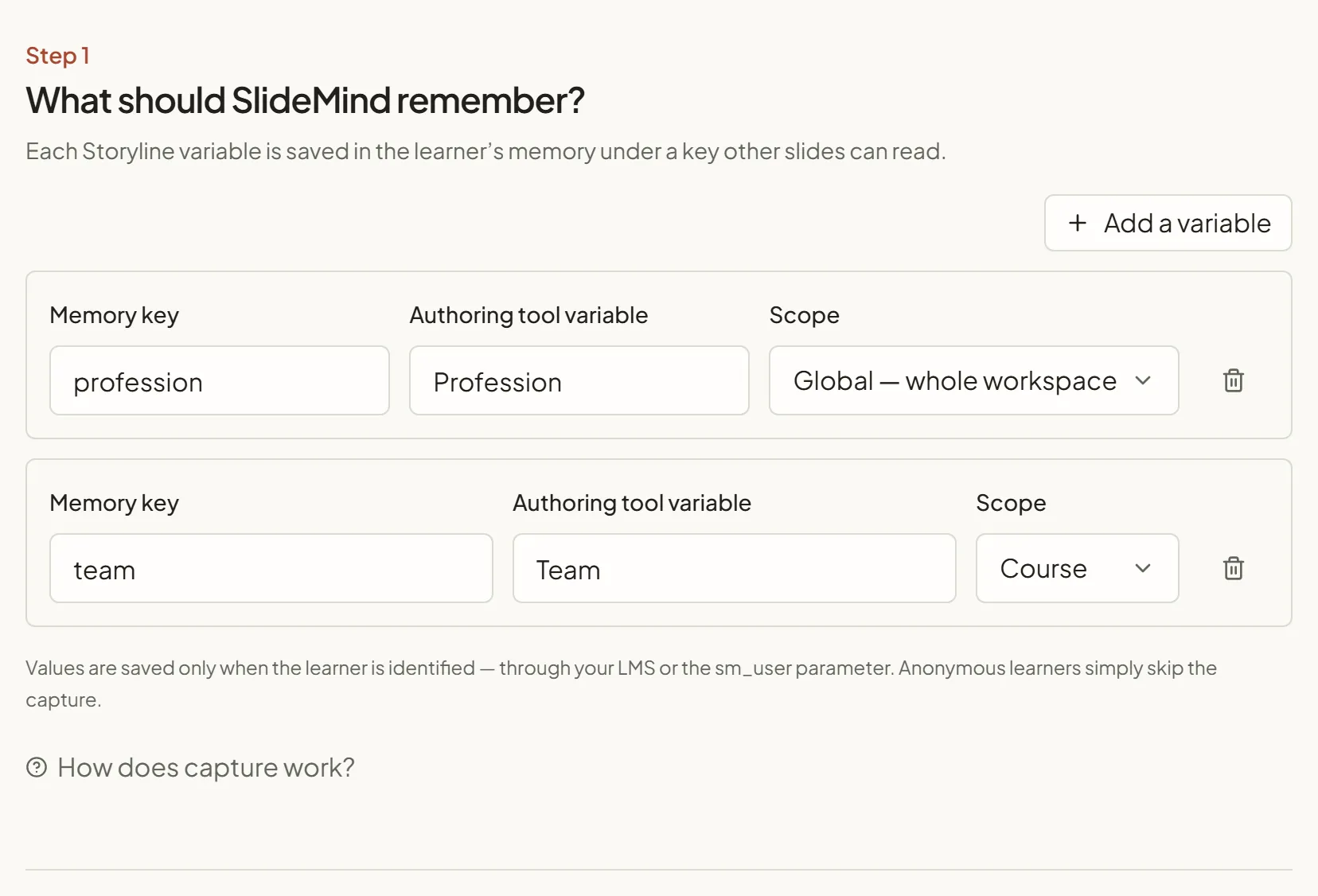
To check your table before you publish, open Try it. Type sample values under Values coming from your authoring tool. The Learner memory after this screen list shows each key, its scope and its value. This is a simulation only: nothing is saved.
2. Exchange memory (Q&A and Chat)
Section titled “2. Exchange memory (Q&A and Chat)”Exchange memory saves what happens in a Q&A or Chat slide: “After each successful AI reply, the options checked below are kept in the identified learner’s memory under their keys.” Use it to build on an exchange in a later activity.
Turn it on
Section titled “Turn it on”-
Open the slide and go to the Results & memory step. For a Chat shown in the SlideMind widget on Rise 360 or an HTML page, the step is called Memory.
-
In the Remember for later slides box, click Set up (or Edit if memory is already on).
-
Turn on Save the exchange to memory.
-
Choose what to keep. The options depend on the activity:
Activity Option What is kept Q&A Keep the learner’s answer What the learner typed, for example to recall their goal in a later activity. Q&A Also keep the feedback The AI feedback on the answer. With structured results, the feedback field only. Chat Keep the conversation The whole conversation so far, one Learner:orAI:line per message, rewritten after each reply. At most 10,000 characters: the oldest messages go first.Chat Keep an AI summary A few lines written by the AI after each reply, in the background, so a later activity can build on the conversation. -
Check the Memory key of each option, then choose the Reuse scope.
-
Save the slide.
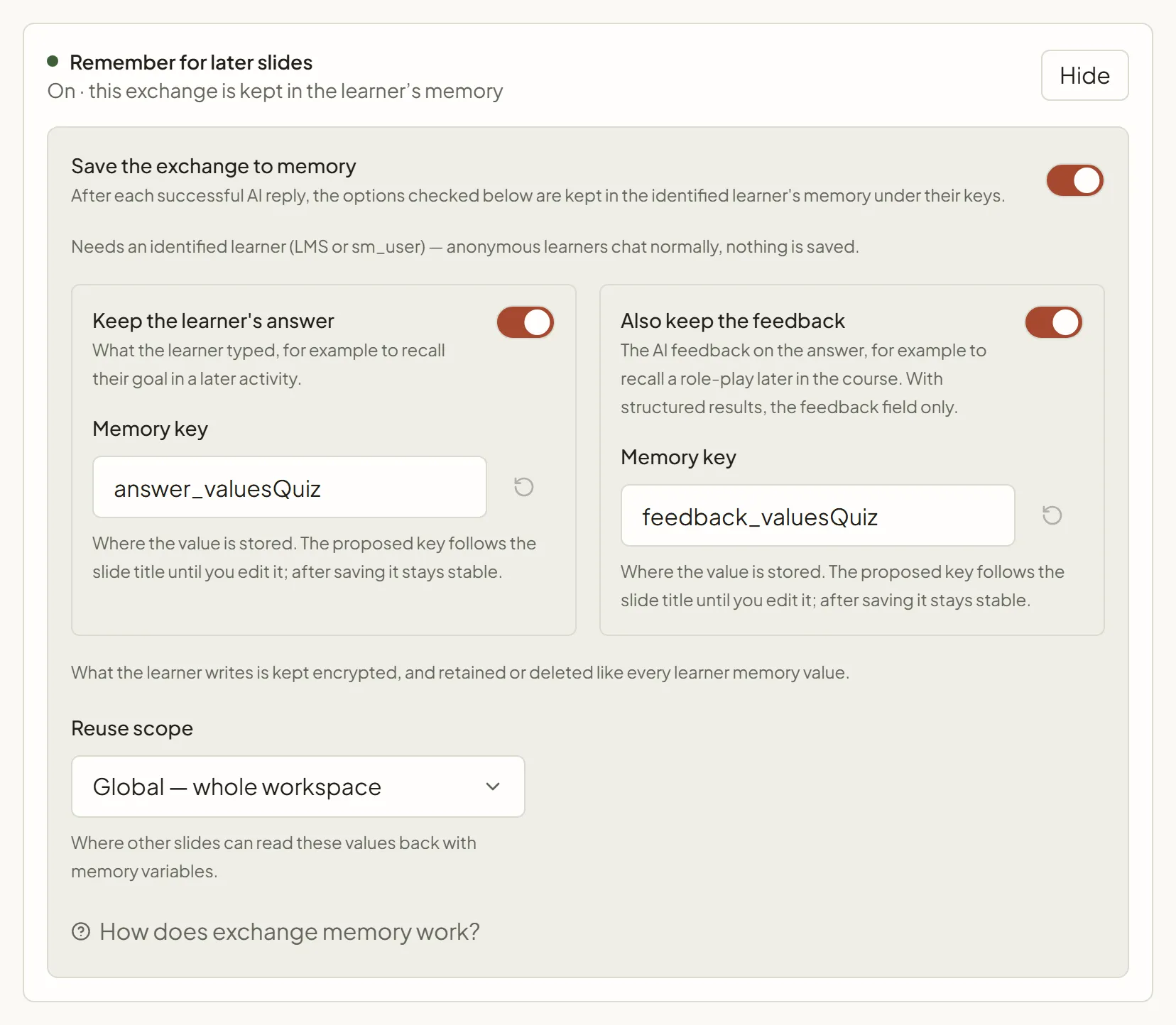
At least one option stays on while Save the exchange to memory is on. The box shows On · this exchange is kept in the learner’s memory once it is set up.
Memory keys
Section titled “Memory keys”SlideMind proposes a key that follows the slide title: answer_… and feedback_… in Q&A, conversation_… and summary_… in Chat. For example, a Chat slide titled “Role play A” proposes conversation_rolePlayA and summary_rolePlayA.
- You can type another key. The reset button next to the field returns to the proposed key.
- Once the slide is saved, keys become stable identifiers. Renaming the slide never renames its memory.
- Duplicating a slide proposes fresh keys from the copy’s title.
Other slides read these keys with {{memory.conversation_rolePlayA}}, for example. See Using values in prompts.
Reuse scope
Section titled “Reuse scope”The Reuse scope applies to every option of the exchange. It starts at Global. Choose Global — whole workspace, Course, Module or Slide — this slide only. The Course and Module scopes need a slide attached to a course or a module. If you later detach the slide, saves at that scope are skipped.
The AI summary
Section titled “The AI summary”Keep an AI summary asks the AI to write a short summary of the conversation after each reply. The learner never waits for it.
- Instructions. Click Edit the summary instructions to change what the summary keeps. The Summary instructions field accepts up to 2,000 characters. Reset to the default restores the original text. By default, the summary has at most five short sentences, keeps what the learner said about their situation, choices and goals, and is written in the language of the conversation.
- Cost. The summary is “billed like a chat call, with the same model; never counted in the monthly chat quota.” In Activity, summaries appear with the AI summaries type.
- Preview. In Try it, a Chat slide with exchange memory shows What would be kept after each test reply. Click Preview the summary to see a summary and tune its instructions. The preview is a real AI call, and its cost is shown. Try it never saves anything.
Earlier setting
Section titled “Earlier setting”Chat slides set up before conversation memory kept the learner’s last message and the last AI reply under two separate keys. These slides show an Earlier setting block. Click Replace with the conversation to switch to Keep the conversation in one step. Other slides may still read the old keys: update their prompts if needed.
3. Capture variables during the AI call
Section titled “3. Capture variables during the AI call”A Q&A or Chat slide can also save authoring tool variables each time it calls the AI, for example a quiz score computed on the same screen. The AI interaction happens as usual; the capture is an extra.
This option exists only with the authoring tool interface (Storyline JavaScript, Captivate, Lectora, dominKnow | ONE, iSpring Suite). It is hidden for slides shown in the SlideMind widget.
- In the Remember for later slides box, find Capture variables during the AI call.
- Click Add a variable and fill in Memory key, Authoring tool variable and Scope, as for a Capture slide. Type a key, or pick a Memory Hub key in the suggestions.
- Save the slide, then copy its code again from the Installation step.
“Only the mappings saved here are honoured: the integration code cannot invent keys.” The integration code lists the authoring tool variables it reads. When you add a row or change an Authoring tool variable, copy the code again.
4. Structured reply fields
Section titled “4. Structured reply fields”A Q&A or Chat slide with structured results can keep a field of the AI’s reply, such as a name or a job the learner mentioned in the conversation. You don’t need a Capture slide on the next screen for that.
- In the Results & memory step, choose Structured JSON (Score and verdict for a Q&A in the SlideMind widget) and add the field. See Results: plain text or structured.
- At the bottom of the field card, turn on Remember for later slides. The field whose text the learner reads has no switch.
- Check the Memory key: SlideMind proposes the field name followed by the slide title, such as
job_introChat. Type another key, or pick a Memory Hub key in the suggestions. - Choose the Scope, then save the slide.
After each reply, SlideMind saves the value the AI gave that field.
- An empty or missing field saves nothing.
- Numbers and true/false values are kept as text, such as
42ortrue. - The key is fixed when the slide is saved: renaming the field or the slide doesn’t change it.
- Templates don’t carry this setting.
Capture variables during the AI call is a different option: it reads your authoring tool variables, not the AI’s reply.
Check your setup
Section titled “Check your setup”- Key collisions. If the slide writes the same key twice at the same scope, the slide editor shows a warning. Later writes overwrite earlier ones.
- Memory Hub. Once a learner has a value, a key defined in the Memory Hub shows its learner count and the date it was Last stored. A key that is not defined there appears under Keys found in memory, not in the Hub. See Memory Hub.
- Learner data. After a test in your LMS, a workspace owner can check the stored values in Learner data.
Next steps
Section titled “Next steps”- Using values in prompts: read the saved values in other slides.
- Memory Hub: define variables and generate standalone save or load code.
- Test before going live: check memory in a published course.