

Try it
Try it is the test panel of the slide editor. It sends your current draft to the AI the way a learner’s answer would be sent, and shows the result without saving anything. This page explains how to open it, what it shows for each kind of slide, and what a test costs.
Open Try it
Section titled “Open Try it”- On a wide screen, Try it is a column on the right of the slide editor. It starts collapsed into a narrow rail: select the rail to open it, and Collapse Try it to fold it again. Your browser remembers your choice. A dot on the rail signals a new test result.
- On a smaller screen, select Try it at the top of the slide editor. The panel opens over the page.
When you create a slide from an example with Create and try it, the slide editor opens with Try it ready and sample values already filled in, so your first test is one click away.
What Try it tests
Section titled “What Try it tests”Try it tests the draft on your screen, including changes you have not saved: the instructions, the question or opening message, the model settings, the course and module context, the reference documents, and the closing of the last turn in a Chat. SlideMind builds the final prompt the same way as for a learner.
Nothing is saved:
- the slide stays as it was until you save it;
- no value is written to learner memory;
- tests do not appear in Activity statistics.
Viewers can read a slide but cannot test it. Before the first test, the slide needs AI instructions: otherwise the panel says “Write the AI instructions first, then test them here.”
What a test costs
Section titled “What a test costs”Each test is a real AI call on the slide’s model, billed like a learner’s reply:
- with SlideMind Credits, the cost is deducted from your prepaid usage and shown in credits;
- with your own API keys, the panel shows the estimated provider cost, and your provider bills it to you.
The footer of the panel shows the cost:
- before a test, an estimate such as “Real AI reply on model · about amount per test”;
- after a test, its cost: “Real AI reply on model · this test cost amount”.
When the slide reads reference documents, the estimate includes their text, and the cost after a test reads ”… this test cost amount, documents included”.
Some actions in Try it are free because they make no AI call: Sample states, the Look preview of a Chat, and the simulation of a Capture slide. Preview the summary is a real AI call, and its cost is shown next to the result.
See SlideMind Credits and Your own provider keys.
Test a slide
Section titled “Test a slide”What the panel shows depends on the activity type and on the interface of the slide.
| Slide | What Try it shows |
|---|---|
| Q&A, Authoring tool interface | What your authoring tool’s triggers will receive. |
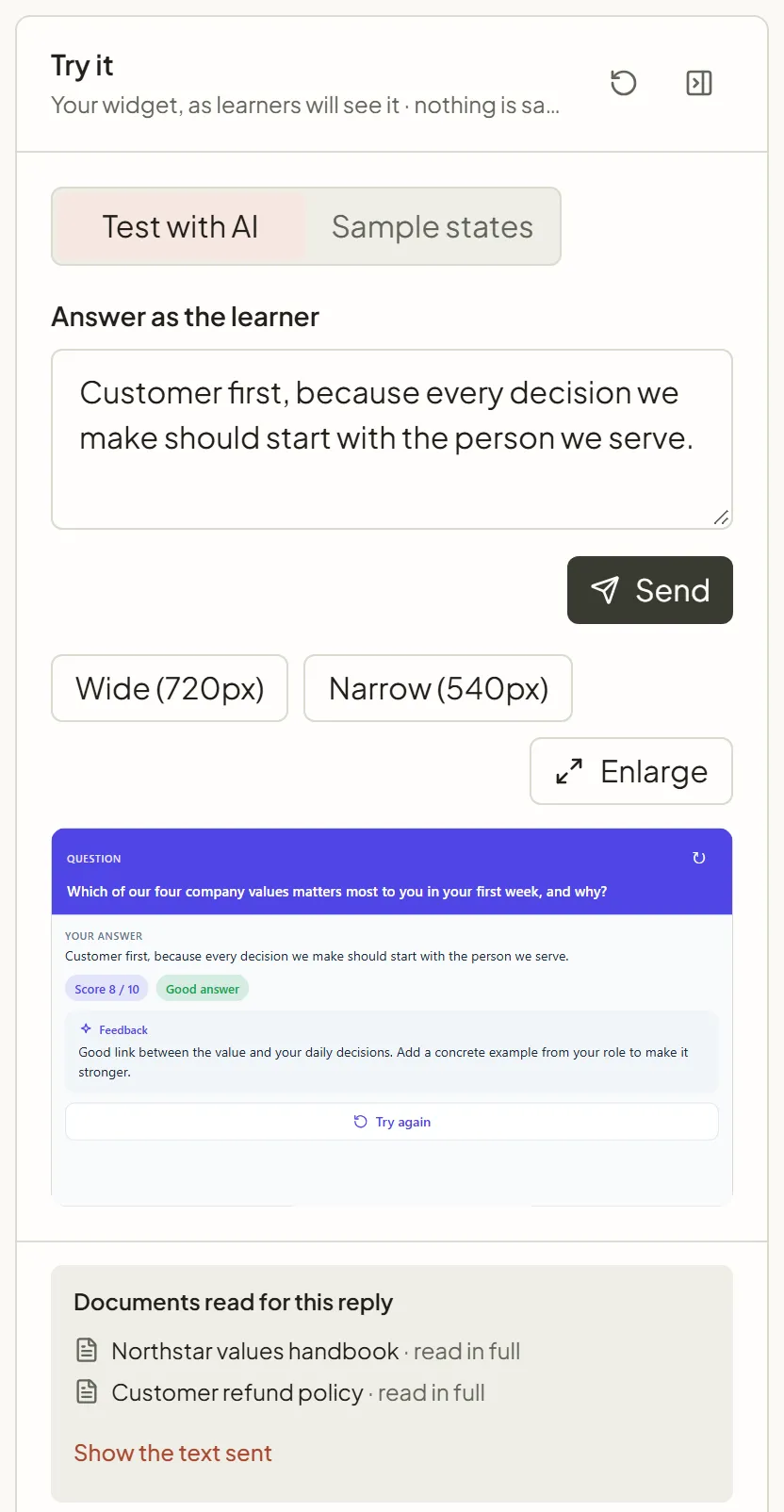
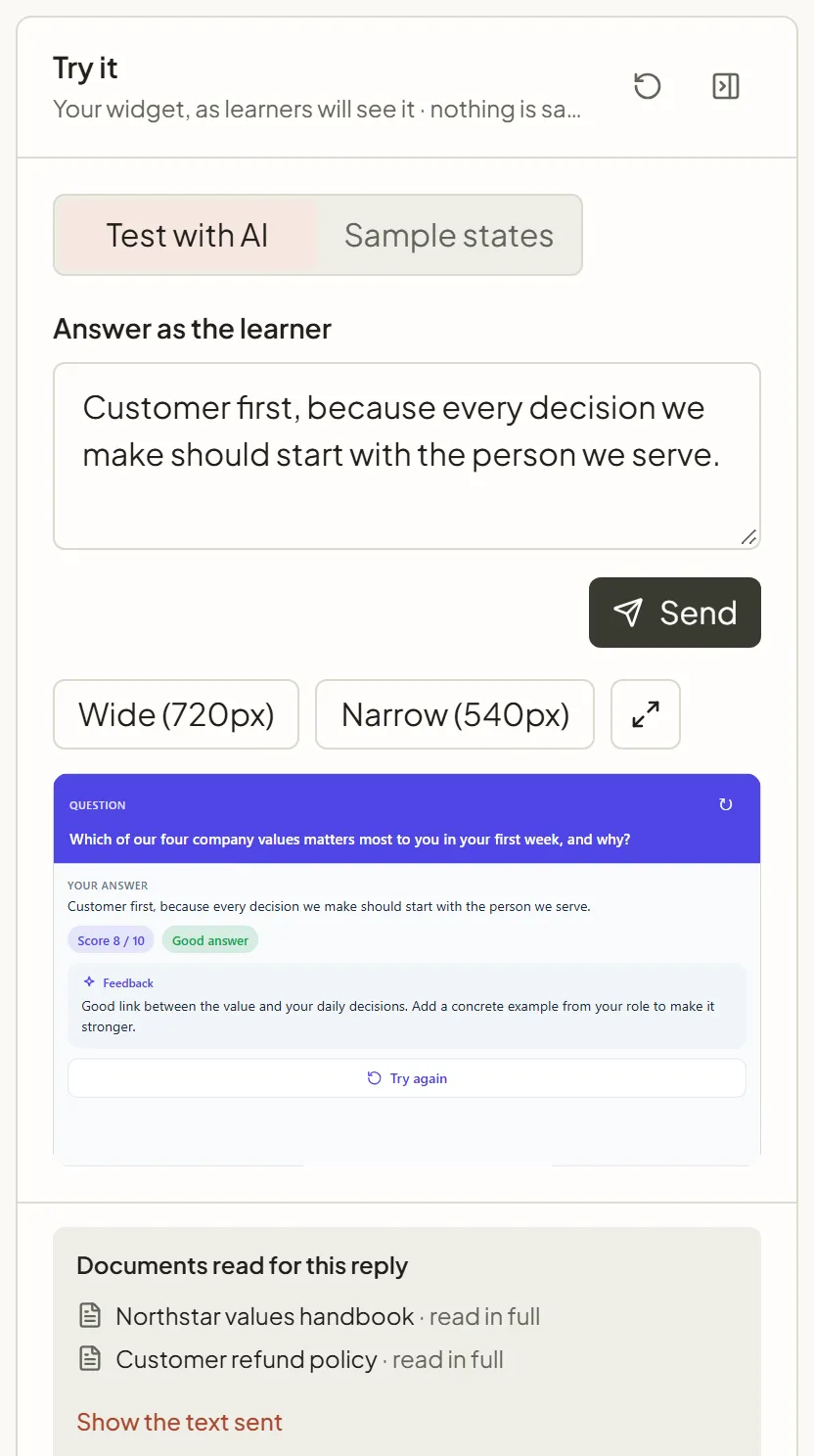
| Q&A, SlideMind widget | Your widget, as learners will see it. |
| Chat | A real conversation with the AI, which stops at the turn limit. |
| Capture | A simulation of the learner memory, with no AI call. |
Documents read for this reply
Section titled “Documents read for this reply”When the slide reads reference documents, Documents read for this reply appears after a test. It lists each document the AI received, with read in full or the parts it read, such as “Page 4, Page 5”. Select Show the text sent to read the exact text. If no passage matched the message, the panel says “No passage of the linked document matched this message.”; if the slide turned documents off, “Reference documents are turned off for this slide.”
Linking a document, or changing its text, marks the last test as out of date: send again to test with it.
Values sent with the answer
Section titled “Values sent with the answer”With the authoring tool interface, if the slide uses slide variables, a Values sent with the answer section lists them. Enter sample values, such as a score or a name, to test how the AI uses them. A widget destination sends no slide values, so this section doesn’t appear there and Try it answers like your published course. See Variables in prompts.
Q&A with the authoring tool interface
Section titled “Q&A with the authoring tool interface”- Under Answer as the learner, type an answer a learner could give. The name of the authoring tool variable that holds the answer is shown next to the label.
- Select Send (or press Ctrl+Enter, Cmd+Enter on a Mac).
- Read the section that lists the variables your authoring tool receives after the reply, for example Storyline variables after the reply. Each row shows the variable name in small type above its value: the reply, each return variable, or the error variable when the structured result is not valid. The reply and the feedback field share one row that names both variables, such as
aiResp_s2_quizandaiResp_s2_quiz_feedback, so the feedback text shows once. Your authoring tool still receives both variables. - If the slide returns structured fields, select Show the structured result to see each field and its type.
To start again, select Answer again (the circular arrow at the top of the panel).
Q&A with the SlideMind widget
Section titled “Q&A with the SlideMind widget”The panel shows the real widget with your layout, colors and texts. Choose how to preview it:
- Test with AI: type an answer under Answer as the learner and select Send. The widget shows the real reply, score and verdict.
- Sample states: “Free sample states: no AI call, no credits.” Switch between Before the answer, After the answer and Assessment unavailable.
Above the preview:
- Wide (720px) and Narrow (540px) change the preview width;
- Preview AI notice shows the AI notice, when the slide has one;
- Enlarge, the arrows icon at the end of the same row, opens a larger preview that you can resize to the size the widget gets in your course.
See Q&A layouts and AI notice.
When the slide has an opening message, the Test conversation starts with it as the AI’s first bubble, as the AI receives it. Then:
- Under Reply as the learner, type a learner message and select Send. Send becomes available once you type a message.
- The AI reply appears in the Test conversation, shown as chat bubbles: the learner’s messages on the right, the AI’s replies on the left. Each new message sends the whole conversation, as the widget and the integration code do. The counter shows how many turns are used, for example “2 of 5 turns used”.
- Continue until the turn limit. The panel then says “The conversation has ended.” With the authoring tool interface, it also shows the end variable, such as
my_slide_done = true. - Select New conversation to start again.
If the Chat has return variables, the panel also lists the variables your authoring tool receives after the last reply.
For a Chat in the SlideMind widget, switch between Conversation and Look. Look shows the widget with sample content and four states: Opening, Conversation, Unavailable, and End (when the slide has a turn limit).
What would be kept
Section titled “What would be kept”When the Chat keeps the exchange in the learner’s memory, or keeps a structured field, a What would be kept section shows the memory values the slide would save after this exchange. A kept field has a field badge and the value from the latest reply. A Q&A slide that keeps a field shows the same section. Try it never saves them.
If the slide also saves an AI summary, select Preview the summary to see it and tune its instructions. See Saving values.
Capture
Section titled “Capture”For a Capture slide, Try it is a simulation only:
- Under Values coming from your authoring tool, type a value for each value to remember.
- Read Learner memory after this screen: each memory key, its scope, and the value it would keep. An empty field shows “Not saved (empty)”.
- Select Clear to start again.
If the slide has no values to remember yet, the panel says “Add values to remember to simulate this screen.”
Messages in Try it
Section titled “Messages in Try it”| Message | What it means | What to do |
|---|---|---|
| ”The draft changed since this test. Send again to test the current version.” | You edited the slide after the last test. | Send a new test. |
| ”Too many tests in a row. Wait a minute, then try again.” | You sent many tests in a short time. | Wait a minute. |
| No AI is connected to this workspace yet | The workspace has neither SlideMind Credits turned on nor a valid provider key. | The owner selects Set up AI. See Choosing how AI is funded. |
| ”Viewers can read this slide but not test it.” | Your role is Viewer. | Ask an Owner or Editor. See Members and roles. |
Try it, Sandbox or your course?
Section titled “Try it, Sandbox or your course?”- Use Try it while you write a slide: it tests the draft, in context, with the result your learners or your authoring tool will get.
- Use the Sandbox to try a slide built from scratch, or a copy of a saved slide, without ever saving it, and to inspect the Prompt sent to the AI. The Sandbox uses this same Try it panel.
- Before going live, test the published slide in your real course: see Test before going live.