

What learners see
The SlideMind widget is the ready-made interface that shows a slide to learners when the slide’s interface is SlideMind widget. This page describes what learners see and do in a Q&A or Chat slide, and the messages that can appear. It is for authors who want to know what to expect before they publish a course.
Where the widget appears
Section titled “Where the widget appears”The widget is used by three destinations:
- HTML Widget (iframe), on any web page;
- Articulate Rise 360 (Code block);
- Articulate Storyline (Web Object).
With the Authoring tool interface, your own screens show the question and the AI reply, and learners never see the widget. A Capture slide has nothing to show: even in a widget destination, it saves values without any visible interface.
The widget fills the space that your authoring tool or web page gives it. Its colors, texts and language come from your settings: see Appearance and language.
In a Q&A slide
Section titled “In a Q&A slide”A Q&A slide asks one question and gives one piece of feedback per answer. The steps below are the same in all three Q&A layouts; only the arrangement on screen changes.
- The learner reads the question. It comes from the question you write in the slide editor.
- The learner types an answer in the answer box. Enter sends the answer, and Shift+Enter adds a new line. The learner can also select the submit button.
- While the AI works, three animated dots appear where the feedback will be.
- The answer box closes. The learner sees their answer, then the feedback.
- Depending on your settings, a score and a verdict appear with the feedback (for example “Good answer”, “Partially correct” or “Not quite”).
- If you allow another attempt, a retry button appears. The previous answer stays in the box so the learner can revise it.
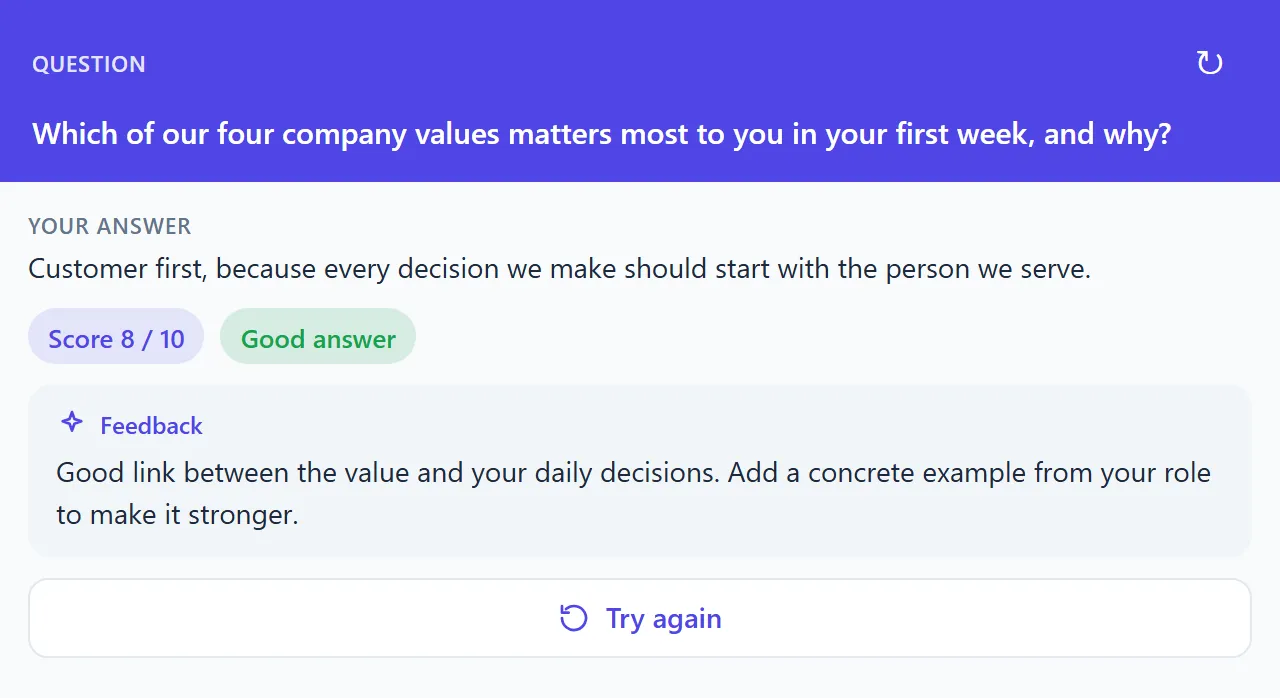
Each answer is assessed on its own: the AI does not see the learner’s earlier attempts.
When you map a score or a pass/fail field and the AI does not return a valid value, the widget shows Assessment unavailable in place of the score or verdict. It never invents a score. See Results: plain text or structured.
In a Chat slide
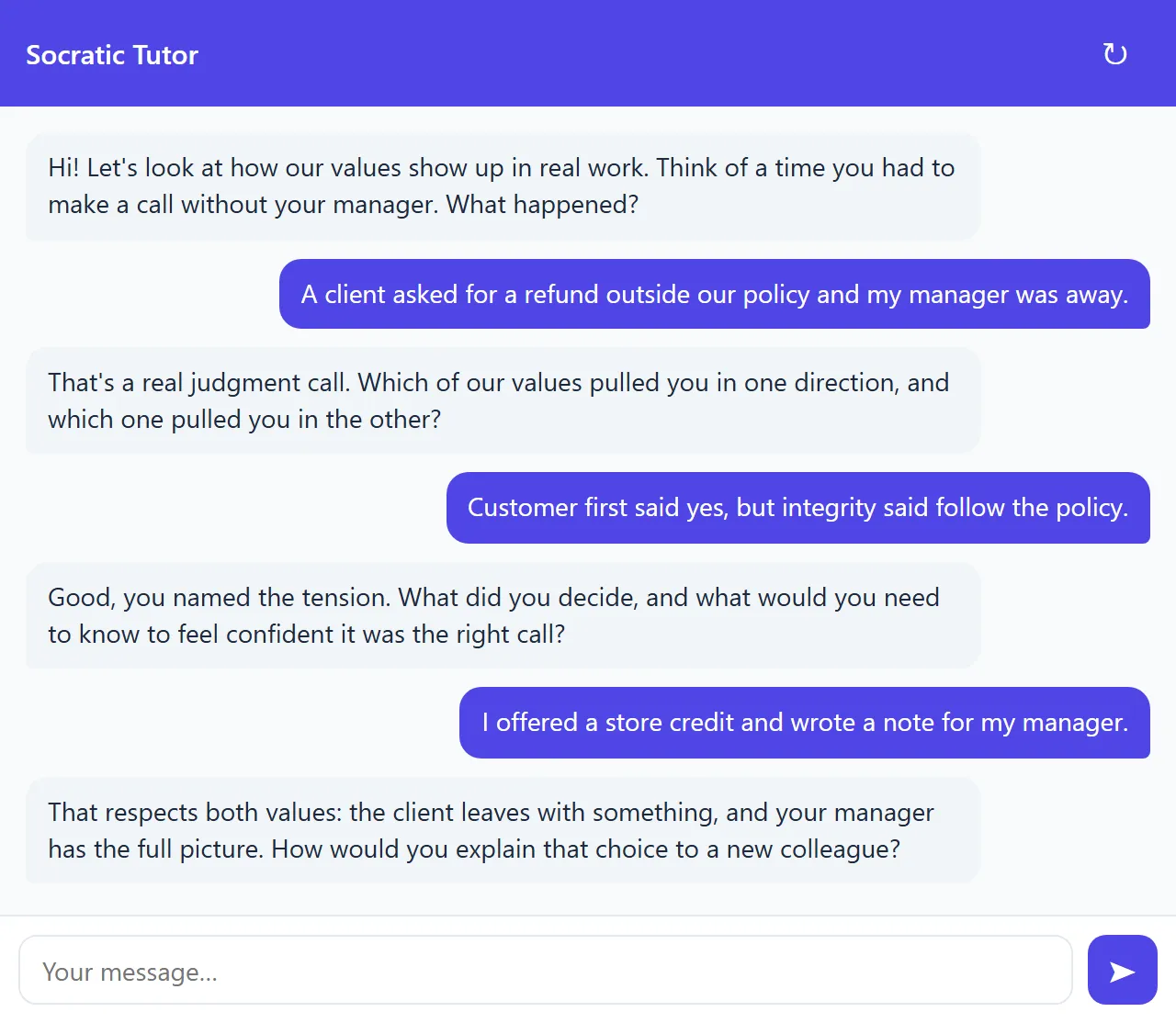
Section titled “In a Chat slide”A Chat slide is a conversation of several turns.
- Header. A colored band shows the widget title and a restart button (↻, “Restart conversation”). If you hide the header, the restart button moves next to the message box.
- Opening message. If the slide has an opening message, it appears as the first AI bubble. Otherwise, the conversation area shows “Start the conversation”.
- Messages. The learner’s messages appear on the right, in the primary color. AI replies appear on the left, in the assistant bubble color.
- Sending. Enter sends the message, and Shift+Enter adds a new line. Three animated dots show that the AI is replying.
- Restart. The restart button clears the conversation and starts again from the opening message.
- End of the conversation. When the slide has a turn limit and the learner reaches it, an end card appears with a check mark, the title “Activity complete”, and your closing message (or “You can continue.” when there is none, or when the AI wraps up the conversation itself). Depending on how the slide ends, the message box is then disabled or hidden.
Turn limits and endings are set in the slide editor: see Conversations (Chat).
The AI notice
Section titled “The AI notice”If you turn on the AI notice for a slide, it covers the widget when it opens. The learner must select its button before typing. See AI notice.
The “Powered by SlideMind.app” line
Section titled “The “Powered by SlideMind.app” line”On some plans, the widget shows a small line of plain text at the bottom, “Powered by SlideMind.app”, under the message box of a Chat or the answer of a Q&A slide. It isn’t a link, and it reads the same in every learner language. There is no setting for it: it only depends on the workspace’s plan. The widget preview in the slide editor shows it exactly as learners see it.
Language of the widget
Section titled “Language of the widget”Every text that SlideMind writes for the learner (labels, buttons, the end card, error messages and the AI notice defaults) follows the widget’s Learner language: English or French. A label you type yourself always replaces the default.
The Learner language does not change the language of the AI replies. The AI answers in the language of your instructions. See Appearance and language.
Messages learners can see
Section titled “Messages learners can see”The widget never shows the technical cause of an error to learners. These messages appear in the conversation or in the Q&A result area, in the learner language (English shown here):
| Message | When it appears | What to do |
|---|---|---|
| ”The AI assistant is temporarily unavailable. Please try again later or contact your course provider.” | The workspace cannot use AI right now: for example, no SlideMind Credits left, no valid provider key, a usage limit reached, a workspace that is not active, or a subscription paused while the widget was already open. | Check the dashboard, your SlideMind Credits or your provider keys. For a pause, see below. |
| ”Too many requests right now. Please try again in a moment.” | Too many messages reached SlideMind in a short time. | The learner waits a moment and sends again. |
| ”Network error. Please try again.” | The learner’s connection failed, or no usable response came back. | The learner checks the connection and sends again. |
| ”The response is unavailable. Please try again.” | Chat with return variables (Storyline Web Object): the reply did not contain a readable text field. The learner’s message goes back to the message box. | The learner sends again. If it happens often, review the slide’s return variables. |
| ”Something went wrong. Please try again.” | Any other error. | Try again. If it persists, contact support. |
Three other messages replace the whole widget. They are always in English, because SlideMind cannot know the slide’s language at that point:
| Message | When it appears | What to do |
|---|---|---|
| ”Configuration not found.” | The slide does not exist any more, or it is not Published (Draft or Archived). | Publish the slide, and check that the integration code is the one for this slide. |
| ”This widget is not available.” | The workspace is not active (suspended or pending deletion), or the owner’s subscription is paused. | See Delete or restore a workspace, or Pause your subscription. |
| ”The assistant is loading. One moment, please.” | Many learners opened the widget at the same moment. | Nothing: the page reloads by itself after a few seconds. |
If you have listed allowed websites and the course runs on a site that is not on the list, the browser does not display the widget at all.
When content is read-only above the plan
Section titled “When content is read-only above the plan”When the owner’s account returns to Discovery and a slide goes beyond its limits, the slide becomes read-only. It keeps answering learners for 30 days, then behaves like a slide of a paused workspace (see below): learners no longer get answers, and their memory is neither read nor written. See Back on Discovery: read-only above the limits.
While a subscription is paused
Section titled “While a subscription is paused”When the owner of the workspace pauses the subscription, every slide of the workspace stops for the length of the pause: a widget opened during the pause shows “This widget is not available.”, and a widget already open answers with the “temporarily unavailable” message above. Capture slides don’t save values. With the authoring tool interface, the slide’s error variable is filled instead of the answer. Everything works again as soon as the pause ends or the owner selects Resume now. See Pause your subscription.
On small screens
Section titled “On small screens”The widget adapts to the width and height of its frame. On a narrow frame, the Worksheet layout stacks its two columns. The size of the frame itself is set in your authoring tool or web page, not in SlideMind.
To check the result at the size your course gives the widget, use Enlarge (the arrows icon) in the Try it preview and enter the width and height. See Try it.